
1. Display contents of file in octal format using -b option
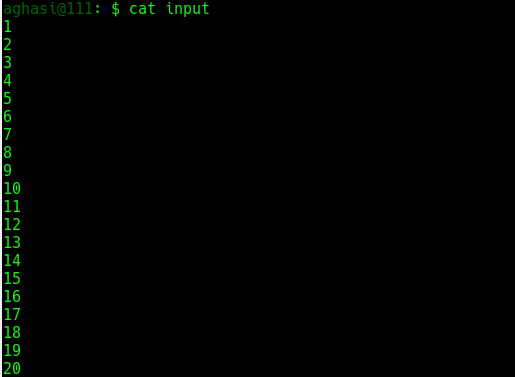
The following is the input file used for this example:
$ cat input
Now execute od command on this input file:
$ od -b input

So we see that output was produced in octal format. The first column in the output of od represents the byte offset in file.
2. Display contents of file in character format using -c option
Using the same input file:
$ od -c input

So we see that the output was produced in the character format.
3. Display the byte offsets in different formats using -A option
The byte offset can be displayed in any of the following formats :
- Hexadecimal (using
-xalong with-A) - Octal (using
-oalong with-A) - Decimal (using
-dalong with-A)
The following are the examples of offsets in different formats :
$ od -Ax -c input

$ od -Ad -c input

$ od -Ao -c input

So we see that as per the input supplied to the -A option, the first column (that contains the byte offset) is displayed in different formats.
4. Display no offset information using -An option
Consider the following example:
$ od -An -c input

So we see that byte offset related information was not displayed.
5. Display output after skipping some bytes
This is achieved by using -j option:
$ od -j9 -c input

If we compare the above output with the output in example 2, we can see that initial 9 bytes were skipped from output.
6. Display limited bytes in output using -N option
This is the opposite of the -j option discussed in example 5 above:
$ od -N9 -c input

So we see that only 9 bytes were displayed in the output.
7. Display output as decimal integers using -i option
Consider the following example:
$ od -i input

If we combine -i with -b then its gives more information as to how decimal integers are displayed:
$ od -ib input
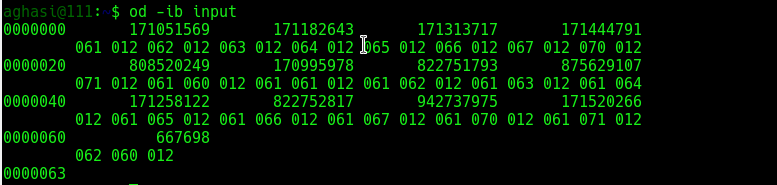
So the above output shows how octal output is displayed as integer output.
8. Display output as hexadecimal 2 byte units using -x option
Consider the following example:
$ od -x input

So we see that the output was displayed in terms of hexadecimal 2 byte units.
9. Display the contents as two byte octal units using -o option
Consider the following example:
$ od -o input

Note that the od command displays the same output when run without any option:
$ od input

10. Customize the output width using -d option
Consider the following example:
$ od -w1 -c -Ad input
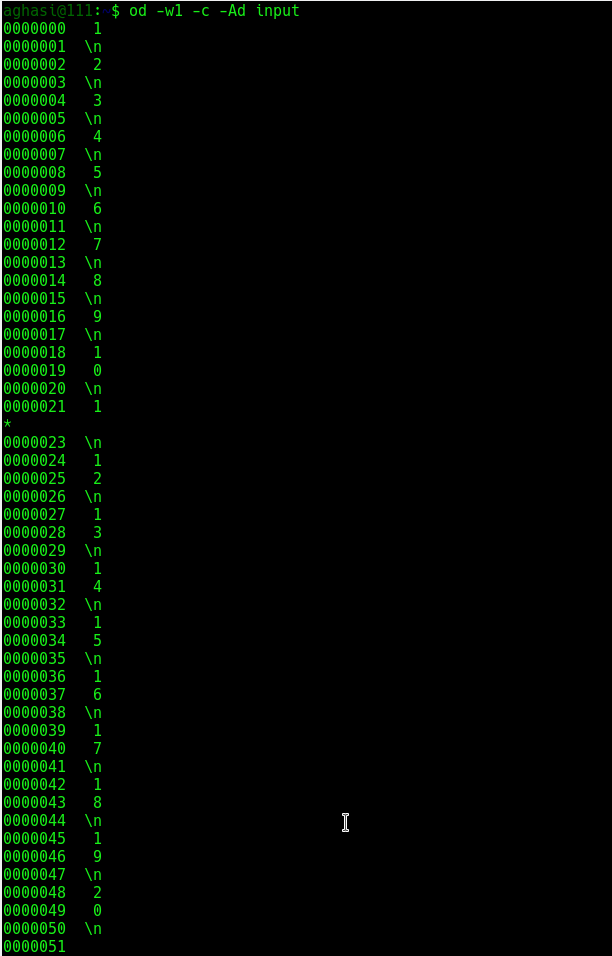
So we see that output width was reduced to 1 in the above output.
11. Output duplicates using -v option
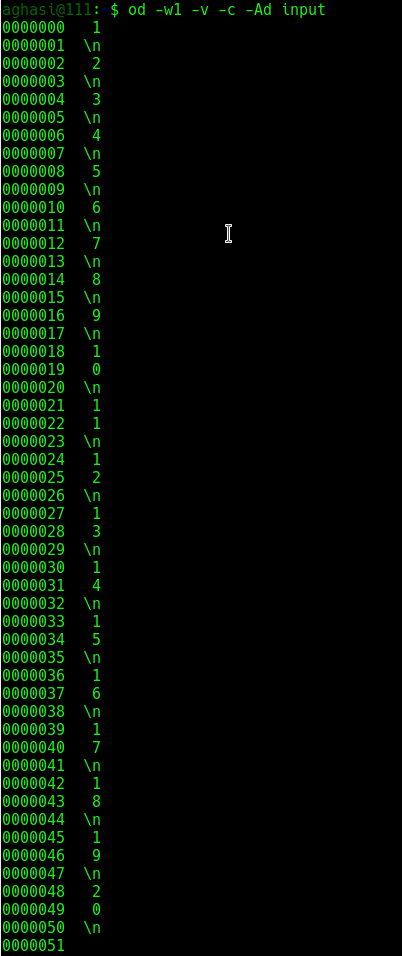
As can be observed in the output of example 10 above, a * was printed. This is done to suppress the output of lines that are same or duplicates. But through -v option these lines can also be printed:
$ od -w1 -v -c -Ad input
12. Accept input from command line using -
Consider the following example:
$ od -c -

So we see that first the input was given through stdin and then after pressing the ctrl+d a couple of times the od command output was displayed.
13. Use od on a text file
The following sample text file is used in the examples below:
$ cat input.txt

Option -b and -c are typical usages as shown below:
-bis same as option-t oC, select octal bytes-cis same as option-t c, select ASCII characters or backslash escapes
$ od -c input.txt

$ od -bc input.txt

14. Use od on a binary file
Read the first 16 bytes and display equivalent ASCII characters or backslash:
$ od -N16 -c /usr/bin/h2xs

Read the first 16 bytes and display equivalent names characters:
$ od -N16 -a /usr/bin/h2xs

Read the first 16 bytes and display octal bytes:
$ od -N16 -bc /usr/bin/h2xs
