How to stop the Docker Swarm Manager to act as Worker


Docker Swarm Manager act as Worker too?

Yes, by default all managers acts as worker nodes.Main reason is, in a single manager node cluster, you can run commands like docker service create and the scheduler will place all tasks on the local Engine.


How to stop the Docker Swarm Manager to act as Worker?

To prevent the scheduler from placing tasks on a manager node in a multi-node swarm, set the availability for the manager node to Drain. The scheduler gracefully stops tasks on nodes in Drain mode and schedules the tasks on an Active node. The scheduler does not assign new tasks to nodes with Drain availability.

# docker node update --availability drain <ManagerNode>


Create and Manage Swarm Services


Swarm Service

Service is the definition of the tasks to execute on the worker nodes. It is the central structure of the swarm system and the primary root of user interaction with the swarm. When you create a service, you specify which container image to use and which commands to execute inside running containers.

Running Services in the Docker Swarm

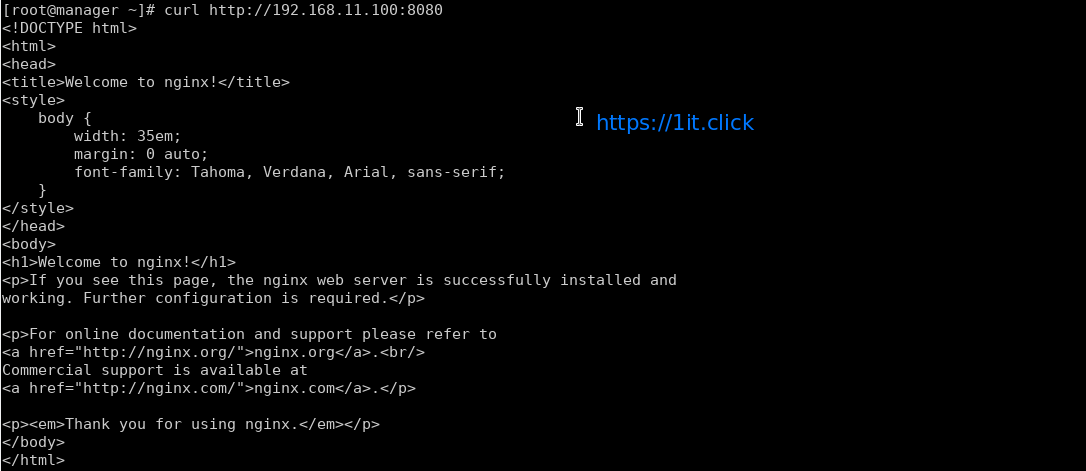
We have swarm cluster up and we are ready to deploy the services. In this demo we will deploy service name “webserver” which will be using “nginx” docker images.

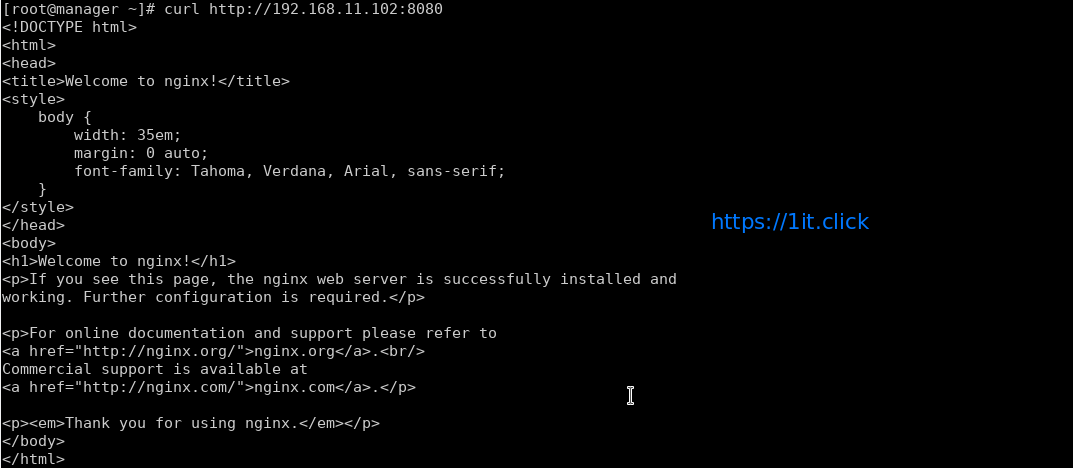
# docker service create -p 8080:80 --name webserver nginx

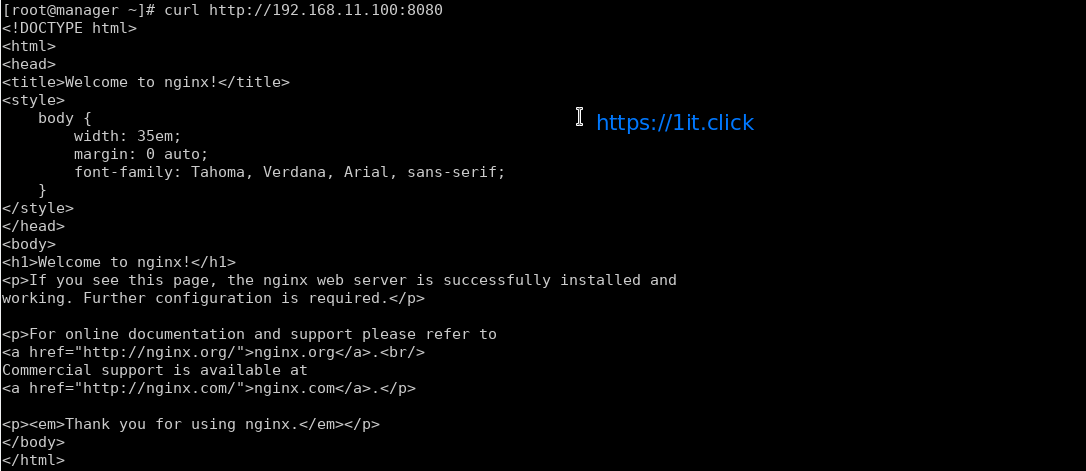
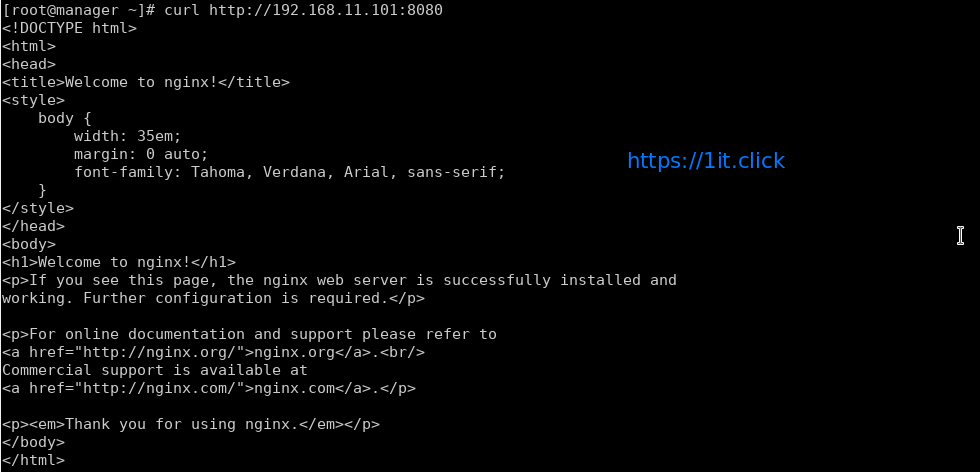
In the above example, we’re mapping port 80 in the Nginx container to port 8080 on the cluster so that we can access the default nginx page from anywhere.


Swarm Service modes

Swarm service support 2 modes – Replicated and Global (Replicated mode is default)

Replicated mode – you can pass number of replica of the service and swarm maintain that count.

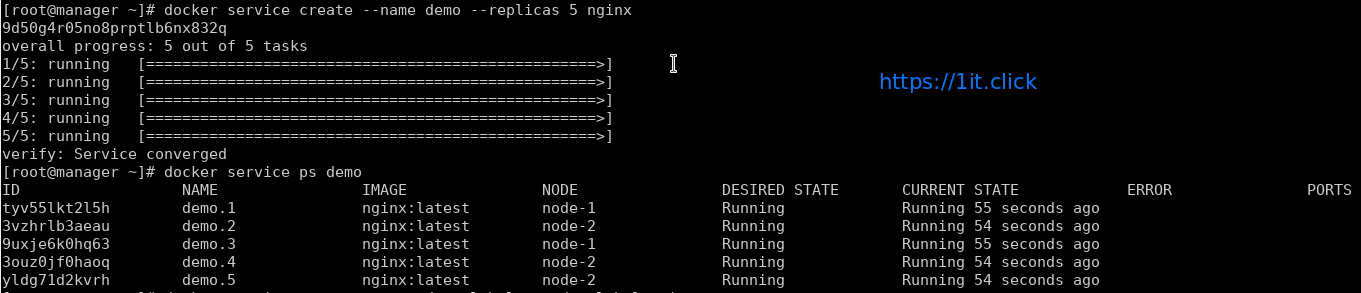
# docker service create --name replicated_service --replicas 3 nginx

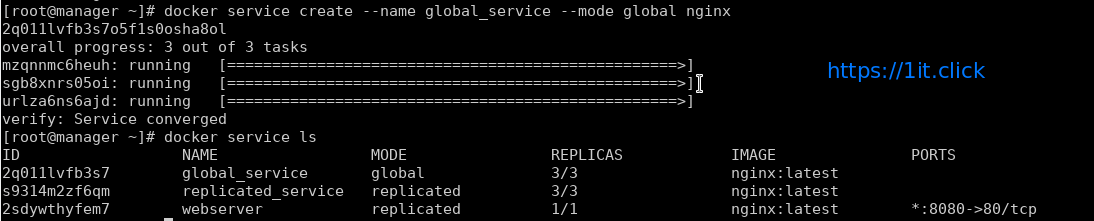
Global mode – To start a global service on each available node, pass –mode global to docker service create. Every time a new node becomes available, the scheduler places a task for the global service on the new node.

# docker service create --name global_service --mode global nginx


To view services on a cluster

# docker service ls

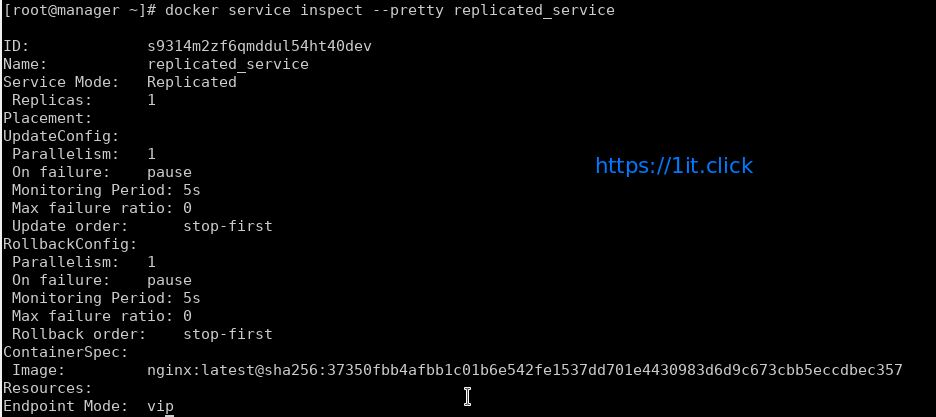
# docker service inspect --pretty <ServiceNAME|ServiceID>


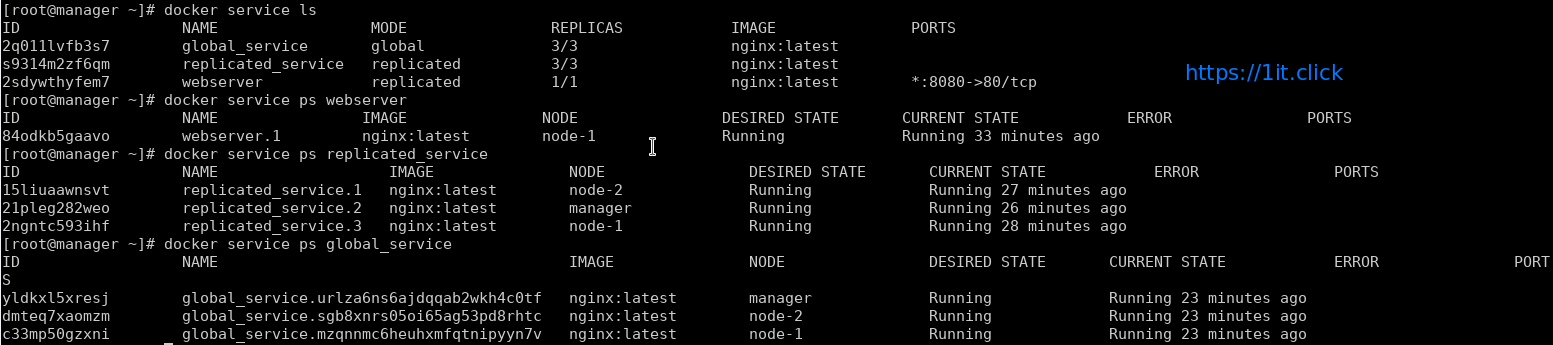
To determine which nodes the services is running on by using docker service ps followed by service name

# docker service ps <ServiceNAME|ServiceID>

Docker by default use mesh networking, a service running on a node can be accessed on any other node of the cluster.


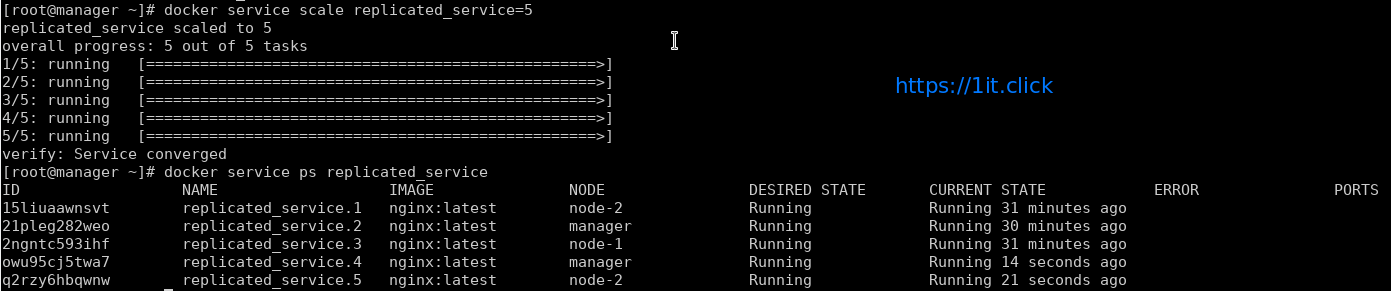
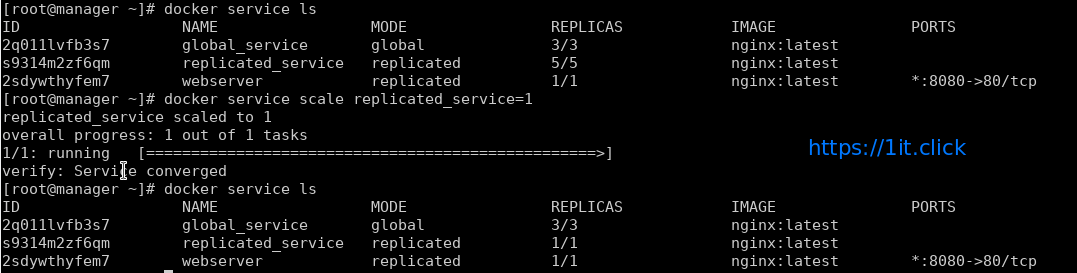
Scale Up/Down the Service

# docker service scale <ServiceNAME>=<#ofReplicas>

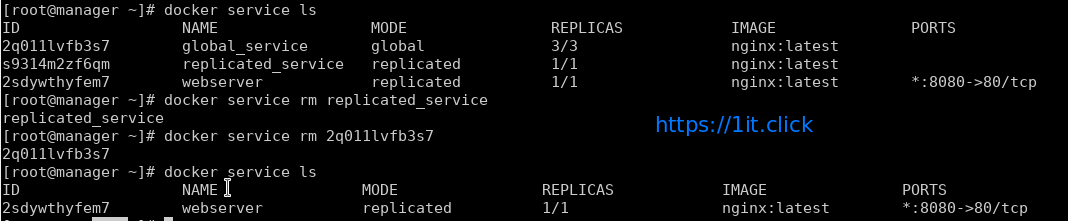
Remove a Service

# docker service rm <ServiceNAME|ServiceID>


Create Docker Swarm


Docker Swarm

Swarm is native clustering for the Docker. When the Docker Engine runs is swarm mode, manager nodes implement the Raft Consensus Algorithm to manage the global cluster state. The reason why Docker swarm mode is using a consensus algorithm is to make sure that all the manager nodes that are in charge of managing and scheduling tasks in the cluster, are storing the same consistent state.


LAB Setup

In this LAB we are going to create a Swarm cluster with single manager and 2 worker nodes.

Operating System CentOS 7.4 x86_64
Platform Vagrant Machines
Manager Node manager 192.168.11.100/24
Worker Node 1 node-1 192.168.11.101/24
Worker Node 2 node-2  192.168.11.102/24

Prerequisites

  • Docker Engine 1.12 or later installed. We are going to install “ce” (community engine)

# yum-config-manager --add-repo https://download.docker.com/linux/centos/docker-ce.repo

# yum install docker-ce -y

# systemctl start docker.service

# systemctl enable docker.service

  • Static IP address of the manager machine, preferably for all machines
  • Network connectivity between all nodes and manager
  • Following Open Network ports

TCP port 2377 for cluster management communications

TCP and UDP port 7946 for communication among swarm nodes

UDP port 4789 for overlay network traffic


Create a Swarm

After the installation of the docker engine, next step is to enable the swarm mode, by default it is disabled.


Step-1: Initialize the Swarm

To crate a new swarm run the below command on the manager node.

# docker swarm init --advertise-addr 192.168.11.100

This command switches the current node into swarm mode and creates a new swarm. On the node where swarm init is done, that node is designated as manager node and it starts on listening on the advertised IP address over port 2377.

With swarm init – by default, generates tokens for worker and manager nodes to join the swarm, you can regenerate the tokens again, if missed to node those.


Step-2: Adding worker nodes on the swarm cluster

Login to every swarm node-1 and node-2 and run the following command

# docker swarm join --token <TOKEN> <Manager IP>:2377

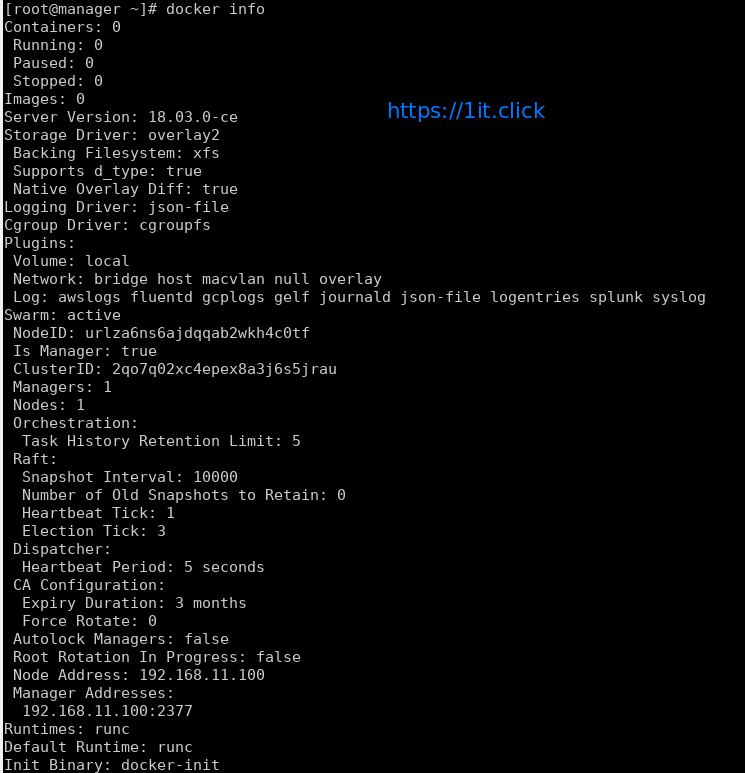
Step-3: Check the Status of the Swarm Cluster

Run the following commands to check the status and health of swarm cluster.

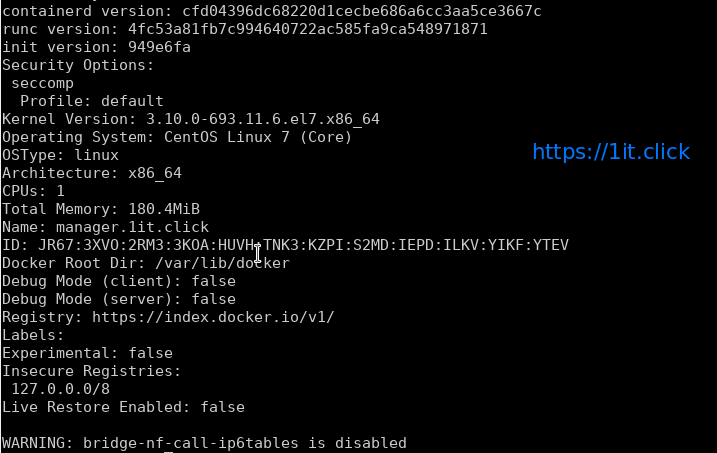
# docker info

# docker node ls

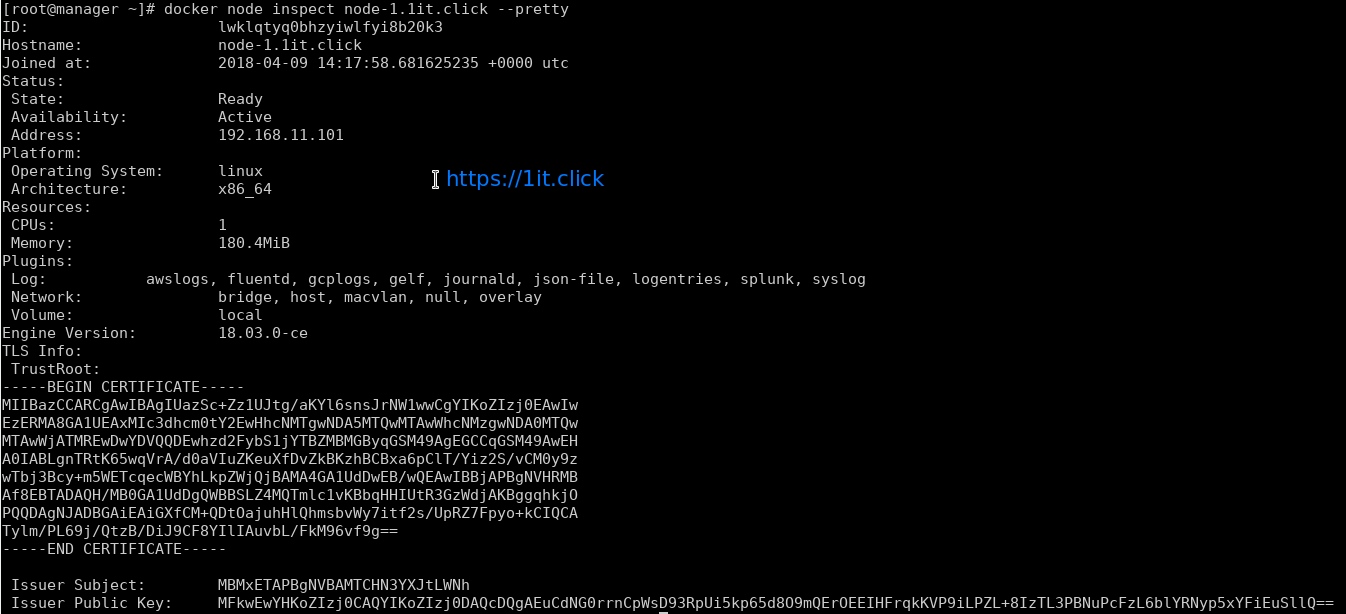
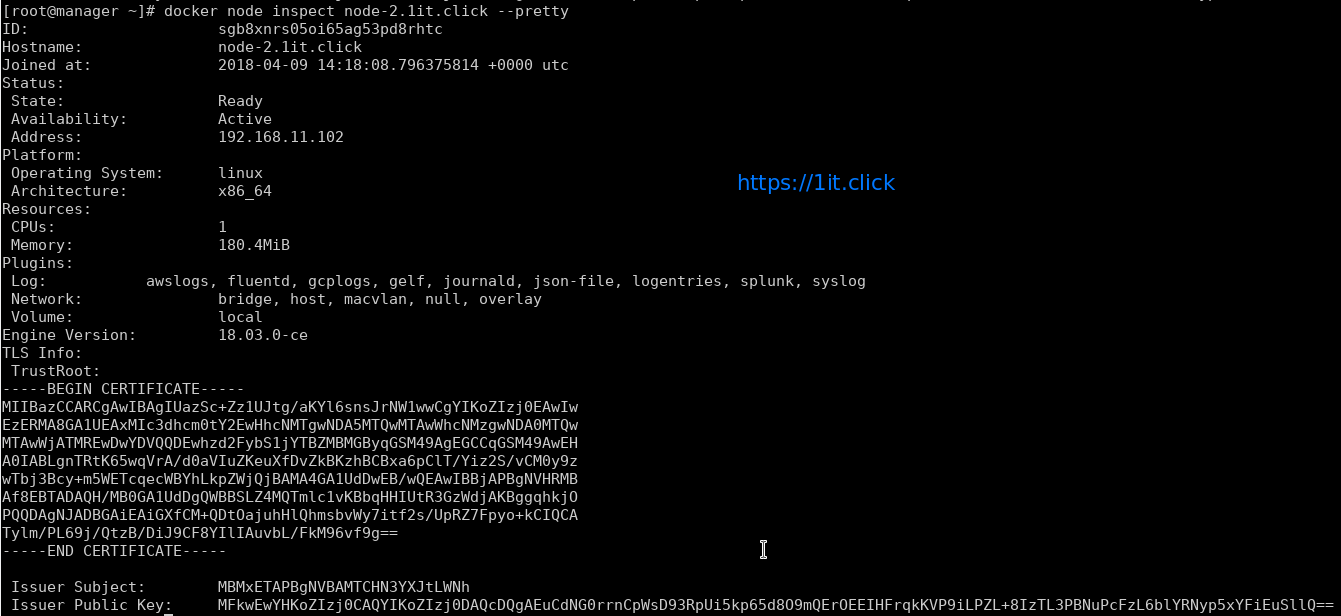
# docker node inspect <node> --pretty

Please Note – By default manager also acts as worker node.


To see the Token

Display the token for manager to join

# docker swarm join-token manager

Display the token for worker to join

# docker swarm join-token worker


Swarm Cluster Management

AVAILABILITY column shows whether or not the scheduler can assign tasks to the node:

active: scheduler can assign tasks to the node.

pause: scheduler doesn’t assign new tasks to the node, but existing tasks remain running.

drain: scheduler doesn’t assign new tasks to the node, existing services will move to other nodes.

MANAGER STATUS column shows node participation in the Raft consensus:

No value: indicates a worker node that does not participate in swarm management.

leader: node is the primary manager that makes all swarm management and decisions.

reachable: node is a manager node participating in the Raft consensus quorum.

unavailable: node is a manager that is not able to communicate with other managers.


Management Commands

Update the states of manager/worker node

# docker node update --availability drain node-1.1it.click

Promote the node as manager

# docker node promote node-1.1it.click

Demote the node from manager role

# docker node demote node-2.1it.click

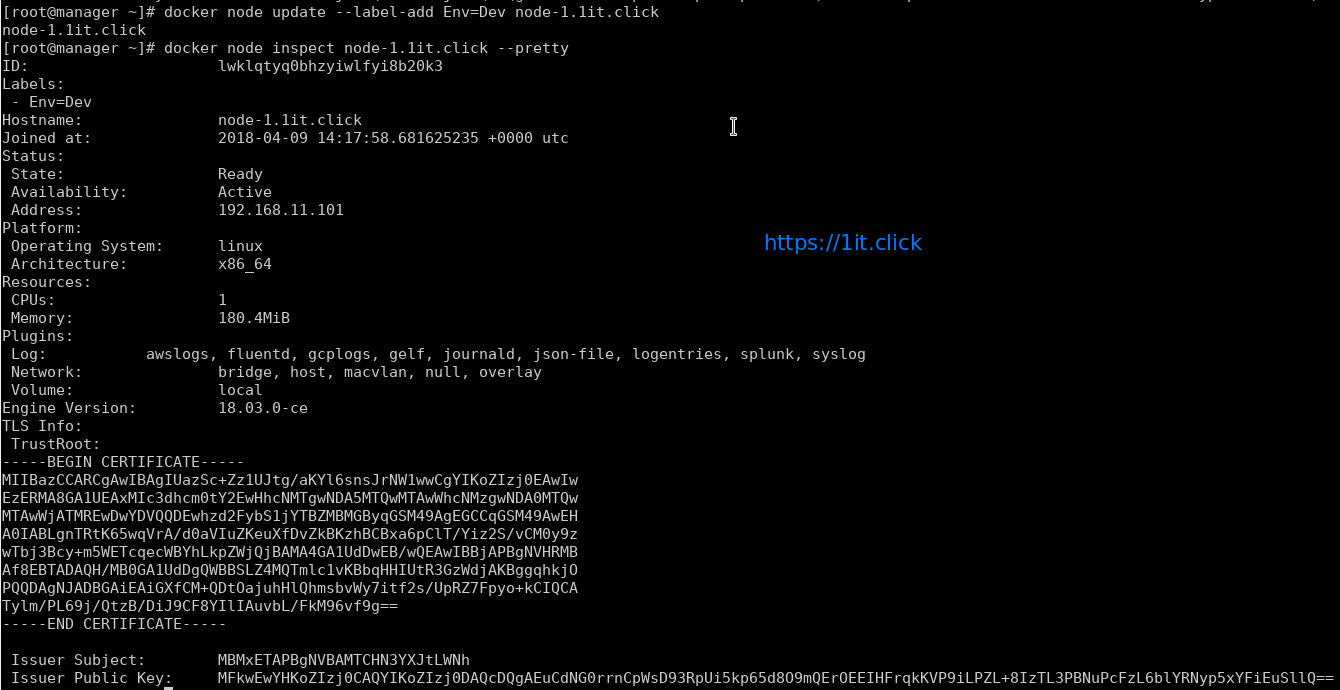
Add labels to the Node’s metadata

# docker node update --label-add Env=Dev node-2.1it.click

Node leaves the cluster

# docker swarm leave

Removes the node from cluster

# docker node rm node-2.1it.click

Docker Image Creation


Docker Image

Docker image can be described as a template with all required configurations Whereas a container is a  running instance of Docker image. Like containers, image are not bound to the states i.e. Image does not have states.

There are different images available from the OS/Application vendor along with the custom images from the community.

When working on container a DevOps/Application engineer generally create their own Docker image with all the customization, this enable them to launch a container quickly.


Methods for custom image creation

Interactive Method:

In this way, you can download the base Docker OS image -> create container -> manually launch a shell -> perform the customization -> commit the changes.

This process will save your container to a Docker image and that image can be stored/distributed.

Automated  method using Dockerfile:

Dockerfile is text file with the directives/instructions for the image creation. “docker build” command is used to build the image which creates/configures the image automatically by reading Dockerfile. Dockerfile accept the in the following format

DIRECTIVE               arguments

In the last session on “Docker”, we have covered the “interactive way” of image creation and in this session we are going to create a Docker image using the Dockerfile method.


LAB

Using the Dockerfile, we are going to create an Apache HTTPD Web server on CentOS 7 image, At high level below configuration will be performed/applied to the Docker image.

  • Download the official CentOS 7 image.
  • Perform package update on the image.
  • Install Apache HTTP server.
  • Add a directive to include/copy the index.html from Docker mgmt server to document root ( i.e. /var/www/html ) of the image.
  • Enable port 80 for automatically whenever a container created from this image.
  • Configure the auto start-up of Apache HTTPD service.

Below are the directives we are going to use in the Dockerfile.

FROM :   this directive tells which base image to be used to create the custom image, example centos/ubuntu etc.

RUN    :       this directive is use to define the command to be executed during the image build.

ADD    :      this directive is used to defines the files/directories to be copied from the source (local server) to the image during image build.

ENTRYPOINT :     this directive defines container as executable.

CMD :             this directive is used to define the arguments for the ENTRYPOINT command.

EXPOSE :  this directive defines the network ports on which container will listen.


Sample Dockerfile

#  use latest centos7 image

FROM centos:latest

#  add the image maintainer name and email id

MAINTAINER Aghassi email: [email protected]

# update the centos image with latest available updates

RUN yum update -y

RUN yum clean all

# install network utilities, such as ( ifconfig, netstat, etc)

RUN yum install net-tools -y

# install apache httpd web server

RUN yum install httpd -y

RUN yum clean all

# copy the index.html file from current directory to image's document root

ADD index.html /var/www/html/

# define image to allow listen on port 80 (whenever a container created)

EXPOSE 80

# define the commands to be executed when container boots (created from this image)

ENTRYPOINT [ "/usr/sbin/httpd" ]

CMD [ "-D",  "FOREGROUND" ]


Bulid image

# docker build -t [repository/image_name]:[tag] .


Test the newly created image by creating a container

# docker run -it -d -P [image id]

#curl [container IP]:80


Customize The Docker Networking


Why to use custom Network Subnet for Docker Networking?

Docker container makes use of default subnet "172.17.0.0/16" for Networking. There may be many scenarios where we can’t use the default network due to some restrictions or in case subnet already used in the network.


Lab Tasks

In this quick session, we will change the network from default subnet "172.17.0.0/16" to "10.10.10.10/24". The bridge interface is remain to docker0 i.e. default.


Configure the Custom Network

Stop The Docker Service

# systemctl stop docker.service

Bring down the Docker bridge docker0

# ip link set dev docker0 down

Verify if IP forwarding is enabled, if not enable it in sysctl.conf

# sysctl net.ipv4.conf.all.forwarding

Update new subnet in the /etc/sysconfig/docker-network add the following to DOCKER_NETWORK_OPTIONS:

"--bip=YOUR>CIDR>ADDRESS/24"

Example

DOCKER_NETWORK_OPTIONS="--bip=10.10.10.10/24"

Remove default subnet’s MASQUERADE rules from the POSTROUTING chain in network iptables:

# iptables -t nat -F POSTROUTING

# iptables -t nat -F DOCKER

Start Docker service:

# systemctl start docker.service

Verify that the MASQUERADE rule have new subnet added to the POSTROUTING chain:

# iptables -t nat -L -n


Validation

Check the new subnet is on the bridge now:

# docker network inspect bridge

Check IP Address of the Container

# docker inspect -f '{{ .NetworkSettings.IPAddress }}' [Container ID]

Run a docker container and check container have

# docker run -it [Container Name] /bin/bash


Docker


What is Docker?

Docker is an open platform for developers and system engineers to build, ship, and run distributed applications, whether on Bare Metal System (Physical), VMs, or the Cloud, Docker is not a container technology like Xen/KVM etc.

Docker provides an additional layer abstraction and automation of operating system I virtualization on Linux.


Advantages of using Docker

Portability – In Docker system, an application and its prerequisites/dependencies can be bundled into a single container/image, whish will be independent of host kernel, can be easily ported to different system.

Quick Application Deployment – As application and its dependencies can be bundled into single images, it makes easy to quickly deploy the apps.

Sharing – You can share your Docker image with other using remote repositories.

Lightweight – Docker images have very small, they need very low compute capacity and storage, …

Easy Maintenance – Maintenance is very quick and easy.

Cost Saving – Open Source technology and don’t need heavy compute.


Docker Containers vs. Virtual Machines

  • Docker container can be created/destroyed very quickly as compare to the virtual machines.
  • Docker containers are light weight is compare to the virtual machines. Being lightweight more containers can run at some time on a host.
  • Docker container make use of resources very efficiently. In case of virtual machines capacity is need to be reserved (compute + storage), whereas this is not needed is case of Docker containers.
  • Virtual Machines can be migrated across servers when they are running, but Docker need to stopped before migration as there is no hypervisor layer.
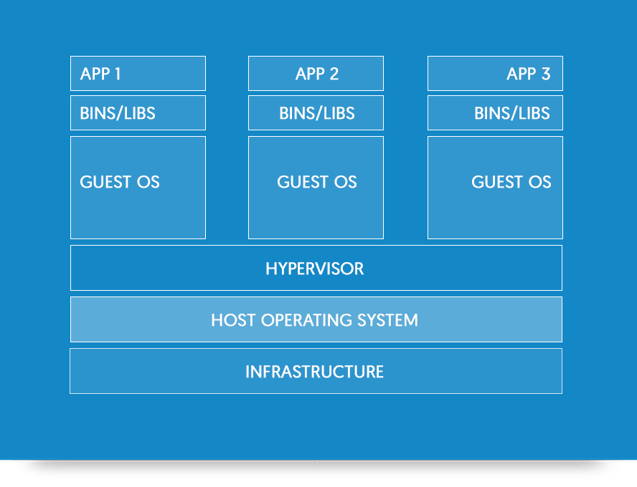
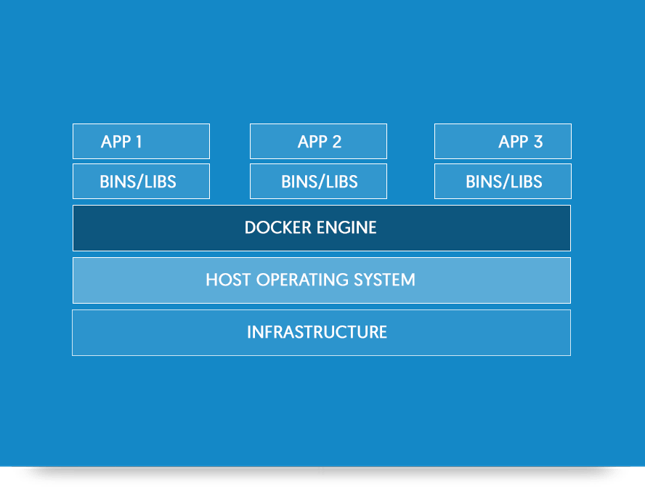
 

*Images taken from Docker Documentations


Docker Terminologies

  • Images – Images are templates for the docker containers.
  • Containers – created from Docker images and run the actual application.
  • Docker Daemon – The background service running on the host that manages building, running the containers.

Prerequisites Docker Installation

  1. CentOS 7 64 Bit / Kernel 3.10.x kernel in the minimum required.
  2. Disabled the SELinux and FirewallD services:  # systemctl stop firewalld
  3. Install EPEL repository:    # yum install -y epel-release

 Install Docker via yum provided by CentOS (method 1)

# yum install -y docker


Install Docker CE (community edition)  Software (method 2)

First remove older version of docker (if any):

# yum remove docker docker-client docker-common docker-selinux docker-engine-selinux docker-engine docker-ce

Next install needed packages:

# yum install yum-utils device-mapper-persistent-data lvm2 -y

Configure the docker-ce repo:

# yum-config-manager --add-repo https://download.docker.com/linux/centos/docker-ce.repo

Finally install docker-ce:

# yum install docker-ce -y


Enable and Start Docker service

# systemctl enable docker
# systemctl start docker
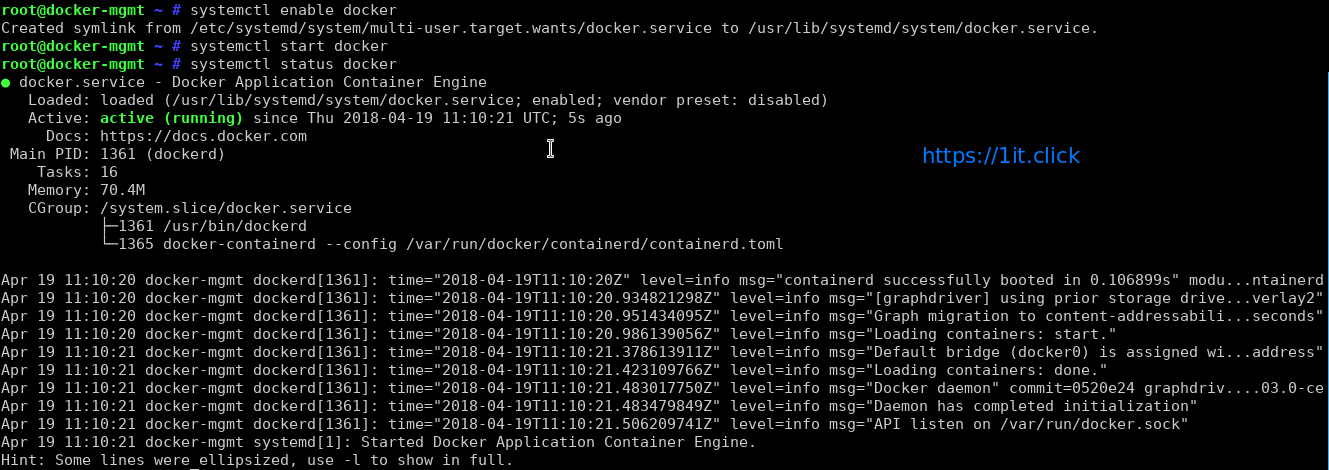

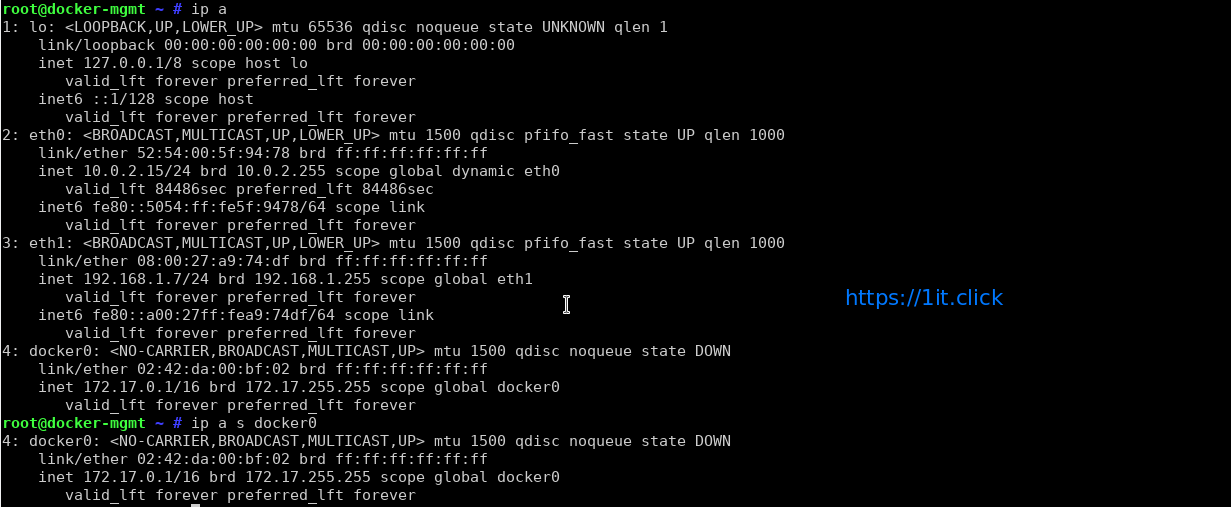
How to find out info about Docker network bridge and IP addresses

Default network bridge named as docker0 and is assigned with an IP address. To find this info run the following:

# ip a

# ip a s docker0

How to run docker commands

The syntax is:

# docker command
# docker command arg
# docker [options] command arg
# docker help | more


Getting help

# docker help | more

Run ‘docker COMMAND --help‘ for more information on a command:

# docker ps --help
# docker cp --help


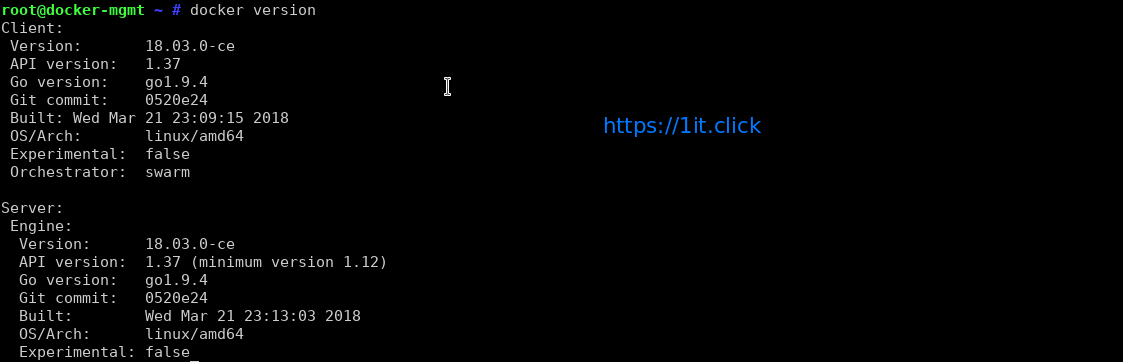
Check the Docker version

# docker version

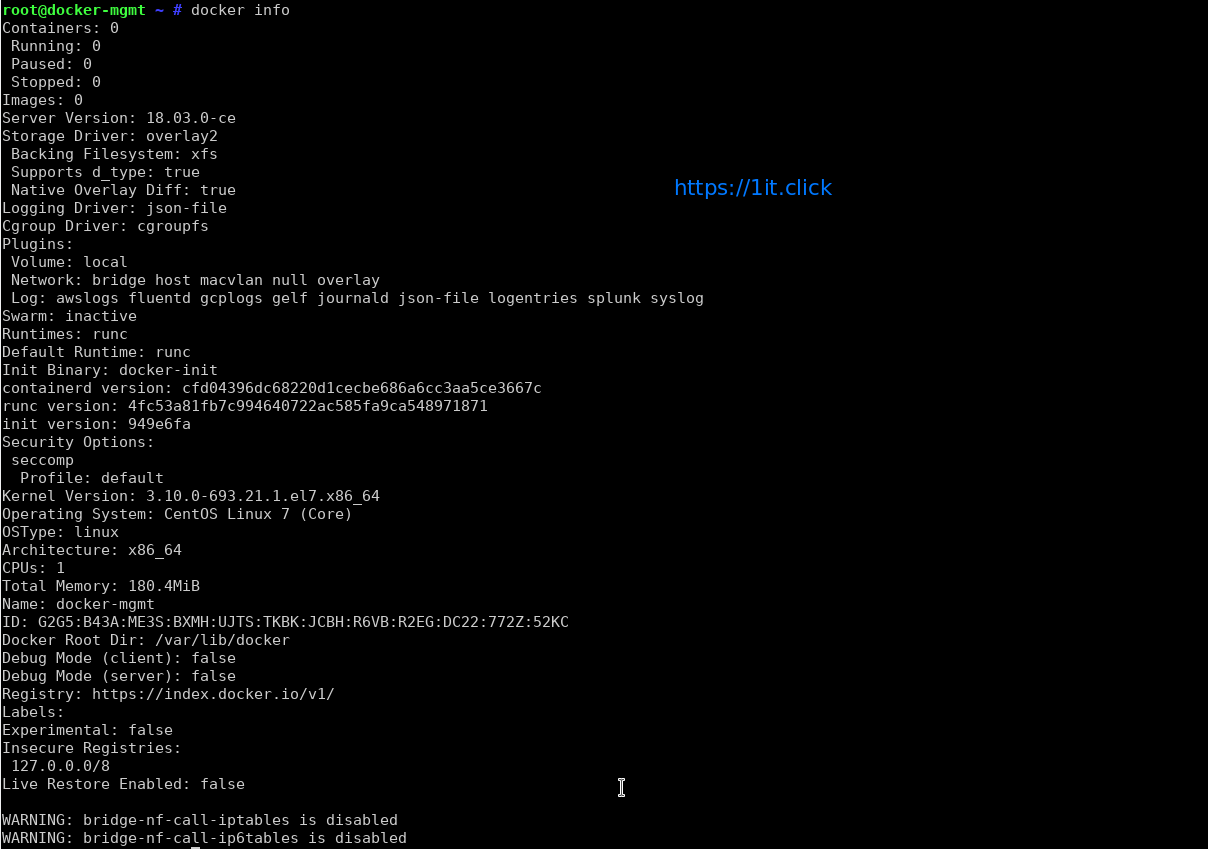
Check Detailed Docker Information

# docker info

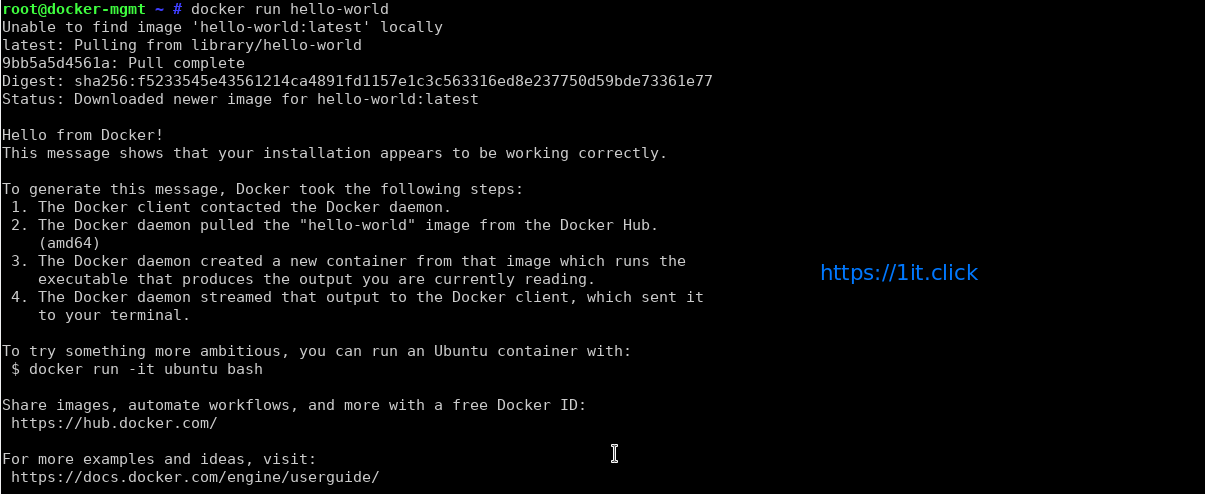
How to test your docker installation

Docker images are pulled from docker cloud/hub such as docker.io or registry.access.redhat.com and so on. Type the following command to verify that your installation working:

# docker run hello-world

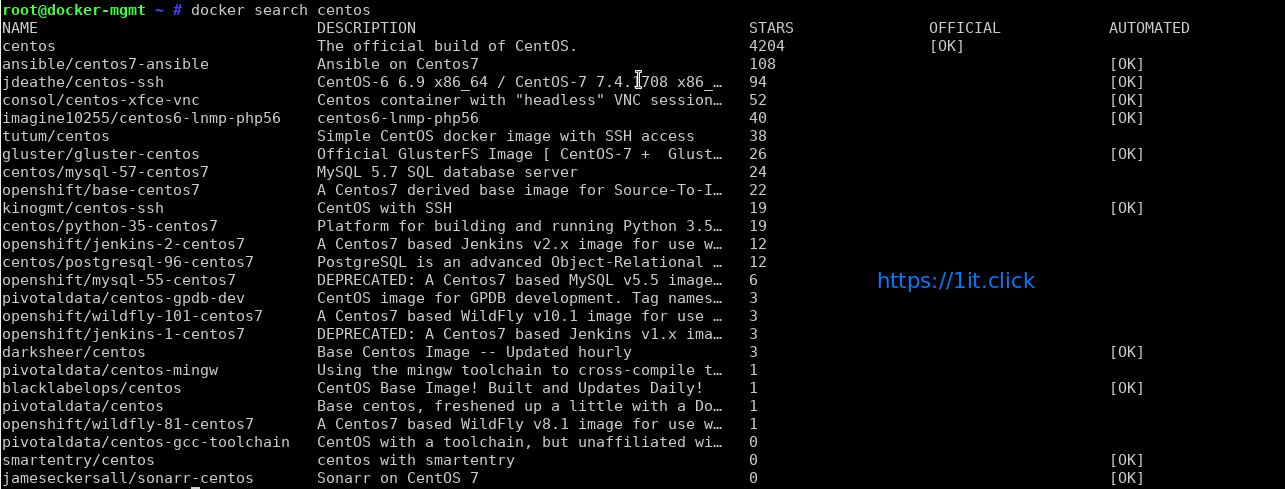
Search Docker Images on Internet

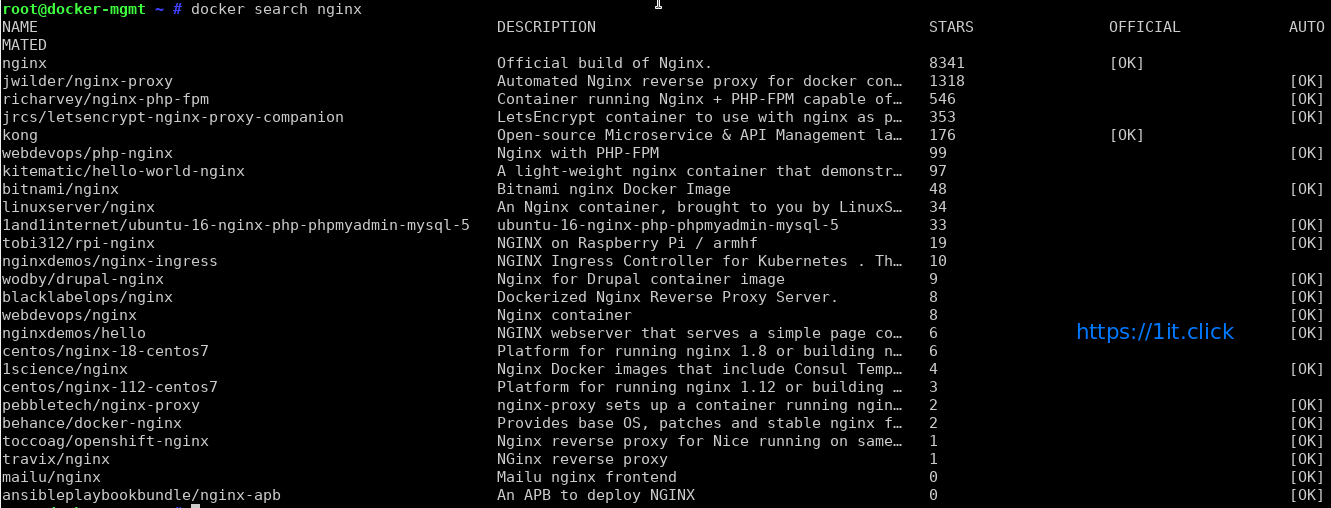
Now you have working Docker setup. It is time to find out images. We can find images for all sort of open source projects and Linux distributions. To search the Docker Hub/cloud for centos or nginx image run:

# docker search centos

# docker search nginx

Download Docker Images

To pull an image named centos or nginx from a registry, run:

# docker pull centos:centos7

# docker pull nginx


To Display the list of locally available images

# docker images


TAG − This is used to logically tag images.
Image ID − This is used to uniquely identify the image.
Created − The number of days since the image was created.
Virtual Size − The size of the image. 


Remove Docker Image

When you have lots of running which are obsolete or you no longer need any Docker image then you can remove that image using the following command.

# docker rmi [IMAGEname]


To test your new image

The concept is little catchy, whenever a command is sent for execution in the Docker image, a container in obtained. When this command execution is finished, the container gets stopped (a non-running or exited container state). It Means at every command execution into the same image a new container is created again and again and exited.

# docker run centos:centos7 /bin/ping 1it.click -c 5


List Docker Containers

Whenever a command execution is performed on a Docker Image a container is created and gets stopped after execution but it remains in exited or non-running state. The following command will display a list of the running and stopped (non-running) containers:

# docker ps -l

In a production environment there are many running containers and to list them we have command. This command is used to get the currently running containers:

# docker ps

This Can also be used with -a argument and this command will list all of the containers on the system:

# docker ps -a


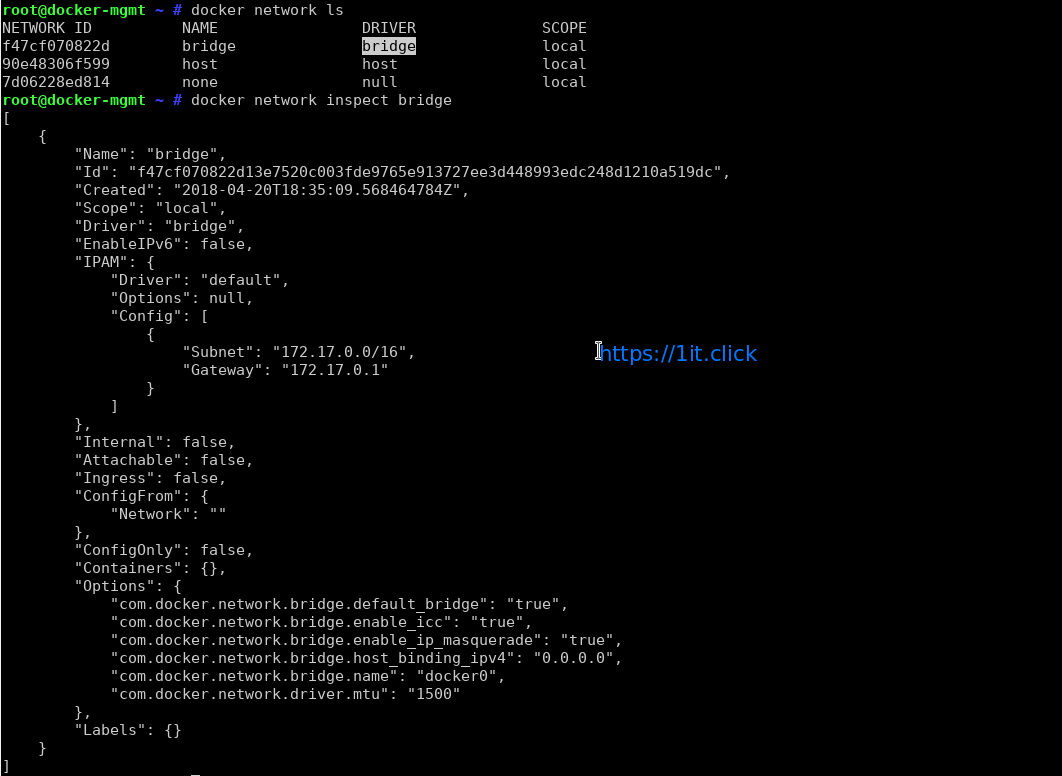
Checking Docker Networking

# docker network ls

# docker network inspact [network name]

Checking Resource Consumption by Running Container

# docker stats


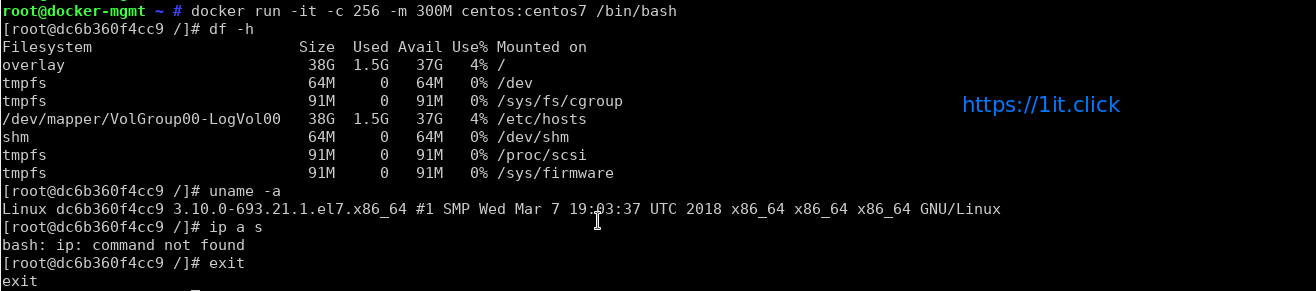
Check Resource limits for a docker container

# docker run -it -c 256 -m 300M centos:centos7 /bin/bash

Stop/Start/Restart operation

# docker start [container ID]                ## to start a docker container

# docker stop [container ID]                 ## to stop a docker container

# docker restart [container ID]              ## to restart a docker container


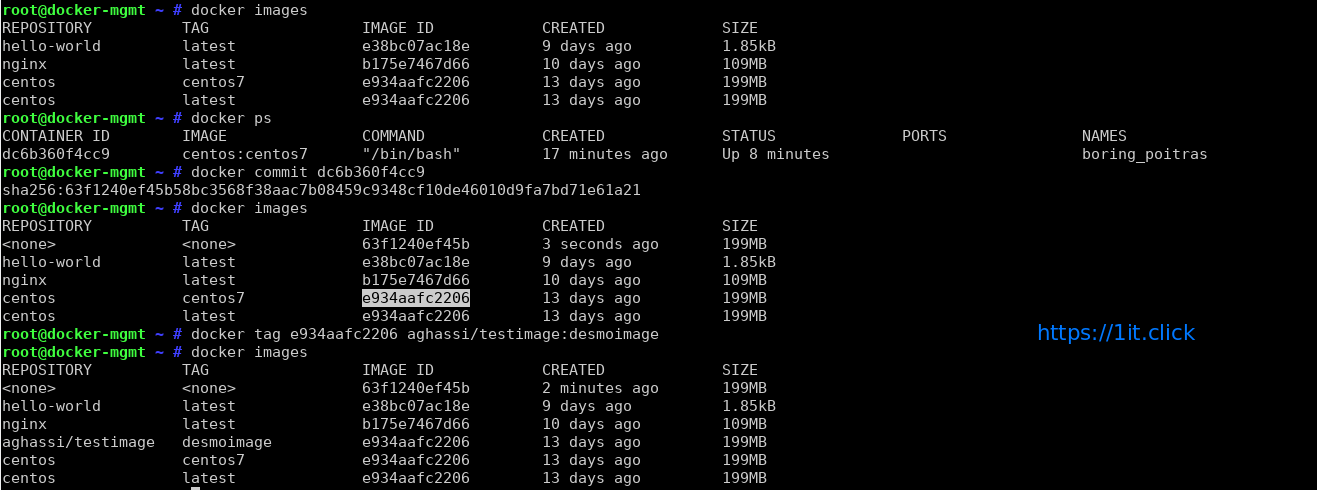
Committing the Docker Container Updates (This command turns your container to an image) And Adding a Repository/Tag value to a image

# docker commit [container ID]

# docker tag [image ID] <repo : tags>
Removing/Deleting a container

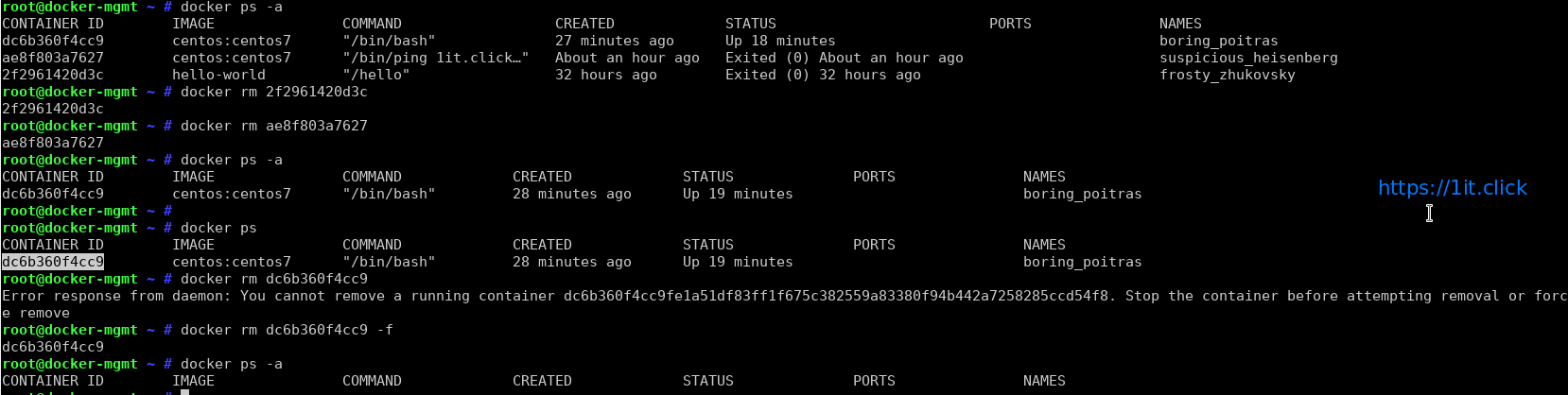
# docker rm [container ID]

Checking the docker container Logs

# docker logs [container ID]


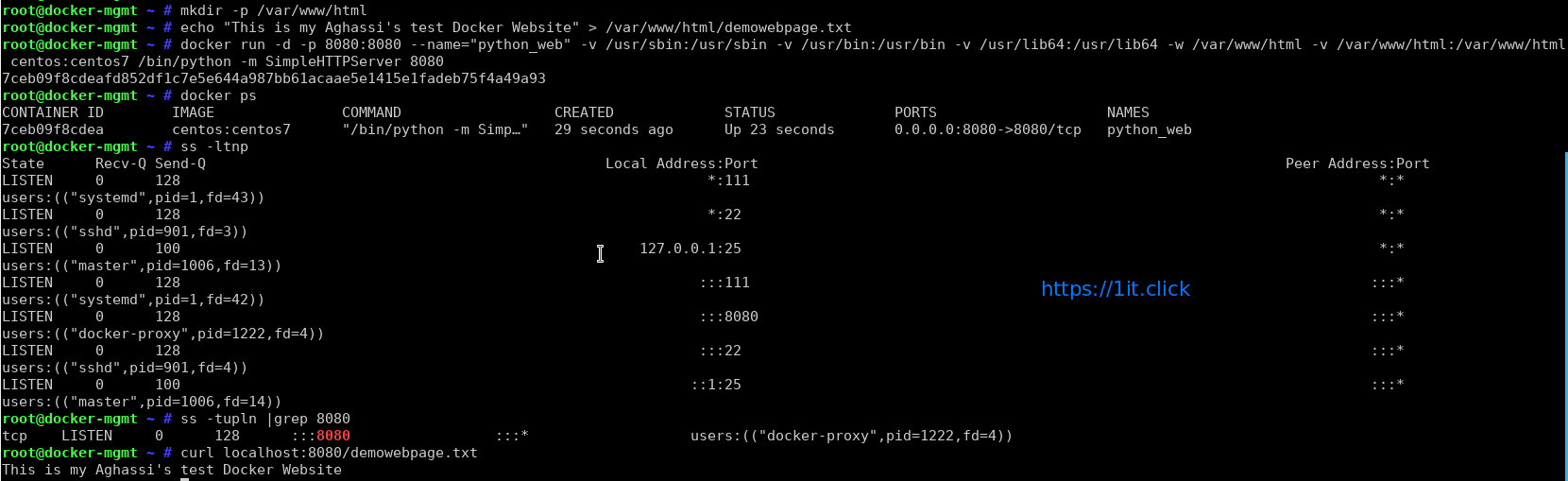
Lets create our container and hots a demo website quickly using Python Simple HTTP Server module quickly will listen on port 8080:

# mkdir -p /var/www/html

# echo "This is my Aghassi's test Docker Website" > /var/www/html/demowebpage.txt

# docker run -d -p 8080:8080 --name="python_web" -v /usr/sbin:/usr/sbin -v /usr/bin:/usr/bin -v /usr/lib64:/usr/lib64 -w /var/www/html -v /var/www/html:/var/www/html centos:centos7 /bin/python -m SimpleHTTPServer 8080

-d, –detach                             Run container in background and print container ID

-p, –publish list                     Publish a container’s port(s) to the host (default [])

-v, –volume list                     Bind mount a volume (default [])

-w, –workdir string              Working directory inside the container

Check the network ports allocation:

# ss -tupln |grep 8080

Lets test the website:

# curl localhost:8080/demowebpage.txt

How to run Docker nginx image

Now you pulled nginx image, it is time to run it:

# docker run --name my-nginx-i --detach nginx

Say you want to host simple static file hosted in /var/www/html/ using nginx container:

# docker run --name my-nginx-ii -p 80:80 -v /var/www/html/:/usr/share/nginx/html:ro -d nginx

Where,

–name my-nginx-i : Assign a name to the container
–detach : Run container in background and print container ID
-v /var/www/html/:/usr/share/nginx/html:ro : Bind mount a volume
-p 80:80 : Publish a container’s port(s) to the host i.e redirect all traffic coming to port 80 to container traffic

Go ahead and create a file named index.html in /var/www/html/:

# echo 'Welcome. I am Nginx server locked inside Docker' > /var/www/html/index.html

Test it:

curl http://your-host-ip-address/
curl 192.168.1.7

Sample outputs:

Welcome. I am Nginx server locked inside Docker

How to run a command in a running container

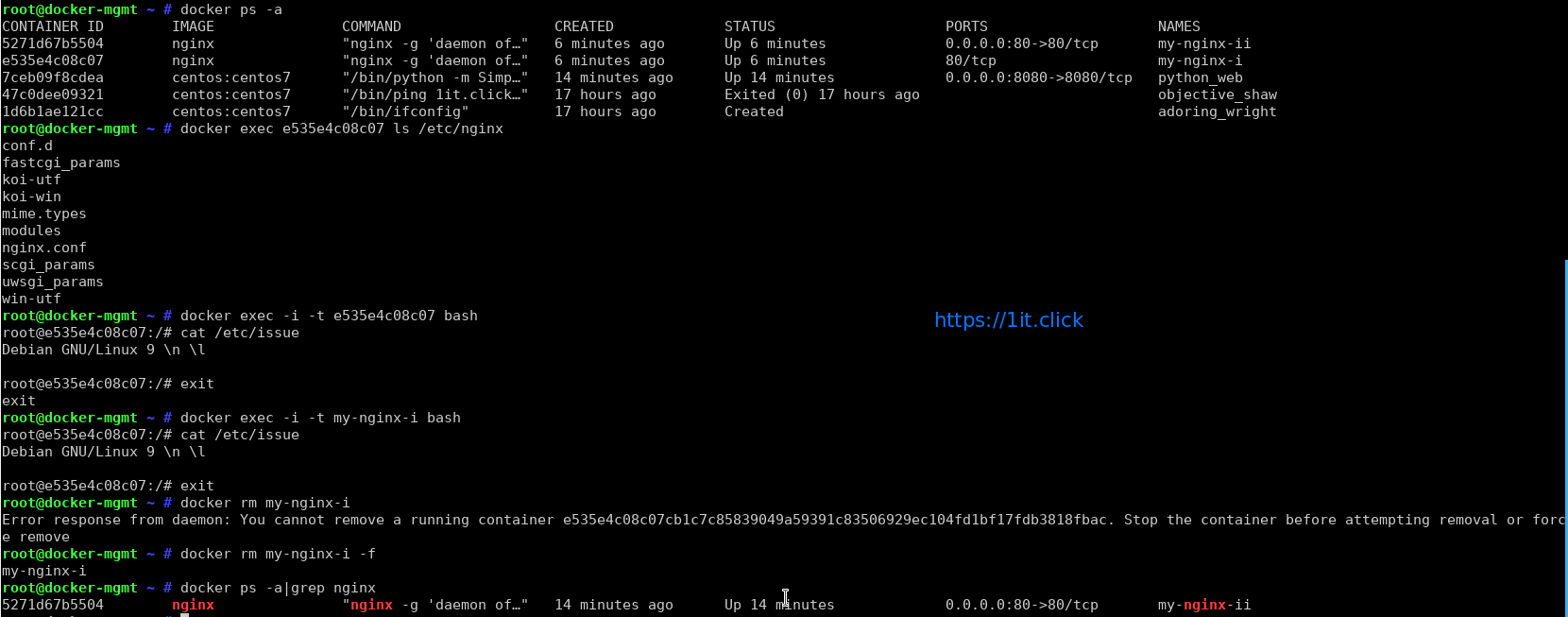
Run ls /etc/nginx command for my-nginx-i container

# docker exec e535e4c08c07 ls /etc/nginx

OR

# docker exec my-nginx-i ls /etc/nginx

Want to gain bash shell for a running container and make changes to nginx image?

# docker exec -i -t e535e4c08c07 bash

OR

# docker exec -i -t my-nginx-i bash


Logging With Journald In CentOS7


Introduction

CentOS 7 comes with services which saves logging information. Some services write their own logs directly to their log information files, e.g. apache maintain their own logs. Some of the service maintain their logs through systemctl. Systemctl is a services that take care of starting, stopping or monitoring the status of a process. systemctl further communicates to journald which keep track on log information. journalctl is used to grep log information from journald.

rsyslog is the classical logging method. You may ask either we should use journalctl or rsyslog to maintain our logging information. We can integrate both rsyslog ans journald. The rsyslog messages will be sent to journald or vice versa. The facility is not enabled by default.


Definition of Journal

Journal is a component of systemd. It capture log messages of kernel logs, syslog messages, or error log messages. It collect them, index them and makes available to the users. Journal are stored in /run/log/journal directory.


Lets have a look on current log database:

When used alone, every journal entry that is in the system will be displayed within a pager (usually less) for you to browse. The oldest entries will be up top:

$ sudo journalctl

You will likely have pages and pages of data to scroll through, which can be tens or hundreds of thousands of lines long if systemd has been on your system for a long while. But, there are some remarkable difference, in journalctl lines having notices or waning will be bold, time-stamps are your local time zone, after every boot a new line will be added to clarify that new log begins from now, errors will be highlighted red.


See log message of current boot only

$ sudo journalctl -b


Let us see some error messages

$ sudo journalctl -p err

To have last 10 events that happen, type

$ sudo journalctl -f


See how must disk space is occupied by journal

$ sudo journalctl --disk-usage
Archived and active journals take up 16.0M in the file system.


To get data of previous day

$ sudo journalctl --since yesterday

To get current system time zone

$ timedatectl  
     Local time: Fri 2017-06-16 17:06:35 +04
 Universal time: Fri 2017-06-16 13:06:35 UTC
       RTC time: Fri 2017-06-16 13:06:35
      Time zone: Asia/Dubai (+04, +0400)
Network time on: yes
NTP synchronized: yes
RTC in local TZ: no


List system time zone

$ timedatectl list-timezones


Set system time zone

$ sudo timedatectl set-timezone Asia/Dubai


Integration of Journald with Rsyslog

With the integration the rsyslog messages will be sent to journald or vice versa. The facility is not enabled by default.  To enable sending log messages to journal  rsyslog.conf is required to configure.

Edit /etc/rsyslog.conf

search for $ModLoad imuxsock and and $ModLoad imjournal

add $OmitLocalLoggin off in a new line

[root@localhost ~]# vim /etc/rsyslog.conf

Sample output

#rsyslog configuration file
# For more information see /usr/share/doc/rsyslog-*/rsyslog_conf.html
# If you experience problems, see http://www.rsyslog.com/doc/troubleshoot.html
#### MODULES ####
# The imjournal module bellow is now used as a message source instead of imuxsock.
$ModLoad imuxsock # provides support for local system logging (e.g. via logger command)
$OmitLocalLoggin off
$ModLoad imjournal # provides access to the systemd journal
#$ModLoad imklog # reads kernel messages (the same are read from journald)
#$ModLoad immark # provides –MARK– message capability
# Provides UDP syslog reception
#$ModLoad imudp
#$UDPServerRun 514
# Provides TCP syslog reception
#$ModLoad imtcp
#$InputTCPServerRun 514
#### GLOBAL DIRECTIVES ####

Save the file and exit.

Open /etc/rsyslog.d/listen.conf

[root@localhost ~]# vim /etc/rsyslog.d/listen.conf

Make sure following line is already present in the file, if not so then add this line to the file.

$SystemLogSocketName /run/systemd/journal/syslog

Save and exit.

Now, This will make connection b/w rsyslog and journald.