What is Docker?
Docker is an open platform for developers and system engineers to build, ship, and run distributed applications, whether on Bare Metal System (Physical), VMs, or the Cloud, Docker is not a container technology like Xen/KVM etc.
Docker provides an additional layer abstraction and automation of operating system I virtualization on Linux.
Advantages of using Docker
Portability – In Docker system, an application and its prerequisites/dependencies can be bundled into a single container/image, whish will be independent of host kernel, can be easily ported to different system.
Quick Application Deployment – As application and its dependencies can be bundled into single images, it makes easy to quickly deploy the apps.
Sharing – You can share your Docker image with other using remote repositories.
Lightweight – Docker images have very small, they need very low compute capacity and storage, …
Easy Maintenance – Maintenance is very quick and easy.
Cost Saving – Open Source technology and don’t need heavy compute.
Docker Containers vs. Virtual Machines
- Docker container can be created/destroyed very quickly as compare to the virtual machines.
- Docker containers are light weight is compare to the virtual machines. Being lightweight more containers can run at some time on a host.
- Docker container make use of resources very efficiently. In case of virtual machines capacity is need to be reserved (compute + storage), whereas this is not needed is case of Docker containers.
- Virtual Machines can be migrated across servers when they are running, but Docker need to stopped before migration as there is no hypervisor layer.
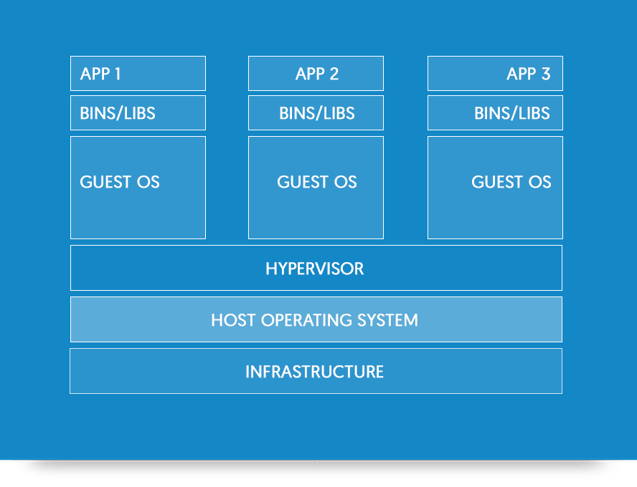
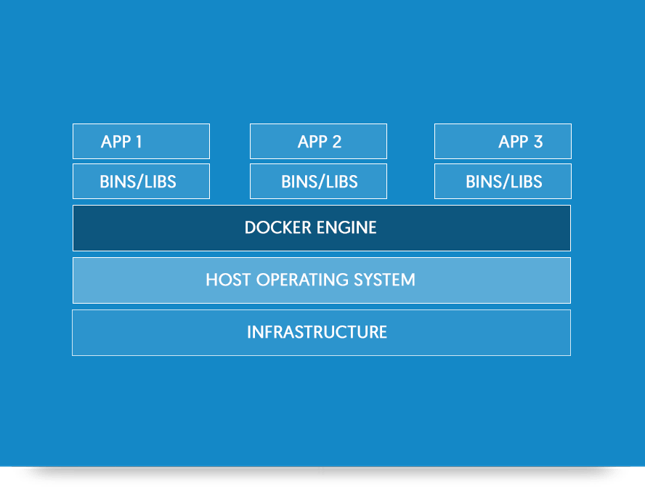
*Images taken from Docker Documentations
Docker Terminologies
- Images – Images are templates for the docker containers.
- Containers – created from Docker images and run the actual application.
- Docker Daemon – The background service running on the host that manages building, running the containers.
Prerequisites Docker Installation
- CentOS 7 64 Bit / Kernel 3.10.x kernel in the minimum required.
- Disabled the SELinux and FirewallD services:
# systemctl stop firewalld - Install EPEL repository:
# yum install -y epel-release
Install Docker via yum provided by CentOS (method 1)
# yum install -y docker


Install Docker CE (community edition) Software (method 2)
First remove older version of docker (if any):
# yum remove docker docker-client docker-common docker-selinux docker-engine-selinux docker-engine docker-ce
Next install needed packages:
# yum install yum-utils device-mapper-persistent-data lvm2 -y
Configure the docker-ce repo:
# yum-config-manager --add-repo https://download.docker.com/linux/centos/docker-ce.repo
Finally install docker-ce:
# yum install docker-ce -y
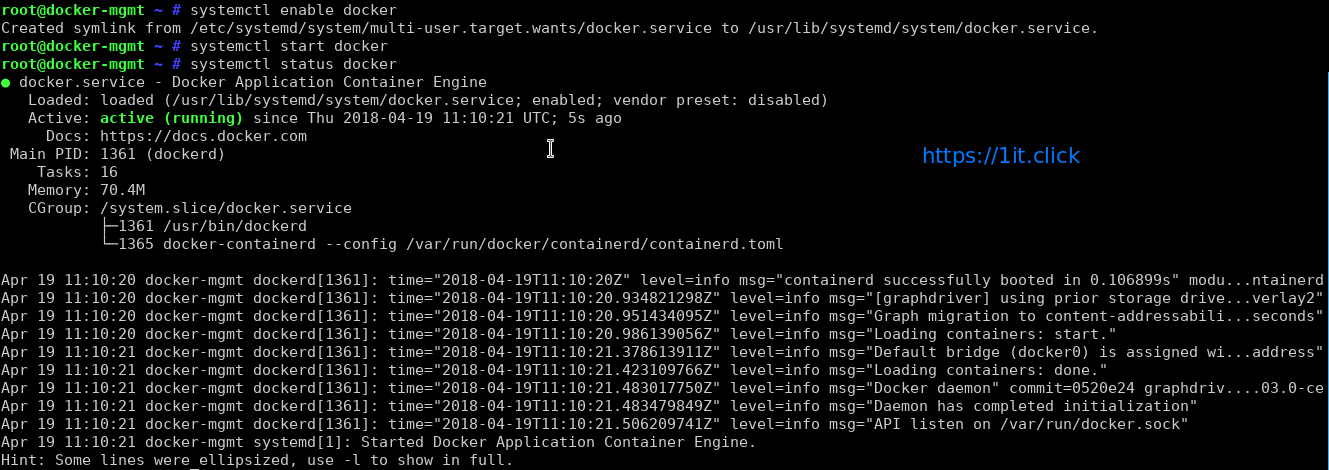
Enable and Start Docker service
# systemctl enable docker
# systemctl start docker
How to find out info about Docker network bridge and IP addresses
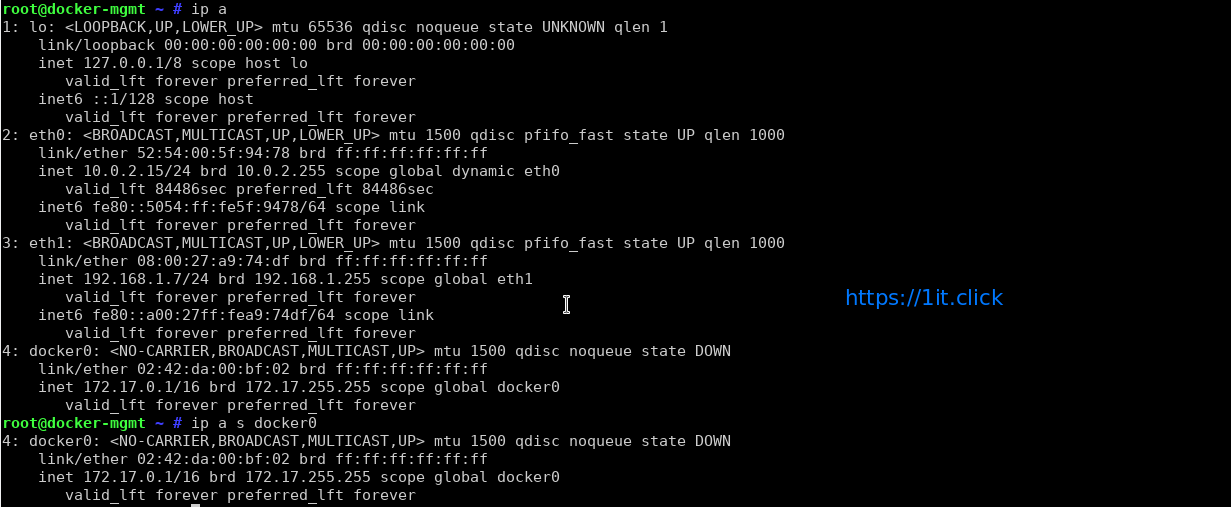
Default network bridge named as docker0 and is assigned with an IP address. To find this info run the following:
# ip a
# ip a s docker0
How to run docker commands
The syntax is:
# docker command
# docker command arg
# docker [options] command arg
# docker help | more
Getting help
# docker help | more
Run ‘docker COMMAND --help‘ for more information on a command:
# docker ps --help
# docker cp --help
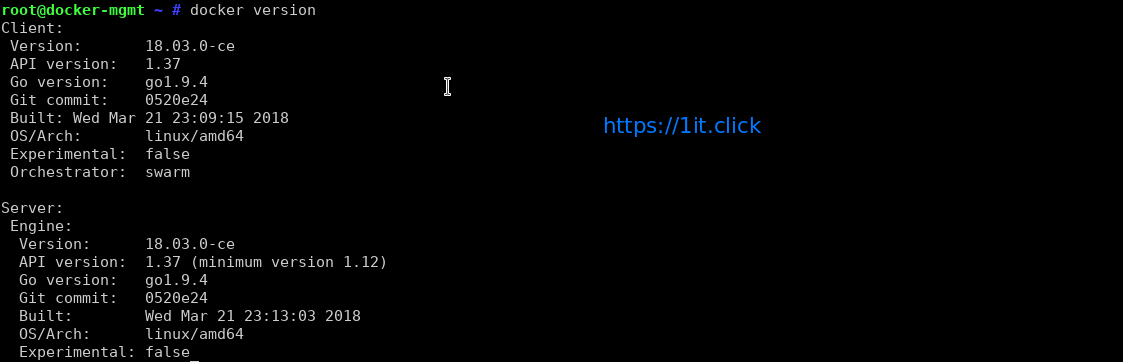
Check the Docker version
# docker version
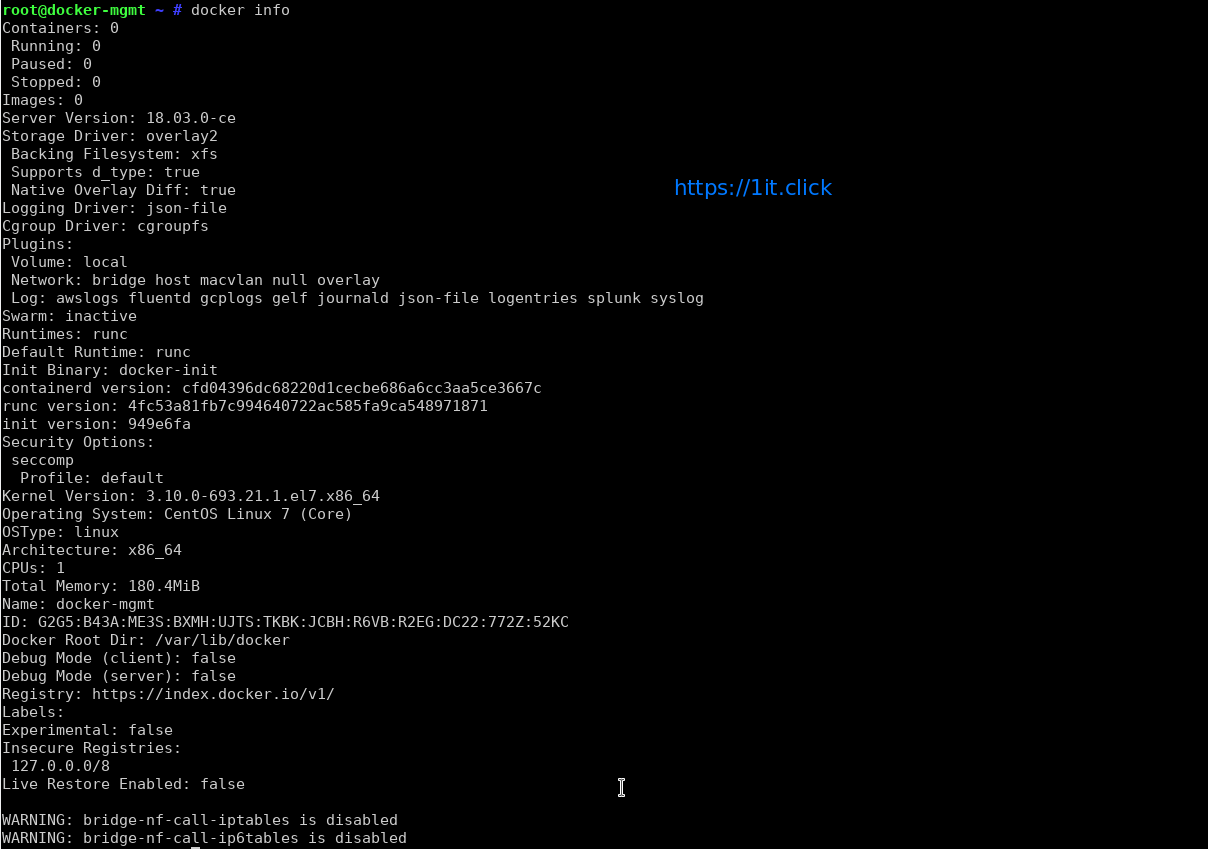
Check Detailed Docker Information
# docker info
How to test your docker installation
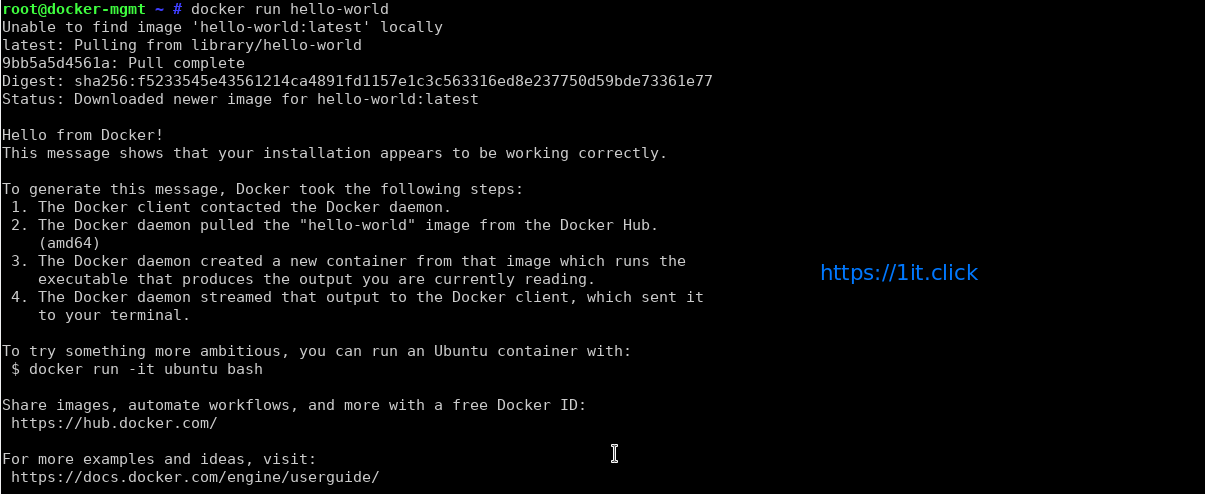
Docker images are pulled from docker cloud/hub such as docker.io or registry.access.redhat.com and so on. Type the following command to verify that your installation working:
# docker run hello-world
Search Docker Images on Internet
Now you have working Docker setup. It is time to find out images. We can find images for all sort of open source projects and Linux distributions. To search the Docker Hub/cloud for centos or nginx image run:
# docker search centos
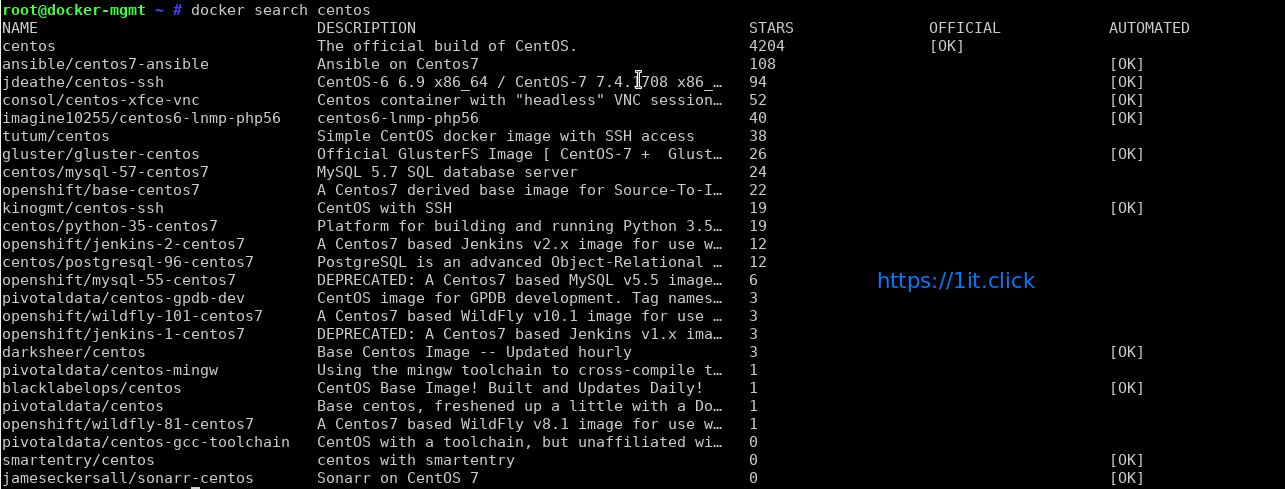
# docker search nginx 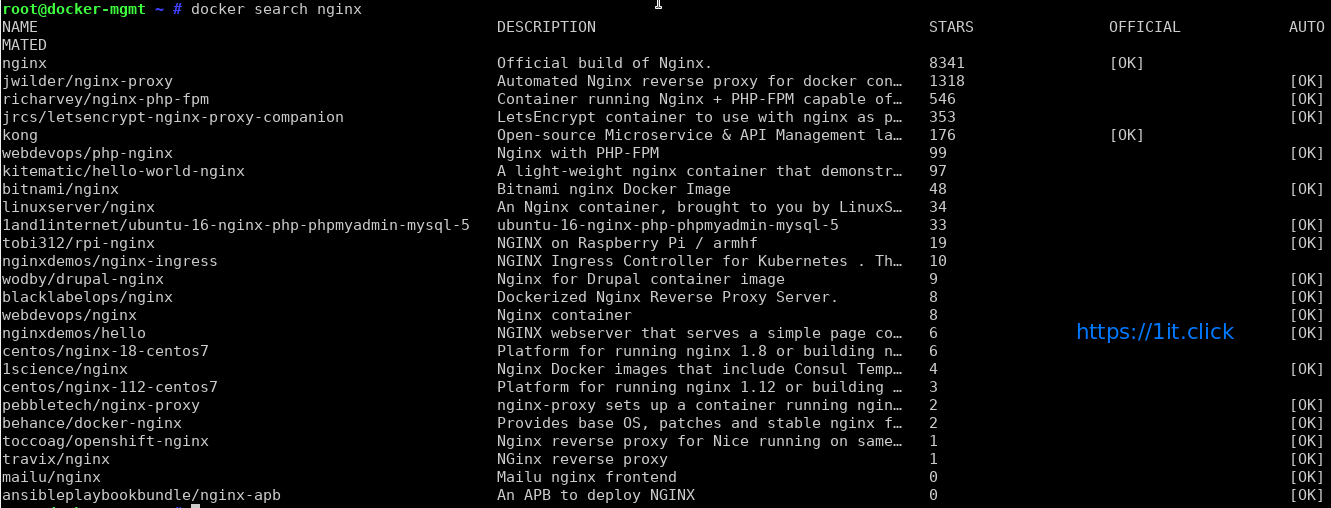
Download Docker Images
To pull an image named centos or nginx from a registry, run:
# docker pull centos:centos7
# docker pull nginx

To Display the list of locally available images
# docker images

TAG − This is used to logically tag images.
Image ID − This is used to uniquely identify the image.
Created − The number of days since the image was created.
Virtual Size − The size of the image.
Remove Docker Image
When you have lots of running which are obsolete or you no longer need any Docker image then you can remove that image using the following command.
# docker rmi [IMAGEname]

To test your new image
The concept is little catchy, whenever a command is sent for execution in the Docker image, a container in obtained. When this command execution is finished, the container gets stopped (a non-running or exited container state). It Means at every command execution into the same image a new container is created again and again and exited.
# docker run centos:centos7 /bin/ping 1it.click -c 5

List Docker Containers
Whenever a command execution is performed on a Docker Image a container is created and gets stopped after execution but it remains in exited or non-running state. The following command will display a list of the running and stopped (non-running) containers:
# docker ps -l
In a production environment there are many running containers and to list them we have command. This command is used to get the currently running containers:
# docker ps

This Can also be used with -a argument and this command will list all of the containers on the system:
# docker ps -a

Checking Docker Networking
# docker network ls
# docker network inspact [network name]
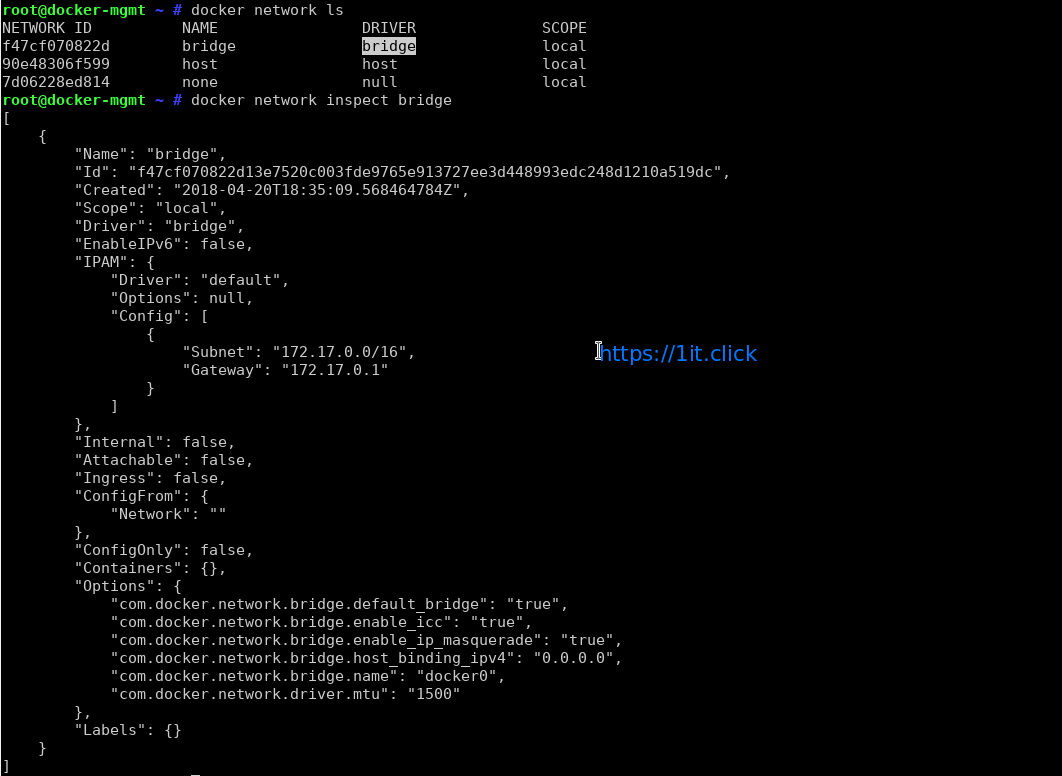
Checking Resource Consumption by Running Container
# docker stats
Check Resource limits for a docker container
# docker run -it -c 256 -m 300M centos:centos7 /bin/bash
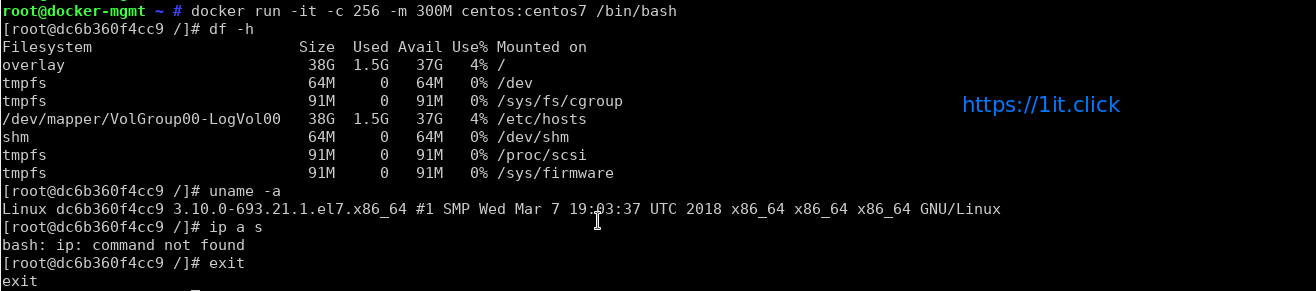
Stop/Start/Restart operation
# docker start [container ID] ## to start a docker container
# docker stop [container ID] ## to stop a docker container
# docker restart [container ID] ## to restart a docker container

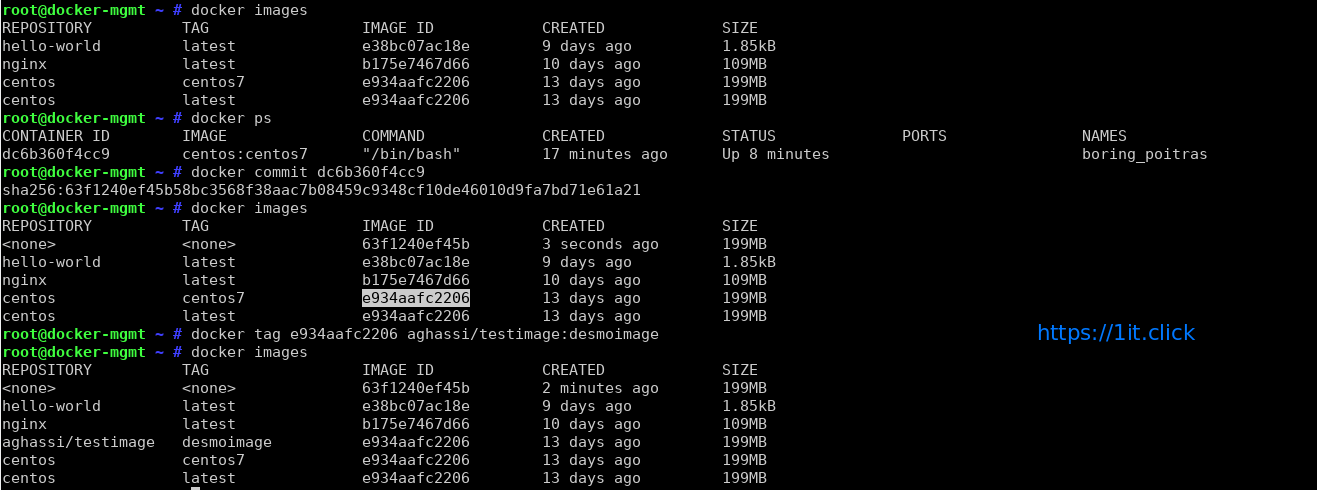
Committing the Docker Container Updates (This command turns your container to an image) And Adding a Repository/Tag value to a image
# docker commit [container ID]
# docker tag [image ID] <repo : tags>
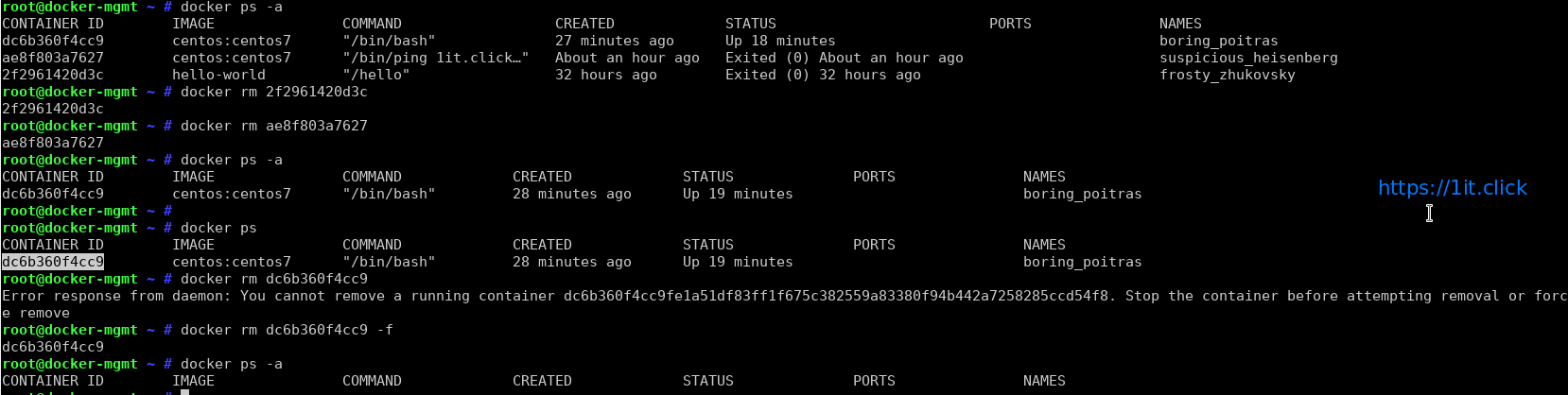
Removing/Deleting a container
# docker rm [container ID]
Checking the docker container Logs
# docker logs [container ID]

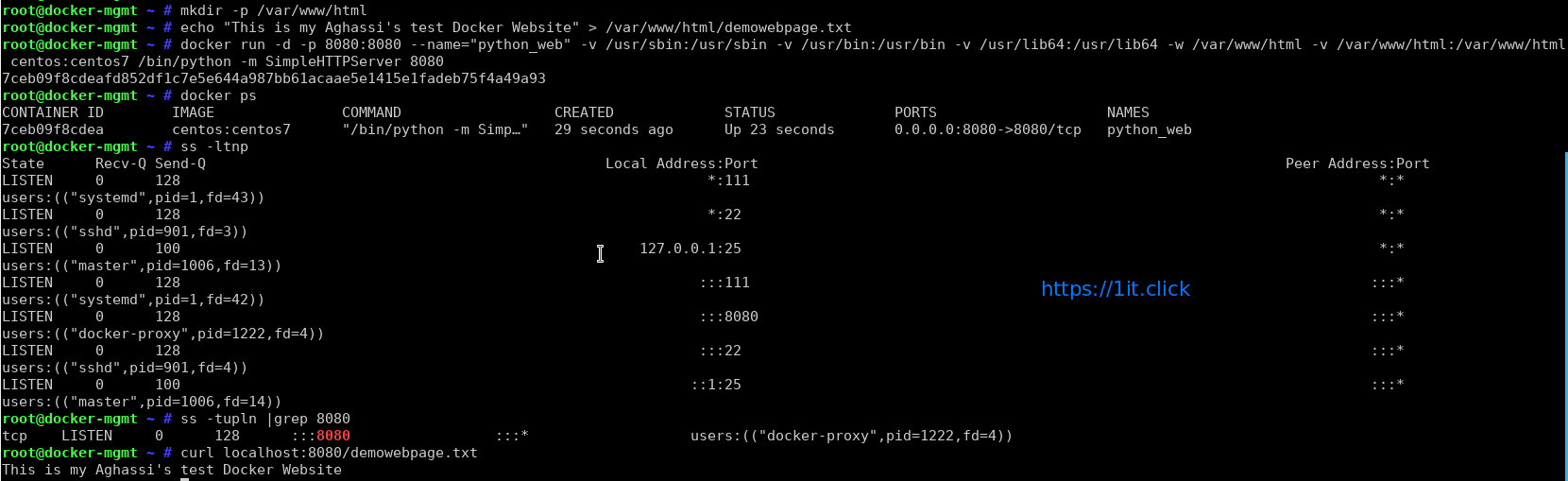
Lets create our container and hots a demo website quickly using Python Simple HTTP Server module quickly will listen on port 8080:
# mkdir -p /var/www/html
# echo "This is my Aghassi's test Docker Website" > /var/www/html/demowebpage.txt
# docker run -d -p 8080:8080 --name="python_web" -v /usr/sbin:/usr/sbin -v /usr/bin:/usr/bin -v /usr/lib64:/usr/lib64 -w /var/www/html -v /var/www/html:/var/www/html centos:centos7 /bin/python -m SimpleHTTPServer 8080
-d, –detach Run container in background and print container ID
-p, –publish list Publish a container’s port(s) to the host (default [])
-v, –volume list Bind mount a volume (default [])
-w, –workdir string Working directory inside the container
Check the network ports allocation:
# ss -tupln |grep 8080
Lets test the website:
# curl localhost:8080/demowebpage.txt
How to run Docker nginx image
Now you pulled nginx image, it is time to run it:
# docker run --name my-nginx-i --detach nginx
Say you want to host simple static file hosted in /var/www/html/ using nginx container:
# docker run --name my-nginx-ii -p 80:80 -v /var/www/html/:/usr/share/nginx/html:ro -d nginx
Where,
–name my-nginx-i : Assign a name to the container
–detach : Run container in background and print container ID
-v /var/www/html/:/usr/share/nginx/html:ro : Bind mount a volume
-p 80:80 : Publish a container’s port(s) to the host i.e redirect all traffic coming to port 80 to container traffic
Go ahead and create a file named index.html in /var/www/html/:
# echo 'Welcome. I am Nginx server locked inside Docker' > /var/www/html/index.html
Test it:
curl http://your-host-ip-address/
curl 192.168.1.7
Sample outputs:
Welcome. I am Nginx server locked inside Docker

How to run a command in a running container
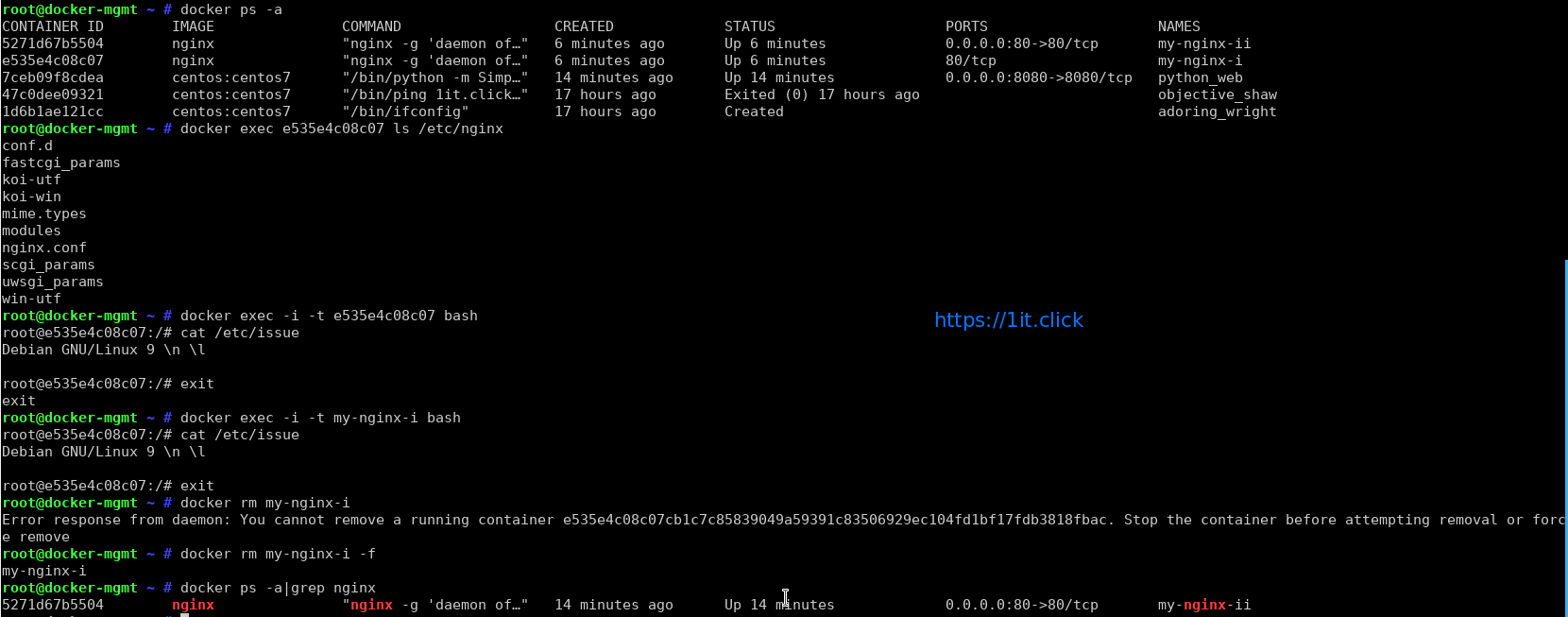
Run ls /etc/nginx command for my-nginx-i container
# docker exec e535e4c08c07 ls /etc/nginx
OR
# docker exec my-nginx-i ls /etc/nginx
Want to gain bash shell for a running container and make changes to nginx image?
# docker exec -i -t e535e4c08c07 bash
OR
# docker exec -i -t my-nginx-i bash