
Docker Swarm
Swarm is native clustering for the Docker. When the Docker Engine runs is swarm mode, manager nodes implement the Raft Consensus Algorithm to manage the global cluster state. The reason why Docker swarm mode is using a consensus algorithm is to make sure that all the manager nodes that are in charge of managing and scheduling tasks in the cluster, are storing the same consistent state.
LAB Setup
In this LAB we are going to create a Swarm cluster with single manager and 2 worker nodes.
| Operating System | CentOS 7.4 x86_64 |
| Platform | Vagrant Machines |
| Manager Node | manager | 192.168.11.100/24 |
| Worker Node 1 | node-1 | 192.168.11.101/24 |
| Worker Node 2 | node-2 | 192.168.11.102/24 |
Prerequisites
- Docker Engine 1.12 or later installed. We are going to install “ce” (community engine)
# yum-config-manager --add-repo https://download.docker.com/linux/centos/docker-ce.repo
# yum install docker-ce -y
# systemctl start docker.service
# systemctl enable docker.service
- Static IP address of the manager machine, preferably for all machines
- Network connectivity between all nodes and manager
- Following Open Network ports
TCP port 2377 for cluster management communications
TCP and UDP port 7946 for communication among swarm nodes
UDP port 4789 for overlay network traffic
Create a Swarm
After the installation of the docker engine, next step is to enable the swarm mode, by default it is disabled.
Step-1: Initialize the Swarm
To crate a new swarm run the below command on the manager node.
# docker swarm init --advertise-addr 192.168.11.100

This command switches the current node into swarm mode and creates a new swarm. On the node where swarm init is done, that node is designated as manager node and it starts on listening on the advertised IP address over port 2377.
With swarm init – by default, generates tokens for worker and manager nodes to join the swarm, you can regenerate the tokens again, if missed to node those.
Step-2: Adding worker nodes on the swarm cluster
Login to every swarm node-1 and node-2 and run the following command
# docker swarm join --token <TOKEN> <Manager IP>:2377


Step-3: Check the Status of the Swarm Cluster
Run the following commands to check the status and health of swarm cluster.
# docker info
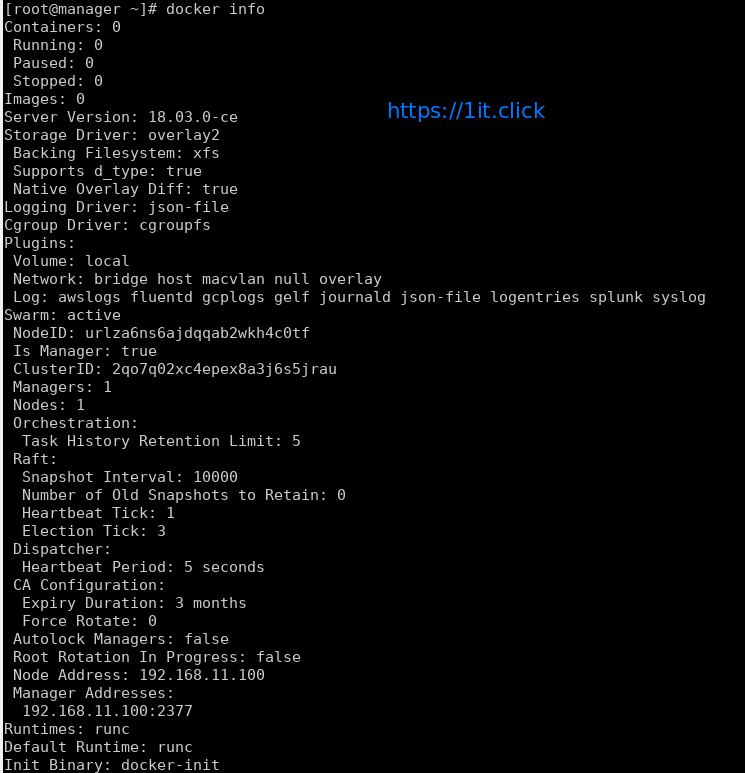
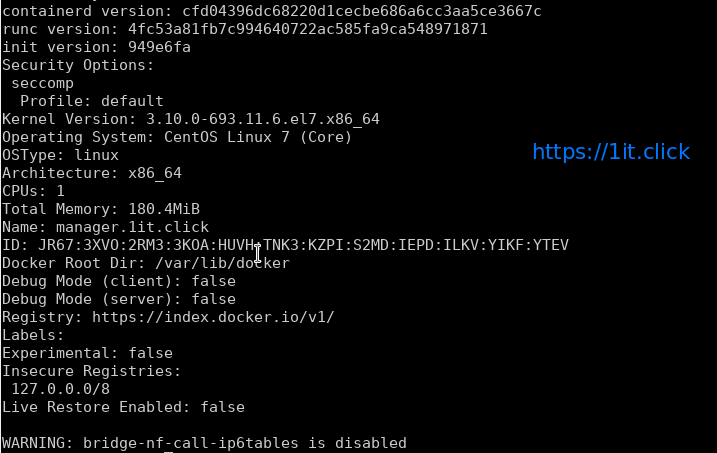
# docker node ls

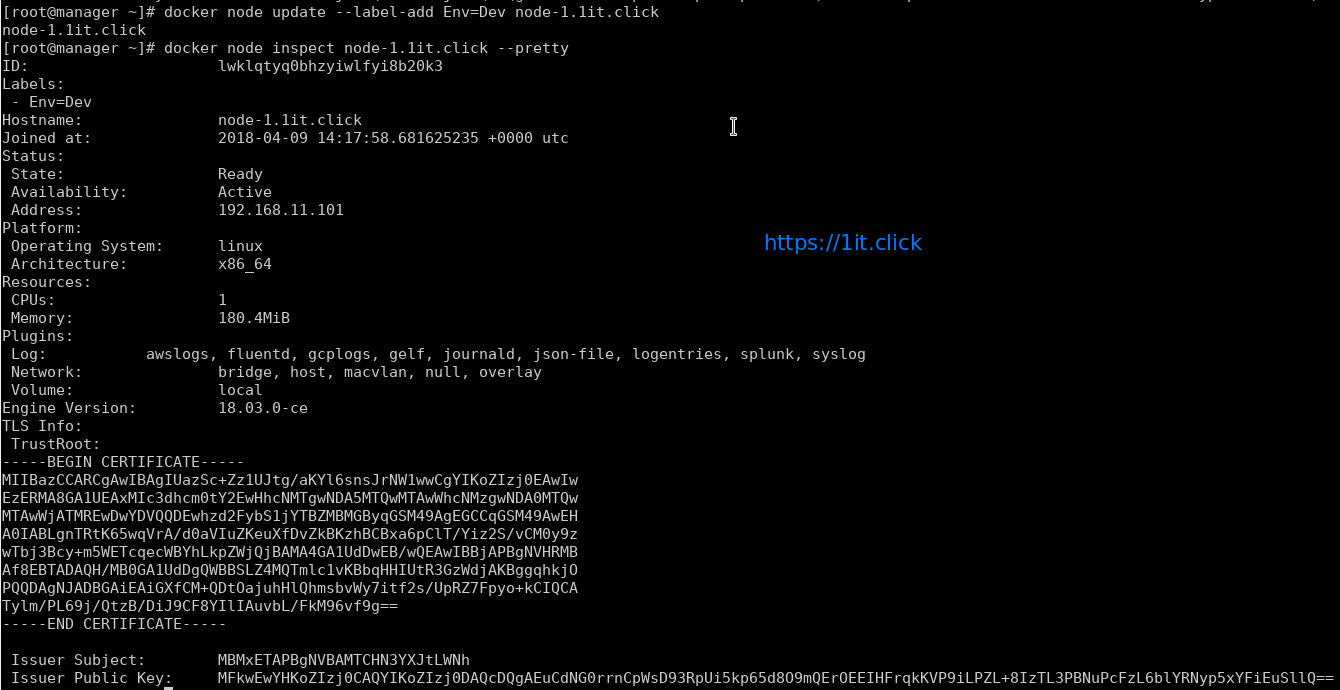
# docker node inspect <node> --pretty
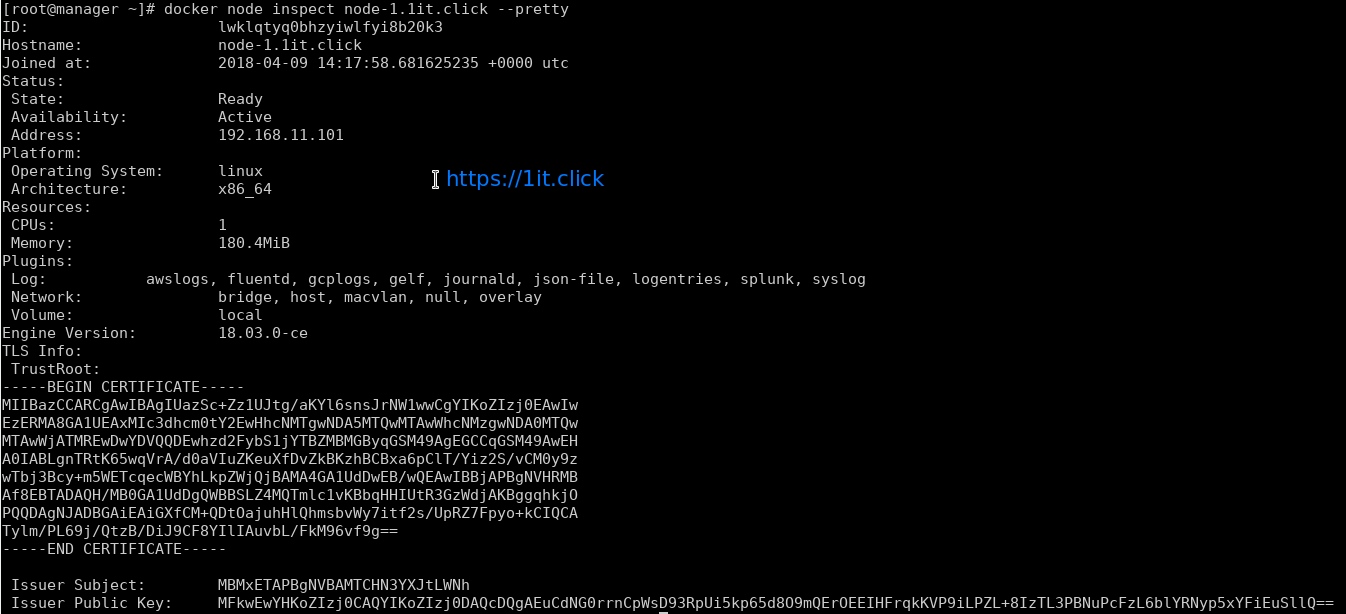
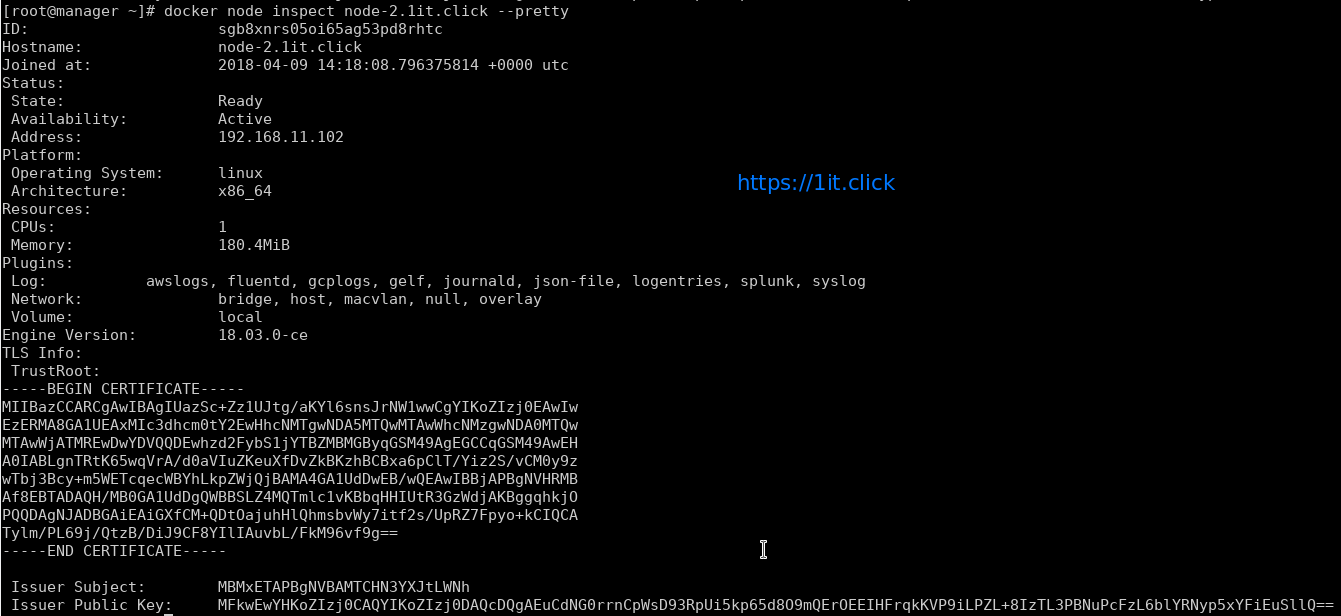
Please Note – By default manager also acts as worker node.
To see the Token
Display the token for manager to join
# docker swarm join-token manager
Display the token for worker to join
# docker swarm join-token worker

Swarm Cluster Management
AVAILABILITY column shows whether or not the scheduler can assign tasks to the node:
active: scheduler can assign tasks to the node.
pause: scheduler doesn’t assign new tasks to the node, but existing tasks remain running.
drain: scheduler doesn’t assign new tasks to the node, existing services will move to other nodes.
MANAGER STATUS column shows node participation in the Raft consensus:
No value: indicates a worker node that does not participate in swarm management.
leader: node is the primary manager that makes all swarm management and decisions.
reachable: node is a manager node participating in the Raft consensus quorum.
unavailable: node is a manager that is not able to communicate with other managers.
Management Commands
Update the states of manager/worker node
# docker node update --availability drain node-1.1it.click

Promote the node as manager
# docker node promote node-1.1it.click

Demote the node from manager role
# docker node demote node-2.1it.click

Add labels to the Node’s metadata
# docker node update --label-add Env=Dev node-2.1it.click
Node leaves the cluster
# docker swarm leave


Removes the node from cluster
# docker node rm node-2.1it.click



