How to Use rclone to Back Up to Google Drive on Linux

There’s still no official Linux client for Google Drive, but you can back up to your Google Drive using the rclone utility right from the command line.

Where’s Google Drive on Linux?

Despite promising Linux support “coming soon” back in 2012, there’s no indication that Google will ever produce a native Linux client for Google Drive. There are several unofficial third-party solutions, such as InSync, overGrive and ODrive, and some file browsers allow integration with your Google Drive, such as Files in GNOME.

The third-party applications are commercial products, requiring either an outright purchase or a subscription. They work well they don’t cost much, and in fact, overGrive does have a free version, offering limited functionality for no cost.

But what if you want to create and run backups from the command line? Or to incorporate that functionality into scripts? That’s all possible thanks to an amazing application called rclone. In fact, with rclone you can back up, download, and synchronize files to over forty different cloud solutions. It’s like rsync for clouds.

Installing rclone

rclone almost certainly won’t be installed on your Linux computer by default. Happily, there’s an installation script that should work on all distributions. The installation process uses curl. On the computers used to research this article, already had curl installed but curl had to be installed on Ubuntu 22.04 LTS.

On Ubuntu, run this command to install it:

sudo apt-get install curl

Once curl has been installed, install rclone with this command:

curl https://rclone.org/install.sh | sudo bash

or

sudo apt install rclone

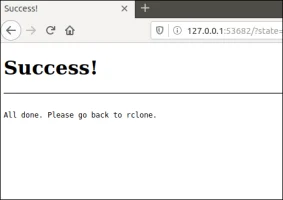
When the rclone installation has finished, you’ll see a success message.

This has installed the rclone program on your Linux computer. The next step is to run through the setup process and authenticate rclone to access your Google Drive.

Creating an rclone Remote Connection

Connections to remote cloud services are called “remotes” in the rclone world. We need to create one for Google Drive. Start the rclone configuration process with this command:

rclone config

There are a lot of questions in the configuration process. But don’t be disheartened, many of them can be left at their default values and simply accepted by pressing “Enter.”

rclone tells us there are no remotes configured. Press “n” and press “Enter” to create a new remote. It will prompt you for a name. We’re going to call it “google-drive.” Use whatever name you like.

aghassi@111:~$ rclone config
2023/04/29 13:15:18 NOTICE: Config file "/home/aghassi/.config/rclone/rclone.conf" not found - using defaults
No remotes found - make a new one
n) New remote
s) Set configuration password
q) Quit config
n/s/q> google-drive

A long menu allows you to choose the type of storage you’re creating a remote connection to.

n/s/q> n
name> google-drive
Type of storage to configure.
Enter a string value. Press Enter for the default ("").
Choose a number from below, or type in your own value
1 / 1Fichier
\ "fichier"
2 / Alias for an existing remote
\ "alias"
3 / Amazon Drive
\ "amazon cloud drive"
4 / Amazon S3 Compliant Storage Provider (AWS, Alibaba, Ceph, Digital Ocean, Dreamhost, IBM COS, Minio, Tencent COS, etc)
\ "s3"
5 / Backblaze B2
\ "b2"
6 / Box
\ "box"
7 / Cache a remote
\ "cache"
8 / Citrix Sharefile
\ "sharefile"
9 / Dropbox
\ "dropbox"
10 / Encrypt/Decrypt a remote
\ "crypt"
11 / FTP Connection
\ "ftp"
12 / Google Cloud Storage (this is not Google Drive)
\ "google cloud storage"
13 / Google Drive
\ "drive"
14 / Google Photos
\ "google photos"
15 / Hubic
\ "hubic"
16 / In memory object storage system.
\ "memory"
17 / Jottacloud
\ "jottacloud"
18 / Koofr
\ "koofr"
19 / Local Disk
\ "local"
20 / Mail.ru Cloud
\ "mailru"
21 / Microsoft Azure Blob Storage
\ "azureblob"
22 / Microsoft OneDrive
\ "onedrive"
23 / OpenDrive
\ "opendrive"
24 / OpenStack Swift (Rackspace Cloud Files, Memset Memstore, OVH)
\ "swift"
25 / Pcloud
\ "pcloud"
26 / Put.io
\ "putio"
27 / SSH/SFTP Connection
\ "sftp"
28 / Sugarsync
\ "sugarsync"
29 / Transparently chunk/split large files
\ "chunker"
30 / Union merges the contents of several upstream fs
\ "union"
31 / Webdav
\ "webdav"
32 / Yandex Disk
\ "yandex"
33 / http Connection
\ "http"
34 / premiumize.me
\ "premiumizeme"
35 / seafile
\ "seafile"
Storage> 13

You’re prompted for a Google Application Client ID. Press “Enter” to accept the default.

Storage> 13
** See help for drive backend at: https://rclone.org/drive/ **

Google Application Client Id
Setting your own is recommended.
See https://rclone.org/drive/#making-your-own-client-id for how to create your own.
If you leave this blank, it will use an internal key which is low performance.
Enter a string value. Press Enter for the default ("").
client_id>  
OAuth Client Secret
Leave blank normally.
Enter a string value. Press Enter for the default ("").
client_secret>

You’re then prompted for a Google Application Client Secret.

Storage> 13
** See help for drive backend at: https://rclone.org/drive/ **

Google Application Client Id
Setting your own is recommended.
See https://rclone.org/drive/#making-your-own-client-id for how to create your own.
If you leave this blank, it will use an internal key which is low performance.
Enter a string value. Press Enter for the default ("").
client_id>  
OAuth Client Secret
Leave blank normally.
Enter a string value. Press Enter for the default ("").
client_secret>

Again, just press “Enter.” You’re asked to provide the scope that rclone will have when it is operating on your Google Drive. Press “1” and then press “Enter.”

client_secret>
Scope that rclone should use when requesting access from drive.
Enter a string value. Press Enter for the default ("").
Choose a number from below, or type in your own value
1 / Full access all files, excluding Application Data Folder.
\ "drive"
2 / Read-only access to file metadata and file contents.
\ "drive.readonly"
/ Access to files created by rclone only.
3 | These are visible in the drive website.
| File authorization is revoked when the user deauthorizes the app.
\ "drive.file"
/ Allows read and write access to the Application Data folder.
4 | This is not visible in the drive website.
\ "drive.appfolder"
/ Allows read-only access to file metadata but
5 | does not allow any access to read or download file content.
\ "drive.metadata.readonly"
scope> 1

For the “ID of the root folder”, just press “Enter.”

scope> 1
ID of the root folder
Leave blank normally.

Fill in to access "Computers" folders (see docs), or for rclone to use
a non root folder as its starting point.

Enter a string value. Press Enter for the default ("").
root_folder_id>
Service Account Credentials JSON file path
Leave blank normally.
Needed only if you want use SA instead of interactive login.
Enter a string value. Press Enter for the default ("").
service_account_file>

At the “Service Account Credentials” prompt, press “Enter.”

At the “Edit advanced config”  prompt, just press “Enter.” At the “Use auto config” menu, press “y” and then press “Enter.”

service_account_file>
Edit advanced config? (y/n)
y) Yes
n) No (default)
y/n> n
Remote config
Use auto config?
* Say Y if not sure
* Say N if you are working on a remote or headless machine
y) Yes (default)
n) No
y/n> y

This causes rclone to communicate to your Google Drive, and to launch your browser to allow you to give permission for rclone to interact with your Google Drive.

y/n> y
If your browser doesn't open automatically go to the following link: http://127.0.0.1:53682/auth?state=WVr2FUlo3mY03N5hy1WUUw
Log in and authorize rclone for access
Waiting for code...

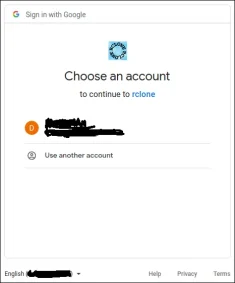
In your browser window, click on the Google account you wish to use.
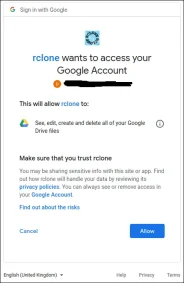
Click the “Allow” button to allow rclone to have access to your Google Drive.
At the “Configure this as a team drive” prompt, type “n” and then press “Enter.”

Waiting for code...
Got code
Configure this as a team drive?
y) Yes
n) No (default)
y/n> n

At the “Yes, Edit, Delete” menu type “y” and then press “Enter.”

y/n> n
--------------------
[google-drive]
scope = drive
token = {"access_token":"ya29.******","token_type":"Bearer","refresh_token":"1//******","expiry":"2023-04-29T14:19:24.229641227+04:00"}
--------------------
y) Yes this is OK (default)
e) Edit this remote
d) Delete this remote
y/e/d> y

At the final menu, type “q” and press “Enter.”

y/e/d> y
Current remotes:

Name Type
==== ====
google-drive drive

e) Edit existing remote
n) New remote
d) Delete remote
r) Rename remote
c) Copy remote
s) Set configuration password
q) Quit config
e/n/d/r/c/s/q> q

The rclone Back Up Script

The rclone application is very feature-rich. That’s great, but it does mean there are a lot of options. The command we’re going to look at below copies files from your local computer to your Google Drive. This is a one-way copy to the cloud; it isn’t a two-way synchronization between your Google Drive and your local computer—although rclone can do that. We’re using this as a basic form of off-site backup.

Type (or copy and paste) this into a text editor and save it to your computer. We called it gbk.sh. You can call it whatever makes sense to you.

#!/bin/bash
/usr/bin/rclone copy --update --verbose --transfers 30 --checkers 8 --contimeout 60s --timeout 300s --retries 3 --low-level-retries 10 --stats 1s "/home/aghassi/Documents" "google-drive:UbuntuDocs"

Here’s what the parameters mean:

  • copy: Copy the files from the local computer to the remote storage, skipping over files that are already present on the remote storage.
  • –update: Skip any files that are on the remote storage that have a modified time that is newer than the file on the local computer.
  • –verbose: Gives information about every file that is transferred.
  • –transfers 30: This sets the number of files to copy in parallel.
  • –checkers 8: How many “checkers” to run in parallel. Checkers monitor the transfers that are in progress.,
  • –contimeout 60s: The connection timeout. It sets the time that rclone will try to make a connection to the remote storage.
  • –timeout 300s: If a transfer becomes idle for this amount of time, it is considered broken and is disconnected.
  • –retries 3: If there are this many errors, the entire copy action will be restarted.
  • –low-level-retries 10: A low-level retry tries to repeat one failing operation, such as a single HTTP request. This value sets the limit for the number of retries.
  • –stats 1srclone can provide statistics on the transferred files. This sets the frequency of update of the statistics to one second.
  • “/home/aghassi/Documents”: The local directory to we’re going to copy to the remote storage.
  • “google-drive:UbuntuDocs”: The destination directory in the remote storage. Note the use of “google-drive”, which is the name we gave to this remote connection during the the rclone config sequence. Also note the colon “:” that is used as a separator between the remote storage name and the directory name. Subdirectories are separated by the usual “/” forward slash. If the destination directory does not exist, it will be created.

Some of these values are the defaults, but we’ve included them here so that we can discuss them. That way, if you need to change a value, you know which parameter to adjust.

Make the script executable with this command:

chmod +x gbk.sh

Running the Back Up Script

Our back up script is going to copy our Documents folder to our Google Drive. In our Documents folder, we’ve got a collection of UbuntuDocs.

We can launch the back up script with this command:
./gbk.sh
We asked for statistics updates every one second (--stats 1s), and we also asked for verbose output (--verbose). It’ll come as no surprise then that we get a lot of screen output. It’s usually a good option to turn on verbose output for new functionality so that you can spot problems. You can turn down the amount of output once you’re happy things are running smoothly.

We get a final summary telling us 60 files were transferred with no errors. The transfer took roughly 24 seconds.

Let’s check on our Google Drive and see what happened in our cloud storage “UbuntuDocs” directory has been created, so that looks promising. If we double-click it to take a look inside, we can see that the files have all been transferred to our Google Drive.

Using rclone to View Files On Google Drive

We can use rclone to peek into the folder on Google Drive, right from the terminal window:

rclone ls google-drive:/UbuntuDocs

rclone more option for google-drive.

Clear Memory Cache on Linux

By default the Linux OS has a very efficient memory management process that should be freeing any
cached memory on the machine that it is being run on. However when it comes to Cached memory the
Linux OS may at times decide that the Cached memory is being used and is needed which can lead to
memory related issues and ultimately rob your server of any potentially free memory. To combat this you
can force the Linux OS to free up and stored Cached memory.
Kernels 2.6.16 and newer provide a mechanism to have the kernel drop the page cache and/or inode and
dentry caches on command, which can help free up a lot of memory. Now you can throw away that script
that allocated a ton of memory just to get rid of the cache…
To use /proc/sys/vm/drop_caches, just echo a number to it.
To free pagecache:
# sync; echo 1 > /proc/sys/vm/drop_caches
To free dentries and inodes:
# sync; echo 2 > /proc/sys/vm/drop_caches
To free pagecache, dentries and inodes:
#sync; echo 3 > /proc/sys/vm/drop_caches
or
# echo 3 | tee /proc/sys/vm/drop_caches
This is a non-destructive operation and will only free things that are completely unused. Dirty objects will
continue to be in use until written out to disk and are not freeable. If you run sync first to flush them out
to disk, these drop operations will tend to free more memory.
1. At the shell prompt type crontab -e <enter> as this will allow you to edit cron jobs for the root
user.
2. Scroll to the bottom of the cron file using the arrows key and enter the following line:
0 * * * * /root/clearcache.sh
3. Create a file in ‘/root’ called ‘clearcache.sh’ with the following content:
#!/bin/sh
sync; echo 3 > /proc/sys/vm/drop_caches

4. Once you have saved this file, the job is complete!
Many times you may find the system is running out of memory. When checked you can see lots of
memory is assigned to buffers and caches.Allocating lots of memory to buffers and caches is not
necessary. If you are running mysql and oracle like softwares, they have their own buffers and caches. So
mostly you can free or drop this buffers and caches.This post explains how to drop caches in Linux. Also
the entry for sysctl.conf so that it will remember the action.
Or you can specify this in /etc/sysctl.conf
# echo "vm.drop_caches = 3" >> /etc/sysctl.conf
Now reload sysctl.conf
# sysctl -p

How to stop the Docker Swarm Manager to act as Worker


Docker Swarm Manager act as Worker too?

Yes, by default all managers acts as worker nodes.Main reason is, in a single manager node cluster, you can run commands like docker service create and the scheduler will place all tasks on the local Engine.


How to stop the Docker Swarm Manager to act as Worker?

To prevent the scheduler from placing tasks on a manager node in a multi-node swarm, set the availability for the manager node to Drain. The scheduler gracefully stops tasks on nodes in Drain mode and schedules the tasks on an Active node. The scheduler does not assign new tasks to nodes with Drain availability.

# docker node update --availability drain <ManagerNode>


Create and Manage Swarm Services


Swarm Service

Service is the definition of the tasks to execute on the worker nodes. It is the central structure of the swarm system and the primary root of user interaction with the swarm. When you create a service, you specify which container image to use and which commands to execute inside running containers.

Running Services in the Docker Swarm

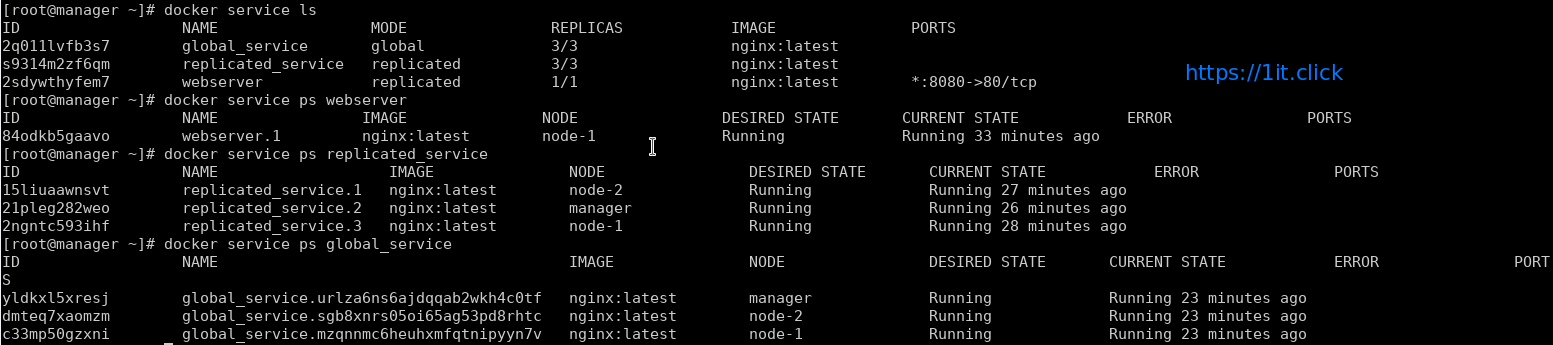
We have swarm cluster up and we are ready to deploy the services. In this demo we will deploy service name “webserver” which will be using “nginx” docker images.

# docker service create -p 8080:80 --name webserver nginx

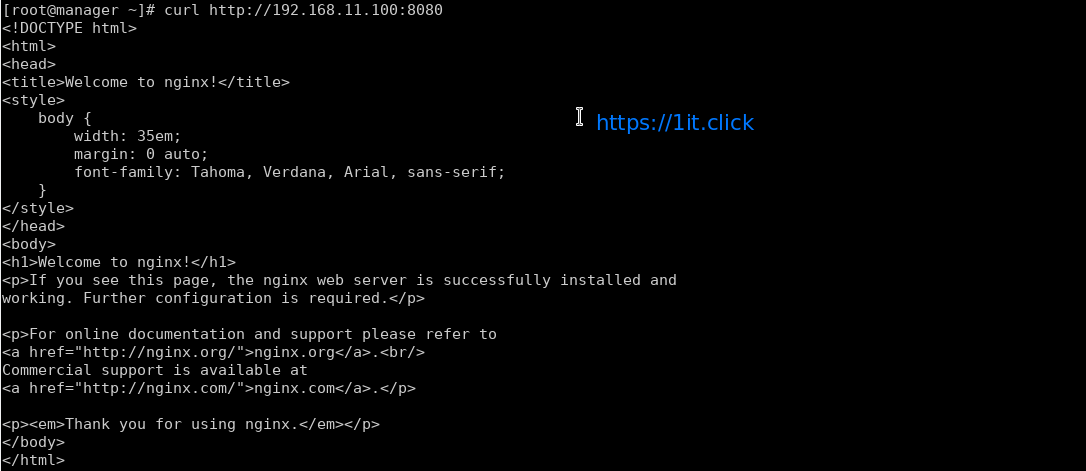
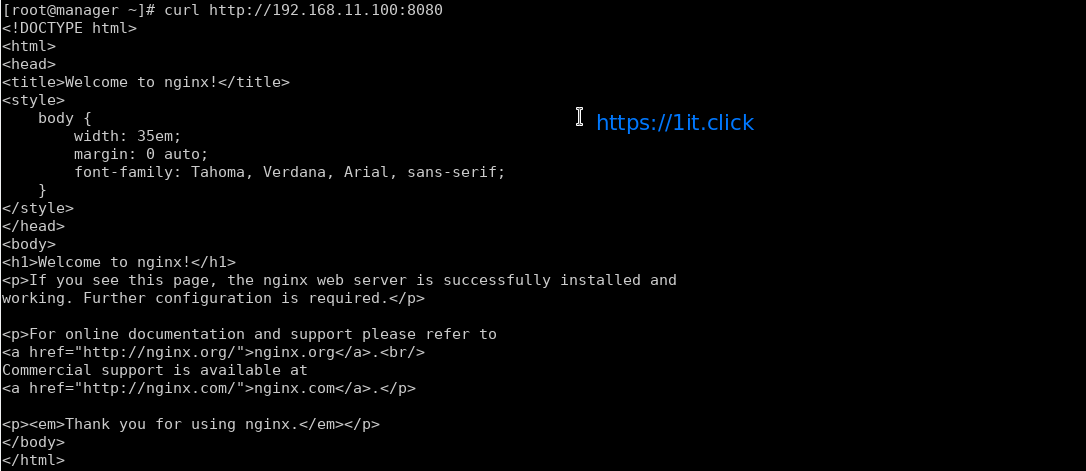
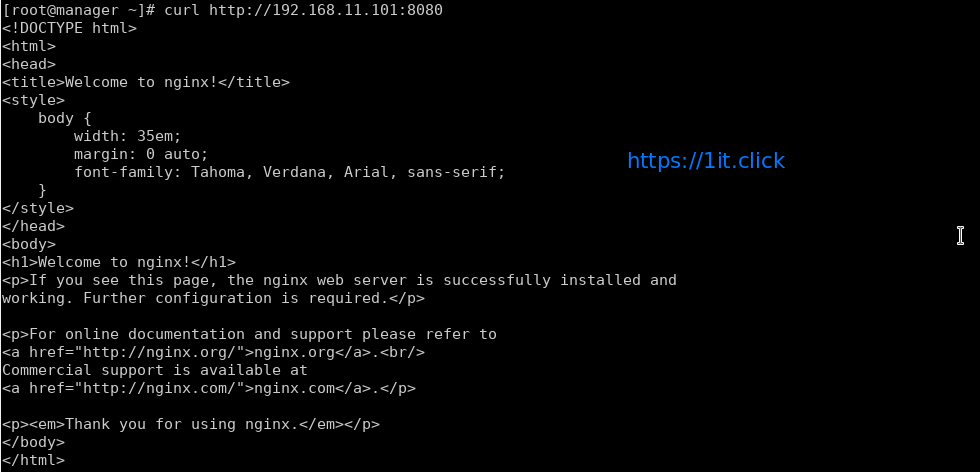
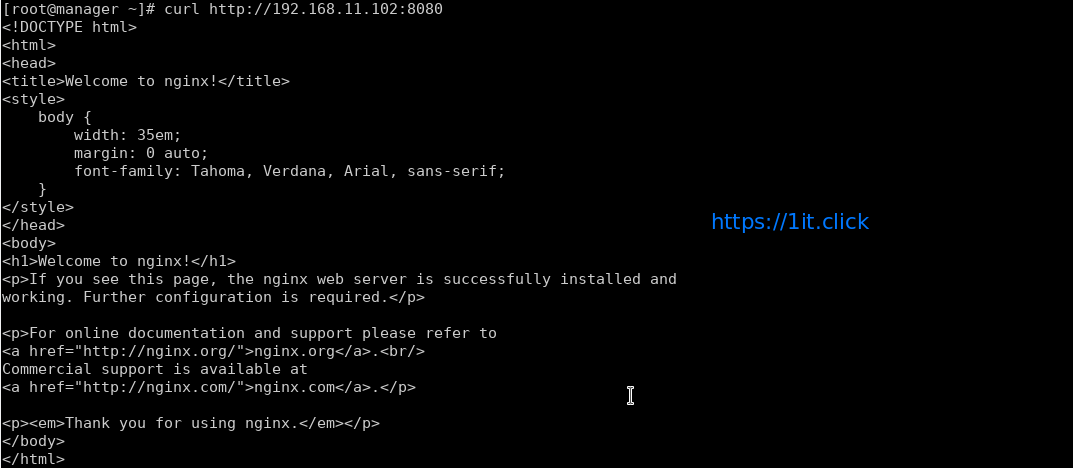
In the above example, we’re mapping port 80 in the Nginx container to port 8080 on the cluster so that we can access the default nginx page from anywhere.


Swarm Service modes

Swarm service support 2 modes – Replicated and Global (Replicated mode is default)

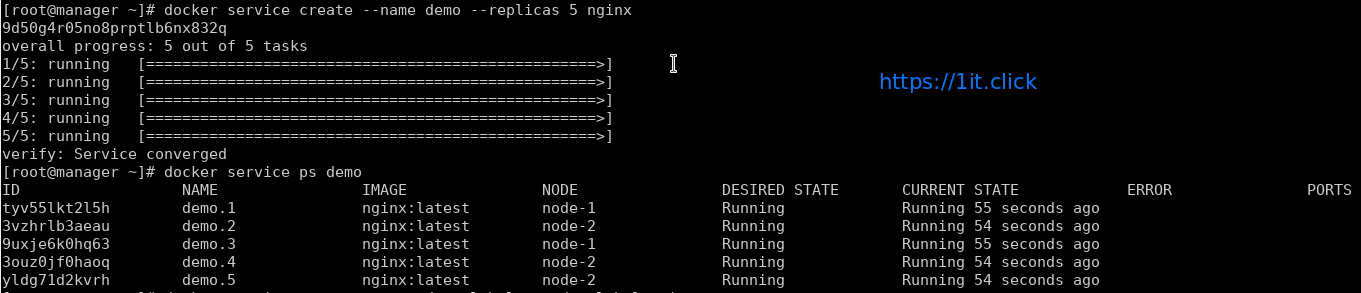
Replicated mode – you can pass number of replica of the service and swarm maintain that count.

# docker service create --name replicated_service --replicas 3 nginx

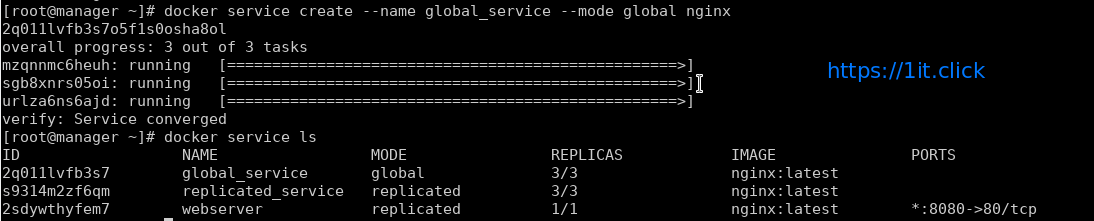
Global mode – To start a global service on each available node, pass –mode global to docker service create. Every time a new node becomes available, the scheduler places a task for the global service on the new node.

# docker service create --name global_service --mode global nginx


To view services on a cluster

# docker service ls

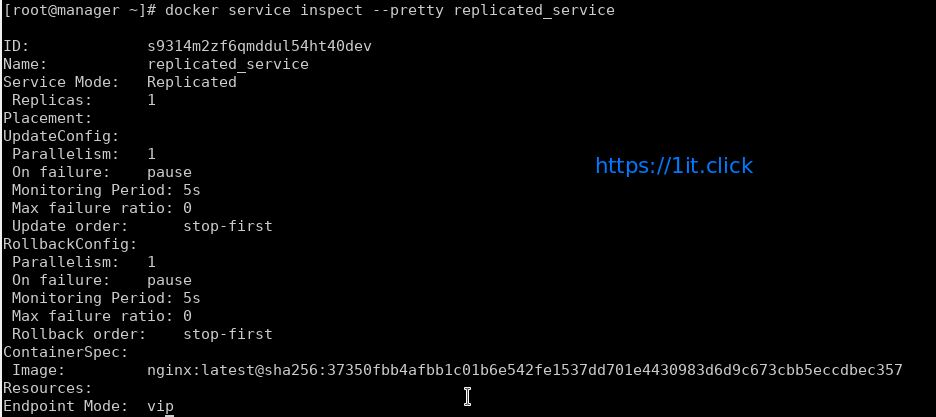
# docker service inspect --pretty <ServiceNAME|ServiceID>


To determine which nodes the services is running on by using docker service ps followed by service name

# docker service ps <ServiceNAME|ServiceID>

Docker by default use mesh networking, a service running on a node can be accessed on any other node of the cluster.


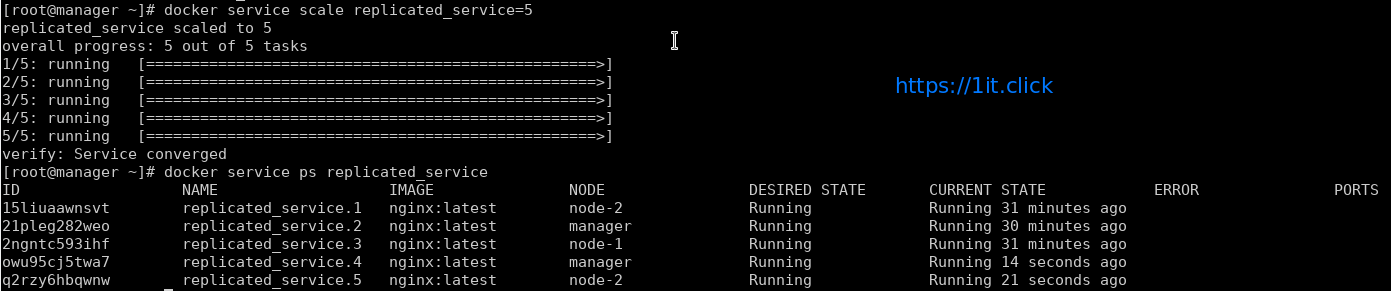
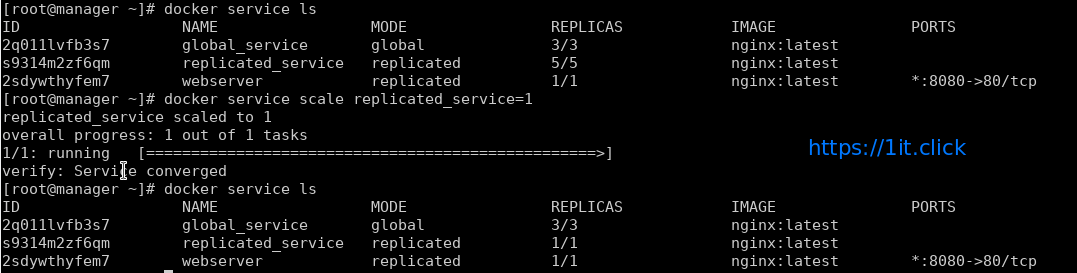
Scale Up/Down the Service

# docker service scale <ServiceNAME>=<#ofReplicas>

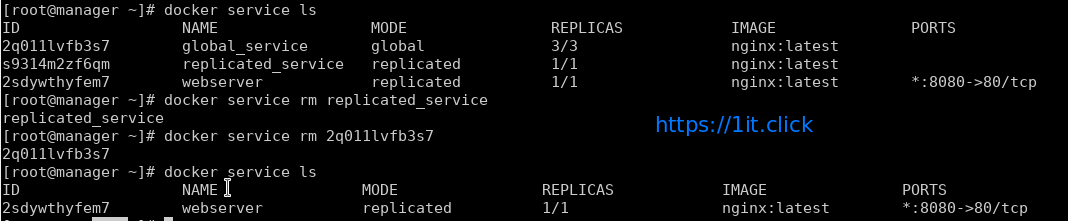
Remove a Service

# docker service rm <ServiceNAME|ServiceID>


Create Docker Swarm


Docker Swarm

Swarm is native clustering for the Docker. When the Docker Engine runs is swarm mode, manager nodes implement the Raft Consensus Algorithm to manage the global cluster state. The reason why Docker swarm mode is using a consensus algorithm is to make sure that all the manager nodes that are in charge of managing and scheduling tasks in the cluster, are storing the same consistent state.


LAB Setup

In this LAB we are going to create a Swarm cluster with single manager and 2 worker nodes.

Operating System CentOS 7.4 x86_64
Platform Vagrant Machines
Manager Node manager 192.168.11.100/24
Worker Node 1 node-1 192.168.11.101/24
Worker Node 2 node-2  192.168.11.102/24

Prerequisites

  • Docker Engine 1.12 or later installed. We are going to install “ce” (community engine)

# yum-config-manager --add-repo https://download.docker.com/linux/centos/docker-ce.repo

# yum install docker-ce -y

# systemctl start docker.service

# systemctl enable docker.service

  • Static IP address of the manager machine, preferably for all machines
  • Network connectivity between all nodes and manager
  • Following Open Network ports

TCP port 2377 for cluster management communications

TCP and UDP port 7946 for communication among swarm nodes

UDP port 4789 for overlay network traffic


Create a Swarm

After the installation of the docker engine, next step is to enable the swarm mode, by default it is disabled.


Step-1: Initialize the Swarm

To crate a new swarm run the below command on the manager node.

# docker swarm init --advertise-addr 192.168.11.100

This command switches the current node into swarm mode and creates a new swarm. On the node where swarm init is done, that node is designated as manager node and it starts on listening on the advertised IP address over port 2377.

With swarm init – by default, generates tokens for worker and manager nodes to join the swarm, you can regenerate the tokens again, if missed to node those.


Step-2: Adding worker nodes on the swarm cluster

Login to every swarm node-1 and node-2 and run the following command

# docker swarm join --token <TOKEN> <Manager IP>:2377

Step-3: Check the Status of the Swarm Cluster

Run the following commands to check the status and health of swarm cluster.

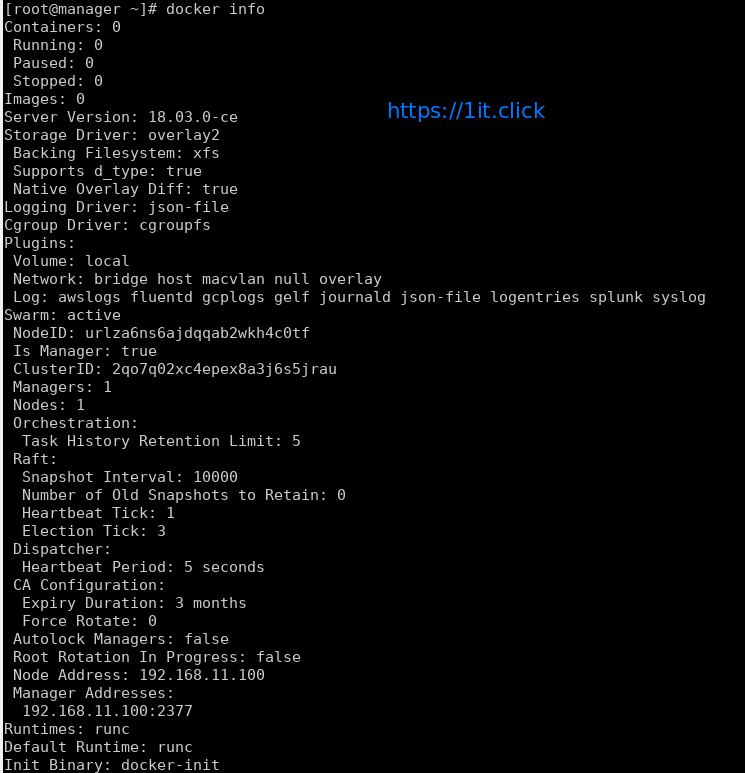
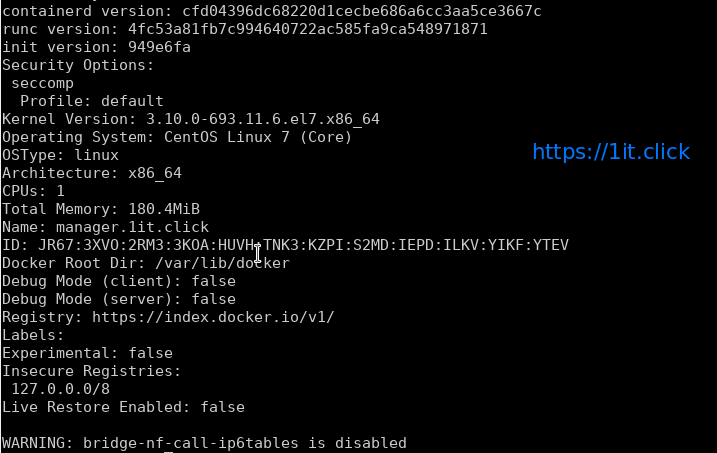
# docker info

# docker node ls

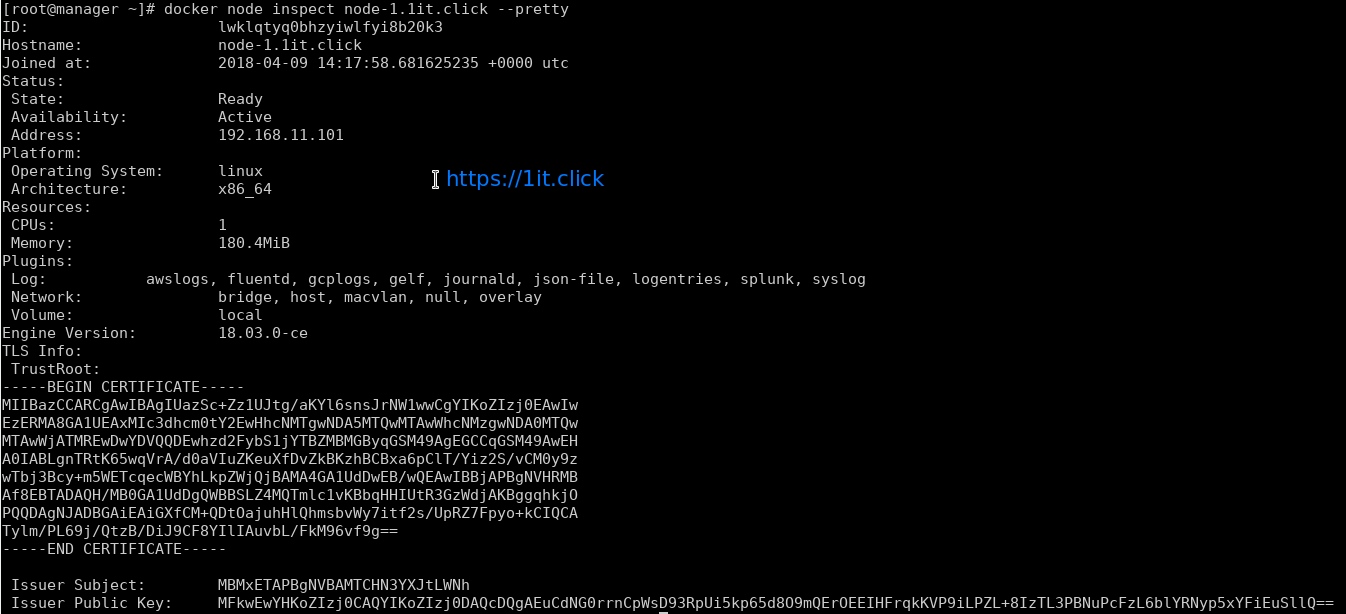
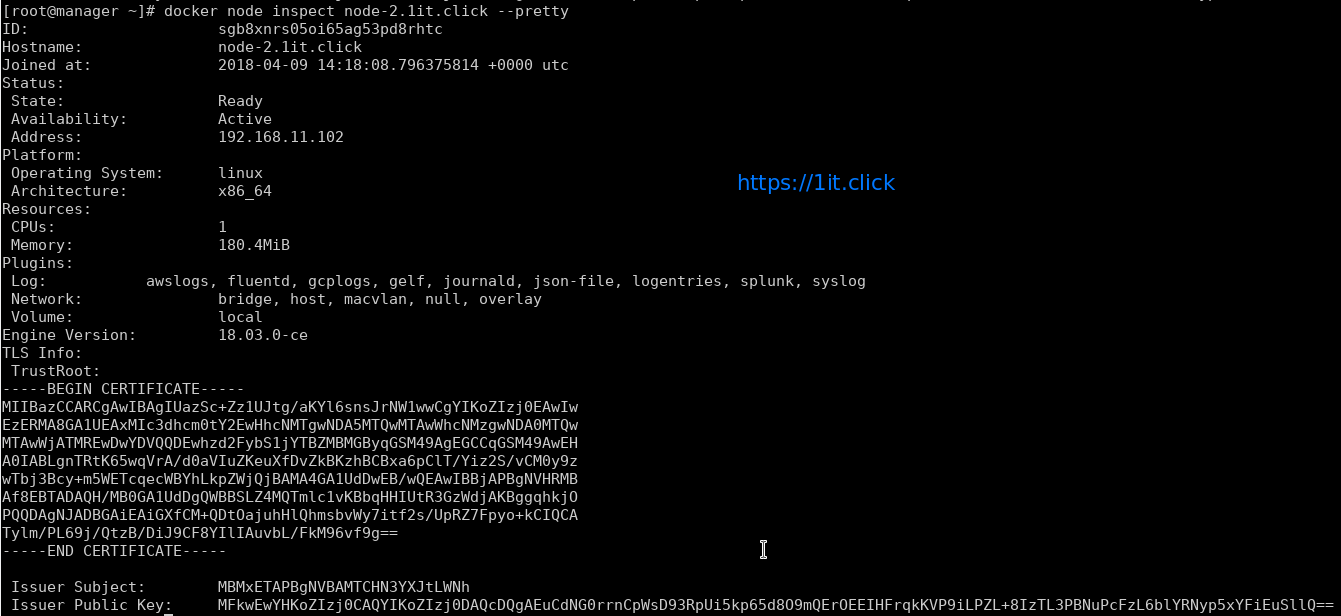
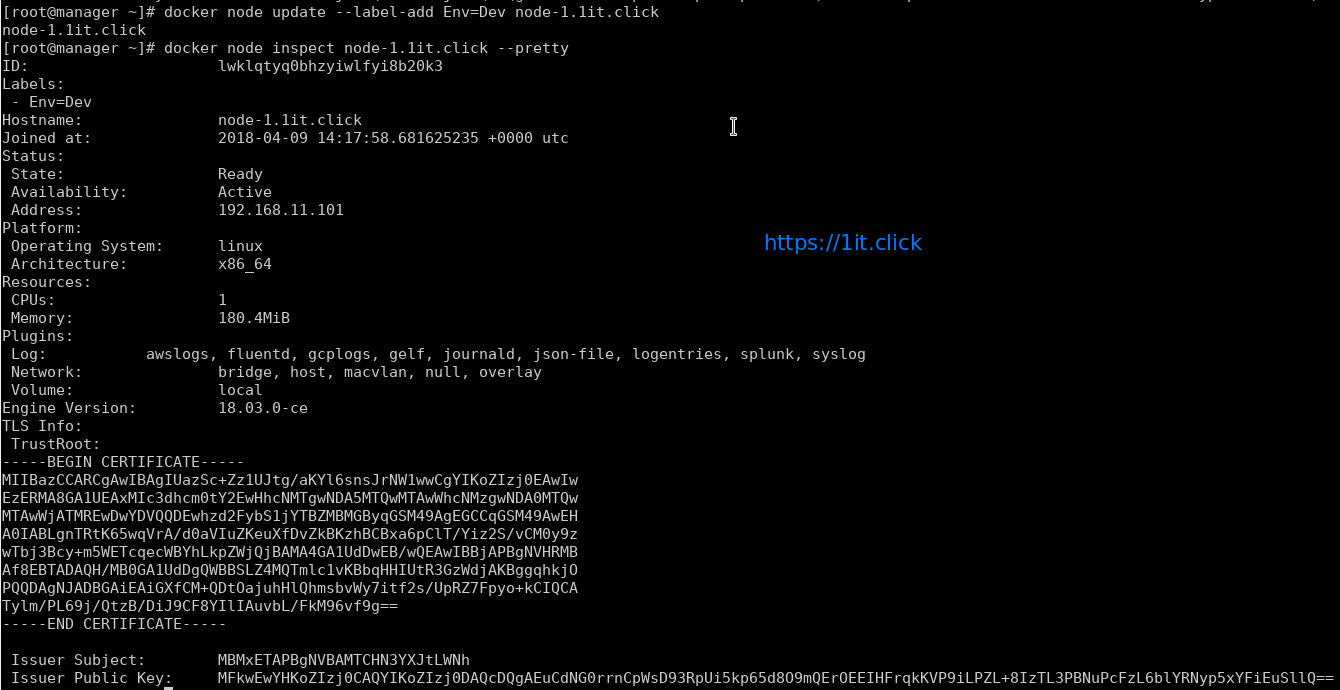
# docker node inspect <node> --pretty

Please Note – By default manager also acts as worker node.


To see the Token

Display the token for manager to join

# docker swarm join-token manager

Display the token for worker to join

# docker swarm join-token worker


Swarm Cluster Management

AVAILABILITY column shows whether or not the scheduler can assign tasks to the node:

active: scheduler can assign tasks to the node.

pause: scheduler doesn’t assign new tasks to the node, but existing tasks remain running.

drain: scheduler doesn’t assign new tasks to the node, existing services will move to other nodes.

MANAGER STATUS column shows node participation in the Raft consensus:

No value: indicates a worker node that does not participate in swarm management.

leader: node is the primary manager that makes all swarm management and decisions.

reachable: node is a manager node participating in the Raft consensus quorum.

unavailable: node is a manager that is not able to communicate with other managers.


Management Commands

Update the states of manager/worker node

# docker node update --availability drain node-1.1it.click

Promote the node as manager

# docker node promote node-1.1it.click

Demote the node from manager role

# docker node demote node-2.1it.click

Add labels to the Node’s metadata

# docker node update --label-add Env=Dev node-2.1it.click

Node leaves the cluster

# docker swarm leave

Removes the node from cluster

# docker node rm node-2.1it.click

Docker Swarm


Docker Swarm

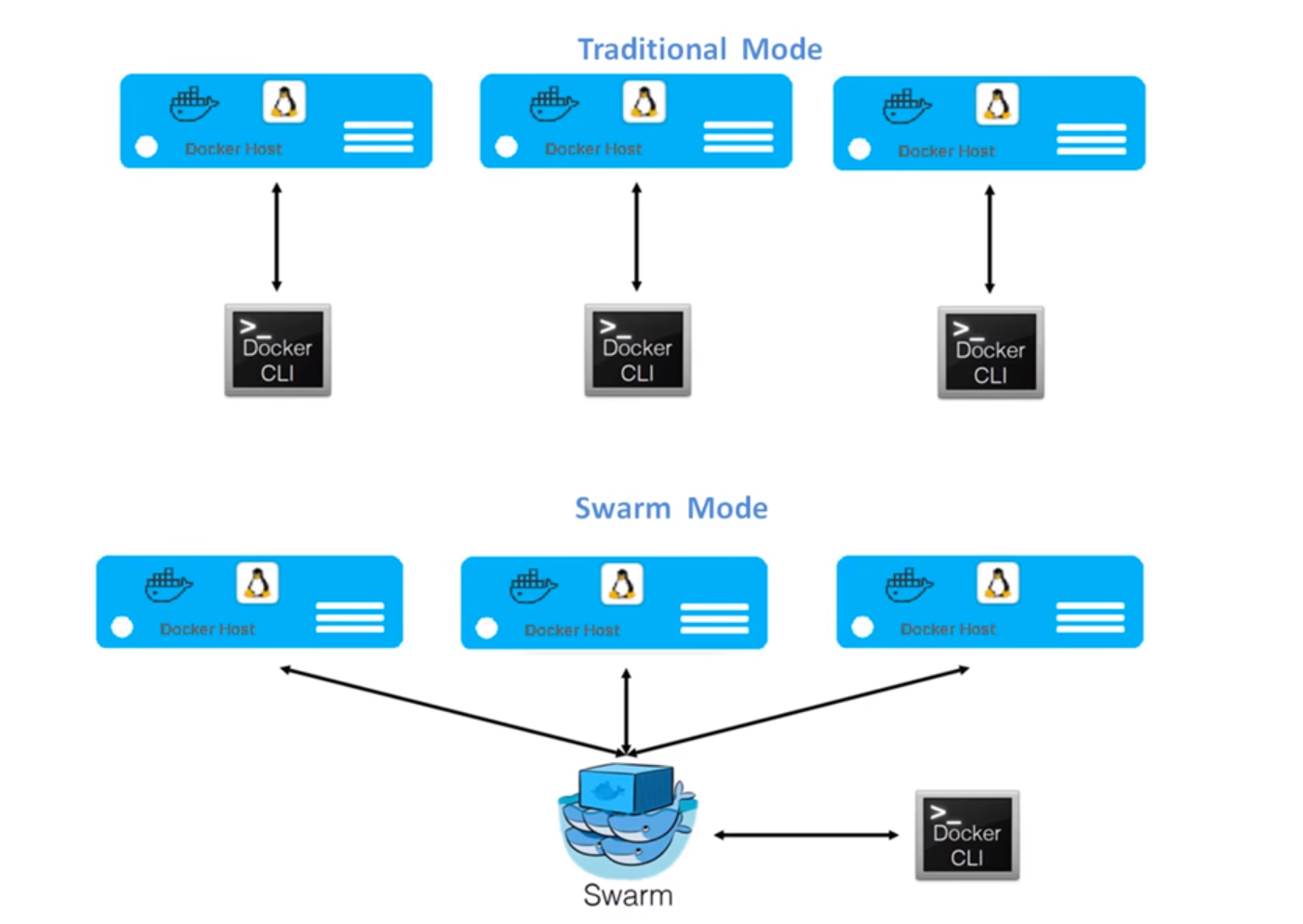
Swarm is native clustering for the Docker. in the context of swarm, a cluster is a poll of Docker hosts that acts as a bit like a single large docker host. You can also run swarm services and standalone containers on the same Docker instances.


Features of Swarm

  • Swarm setup is very quick and easy, no separate infrastructure requirements and Swarm ships as standard Docker image.
  • Swarm implements most of the Docker API endpoints, which means tools build on it can work out of the box.
  • Swarm support Affinity definition/configuration, which means Docker swarm launch a container only a Docker host that does not already have the same container already running on.
  • Swarm supports high availability, we can join multiple manager nodes to the cluster, so that if one manager node fails, another can automatically take its place without impact to the cluster.
  • Swarm support scaling, for each service you can declare the number of tasks you want to run. When you scale up or down, the swarm manager automatically adapts by adding or removing tasks to maintain the desired state.
  • Swarm handles desired state reconciliation very well, manager node constantly monitors the cluster state and reconciles any differences between the actual state and your expressed desired state.
  • Swarm support network overlays. The swarm manager automatically assigns addresses to the containers on the overlay network when it initializes or updates the application.
  • Swarm is secure by default. Each node in the swarm enforces TLS mutual authentication and encryption to secure communications between itself and all other nodes.
  • Rolling updates: At roll out time you can apply service updates to nodes incrementally.


Swarm Mode Key Concepts

Manger Node manages the application deployment of the request. Task Manager Node performs are

  • Dispatches units of work called tasks to worker nodes.
  • Checks are manage desired state of the swarm.
  • Manger nodes elect a single leader to conduct orchestration tasks.
  • Keep track of resource utilization on the worker nodes.

Worker nodes receive and execute tasks dispatched from manager nodes. By default manager nodes also run services as worker nodes, but you can configure them to run manager tasks exclusively and be manager-only nodes. An agent runs on each worker node and reports on the tasks assigned to it. The worker node notifies the manager node of the current state of its assigned tasks so that the manager can maintain the desired states.

Service is the definition of the tasks to execute on the worker nodes. It is the central structure of the swarm system and the primary root of user interaction with the swarm. When you create a service, you specify which container image to use and which commands to execute inside running containers.

Task carries a Docker container and the commands to run inside the container. It is the atomic scheduling unit of swarm. Manager nodes assign tasks to worker nodes according to the number of replicas set in the service scale. Once a tasks is assigned to a node, it cannot move to another node. It can only run on the assigned node or fail.

Load balancing, The swarm manager uses ingress load balancing to expose the services you want to make available externally to the swarm. The swarm manager can automatically assign the service a Published Port in the 30000-32767 range. Otherwise you can choose free port yourself.

DNS component automatically assigns each service in the swarm a DNS entry. The swarm manager uses internal load balancing to distribute requests among services within the cluster based on the DNS name of the service.

Docker Image Creation


Docker Image

Docker image can be described as a template with all required configurations Whereas a container is a  running instance of Docker image. Like containers, image are not bound to the states i.e. Image does not have states.

There are different images available from the OS/Application vendor along with the custom images from the community.

When working on container a DevOps/Application engineer generally create their own Docker image with all the customization, this enable them to launch a container quickly.


Methods for custom image creation

Interactive Method:

In this way, you can download the base Docker OS image -> create container -> manually launch a shell -> perform the customization -> commit the changes.

This process will save your container to a Docker image and that image can be stored/distributed.

Automated  method using Dockerfile:

Dockerfile is text file with the directives/instructions for the image creation. “docker build” command is used to build the image which creates/configures the image automatically by reading Dockerfile. Dockerfile accept the in the following format

DIRECTIVE               arguments

In the last session on “Docker”, we have covered the “interactive way” of image creation and in this session we are going to create a Docker image using the Dockerfile method.


LAB

Using the Dockerfile, we are going to create an Apache HTTPD Web server on CentOS 7 image, At high level below configuration will be performed/applied to the Docker image.

  • Download the official CentOS 7 image.
  • Perform package update on the image.
  • Install Apache HTTP server.
  • Add a directive to include/copy the index.html from Docker mgmt server to document root ( i.e. /var/www/html ) of the image.
  • Enable port 80 for automatically whenever a container created from this image.
  • Configure the auto start-up of Apache HTTPD service.

Below are the directives we are going to use in the Dockerfile.

FROM :   this directive tells which base image to be used to create the custom image, example centos/ubuntu etc.

RUN    :       this directive is use to define the command to be executed during the image build.

ADD    :      this directive is used to defines the files/directories to be copied from the source (local server) to the image during image build.

ENTRYPOINT :     this directive defines container as executable.

CMD :             this directive is used to define the arguments for the ENTRYPOINT command.

EXPOSE :  this directive defines the network ports on which container will listen.


Sample Dockerfile

#  use latest centos7 image

FROM centos:latest

#  add the image maintainer name and email id

MAINTAINER Aghassi email: [email protected]

# update the centos image with latest available updates

RUN yum update -y

RUN yum clean all

# install network utilities, such as ( ifconfig, netstat, etc)

RUN yum install net-tools -y

# install apache httpd web server

RUN yum install httpd -y

RUN yum clean all

# copy the index.html file from current directory to image's document root

ADD index.html /var/www/html/

# define image to allow listen on port 80 (whenever a container created)

EXPOSE 80

# define the commands to be executed when container boots (created from this image)

ENTRYPOINT [ "/usr/sbin/httpd" ]

CMD [ "-D",  "FOREGROUND" ]


Bulid image

# docker build -t [repository/image_name]:[tag] .


Test the newly created image by creating a container

# docker run -it -d -P [image id]

#curl [container IP]:80


Customize The Docker Networking


Why to use custom Network Subnet for Docker Networking?

Docker container makes use of default subnet "172.17.0.0/16" for Networking. There may be many scenarios where we can’t use the default network due to some restrictions or in case subnet already used in the network.


Lab Tasks

In this quick session, we will change the network from default subnet "172.17.0.0/16" to "10.10.10.10/24". The bridge interface is remain to docker0 i.e. default.


Configure the Custom Network

Stop The Docker Service

# systemctl stop docker.service

Bring down the Docker bridge docker0

# ip link set dev docker0 down

Verify if IP forwarding is enabled, if not enable it in sysctl.conf

# sysctl net.ipv4.conf.all.forwarding

Update new subnet in the /etc/sysconfig/docker-network add the following to DOCKER_NETWORK_OPTIONS:

"--bip=YOUR>CIDR>ADDRESS/24"

Example

DOCKER_NETWORK_OPTIONS="--bip=10.10.10.10/24"

Remove default subnet’s MASQUERADE rules from the POSTROUTING chain in network iptables:

# iptables -t nat -F POSTROUTING

# iptables -t nat -F DOCKER

Start Docker service:

# systemctl start docker.service

Verify that the MASQUERADE rule have new subnet added to the POSTROUTING chain:

# iptables -t nat -L -n


Validation

Check the new subnet is on the bridge now:

# docker network inspect bridge

Check IP Address of the Container

# docker inspect -f '{{ .NetworkSettings.IPAddress }}' [Container ID]

Run a docker container and check container have

# docker run -it [Container Name] /bin/bash


Docker


What is Docker?

Docker is an open platform for developers and system engineers to build, ship, and run distributed applications, whether on Bare Metal System (Physical), VMs, or the Cloud, Docker is not a container technology like Xen/KVM etc.

Docker provides an additional layer abstraction and automation of operating system I virtualization on Linux.


Advantages of using Docker

Portability – In Docker system, an application and its prerequisites/dependencies can be bundled into a single container/image, whish will be independent of host kernel, can be easily ported to different system.

Quick Application Deployment – As application and its dependencies can be bundled into single images, it makes easy to quickly deploy the apps.

Sharing – You can share your Docker image with other using remote repositories.

Lightweight – Docker images have very small, they need very low compute capacity and storage, …

Easy Maintenance – Maintenance is very quick and easy.

Cost Saving – Open Source technology and don’t need heavy compute.


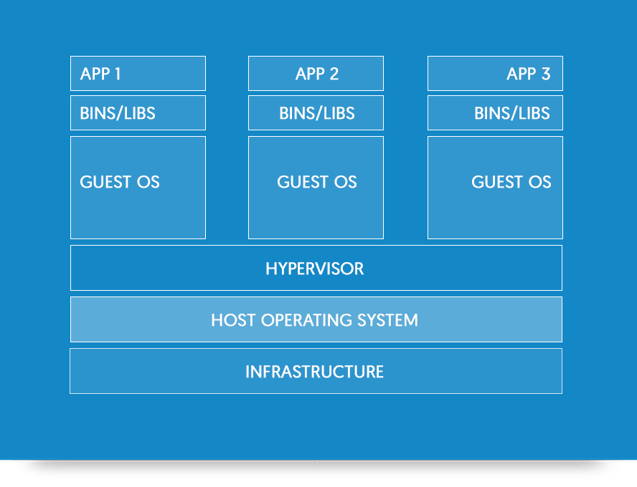
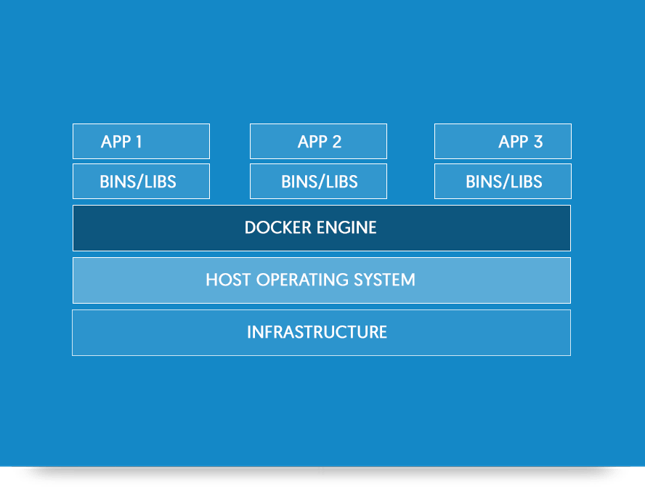
Docker Containers vs. Virtual Machines

  • Docker container can be created/destroyed very quickly as compare to the virtual machines.
  • Docker containers are light weight is compare to the virtual machines. Being lightweight more containers can run at some time on a host.
  • Docker container make use of resources very efficiently. In case of virtual machines capacity is need to be reserved (compute + storage), whereas this is not needed is case of Docker containers.
  • Virtual Machines can be migrated across servers when they are running, but Docker need to stopped before migration as there is no hypervisor layer.


*Images taken from Docker Documentations


Docker Terminologies

  • Images – Images are templates for the docker containers.
  • Containers – created from Docker images and run the actual application.
  • Docker Daemon – The background service running on the host that manages building, running the containers.

Prerequisites Docker Installation

  1. CentOS 7 64 Bit / Kernel 3.10.x kernel in the minimum required.
  2. Disabled the SELinux and FirewallD services:  # systemctl stop firewalld
  3. Install EPEL repository:    # yum install -y epel-release

 Install Docker via yum provided by CentOS (method 1)

# yum install -y docker


Install Docker CE (community edition)  Software (method 2)

First remove older version of docker (if any):

# yum remove docker docker-client docker-common docker-selinux docker-engine-selinux docker-engine docker-ce

Next install needed packages:

# yum install yum-utils device-mapper-persistent-data lvm2 -y

Configure the docker-ce repo:

# yum-config-manager --add-repo https://download.docker.com/linux/centos/docker-ce.repo

Finally install docker-ce:

# yum install docker-ce -y


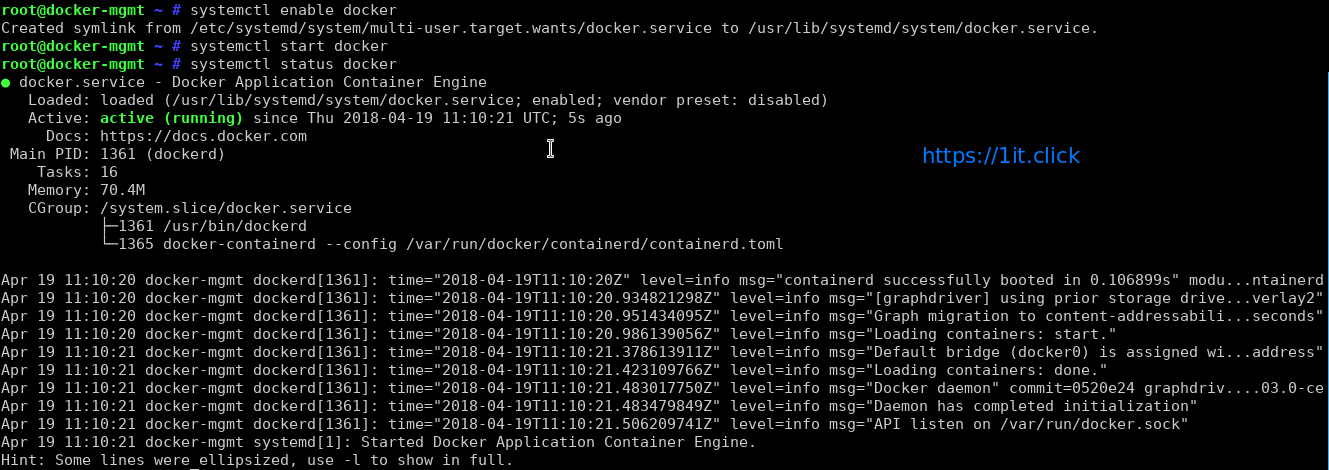
Enable and Start Docker service

# systemctl enable docker
# systemctl start docker


How to find out info about Docker network bridge and IP addresses

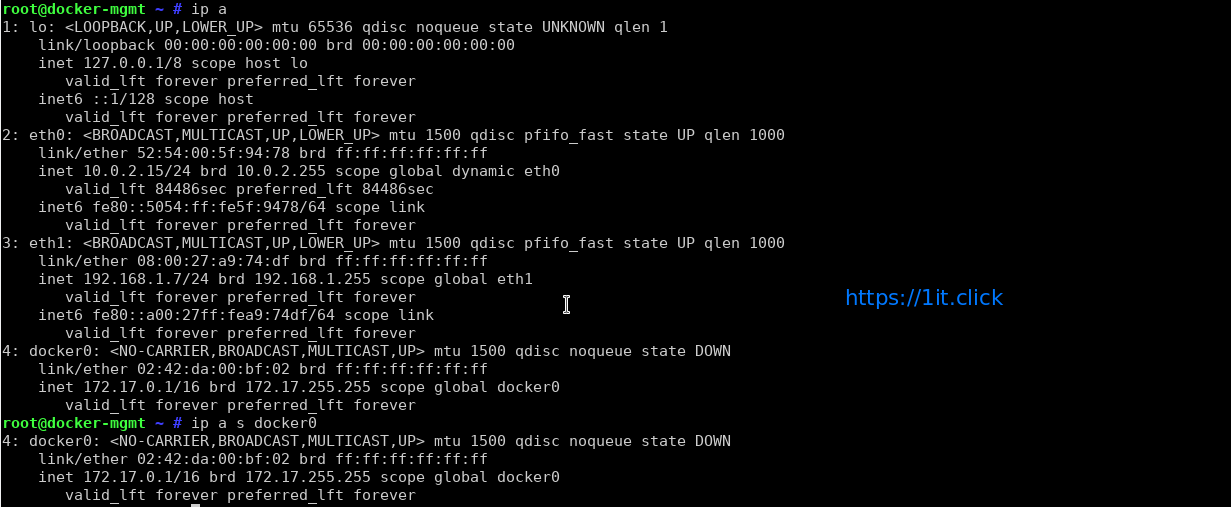
Default network bridge named as docker0 and is assigned with an IP address. To find this info run the following:

# ip a

# ip a s docker0


How to run docker commands

The syntax is:

# docker command
# docker command arg
# docker [options] command arg
# docker help | more


Getting help

# docker help | more

Run ‘docker COMMAND --help‘ for more information on a command:

# docker ps --help
# docker cp --help


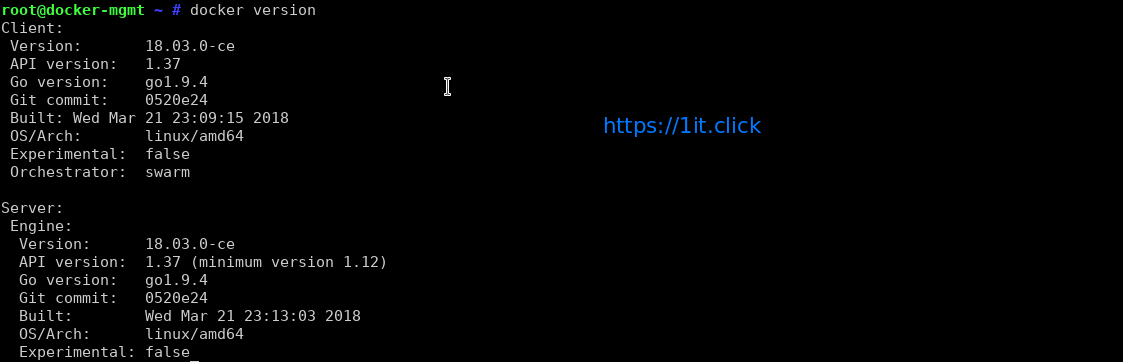
Check the Docker version

# docker version


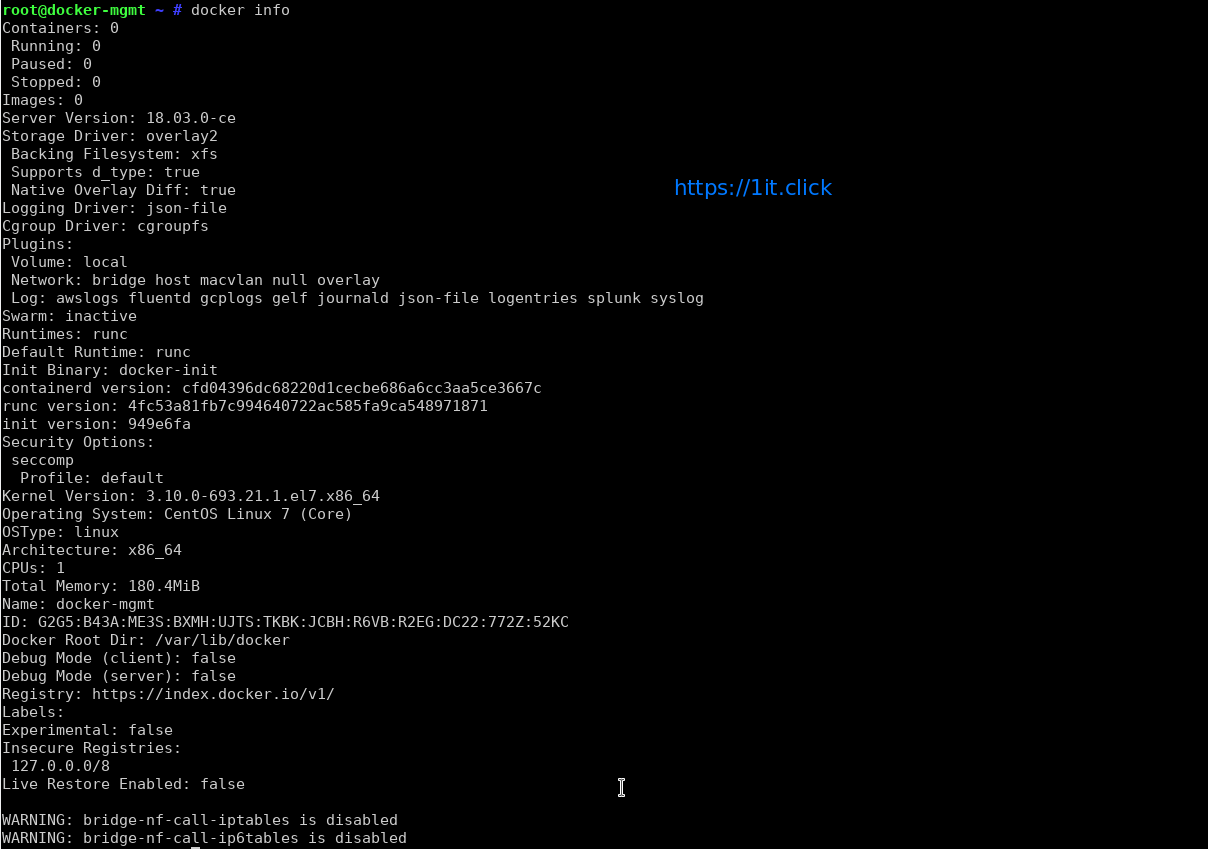
Check Detailed Docker Information

# docker info


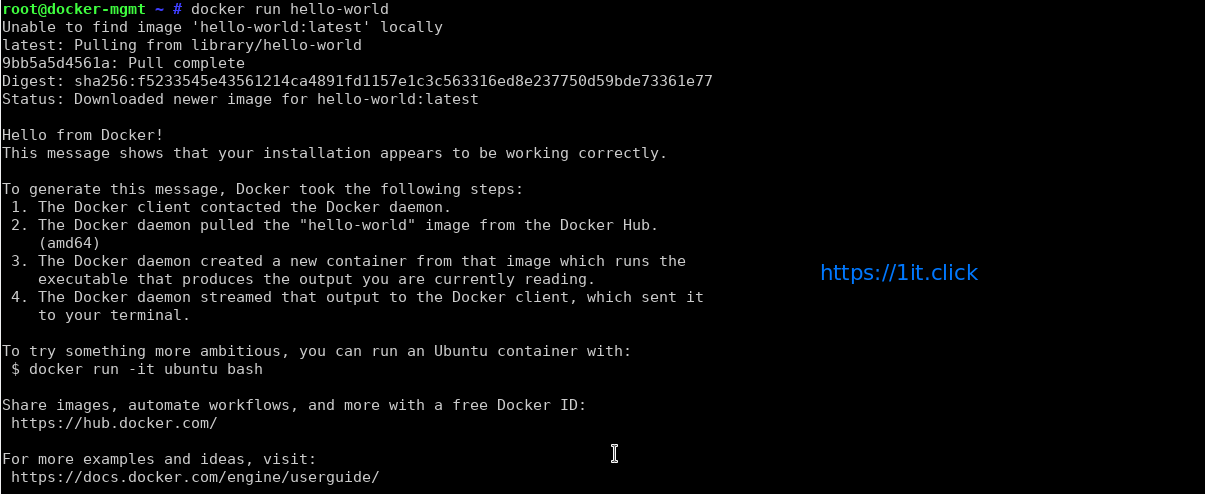
How to test your docker installation

Docker images are pulled from docker cloud/hub such as docker.io or registry.access.redhat.com and so on. Type the following command to verify that your installation working:

# docker run hello-world


Search Docker Images on Internet

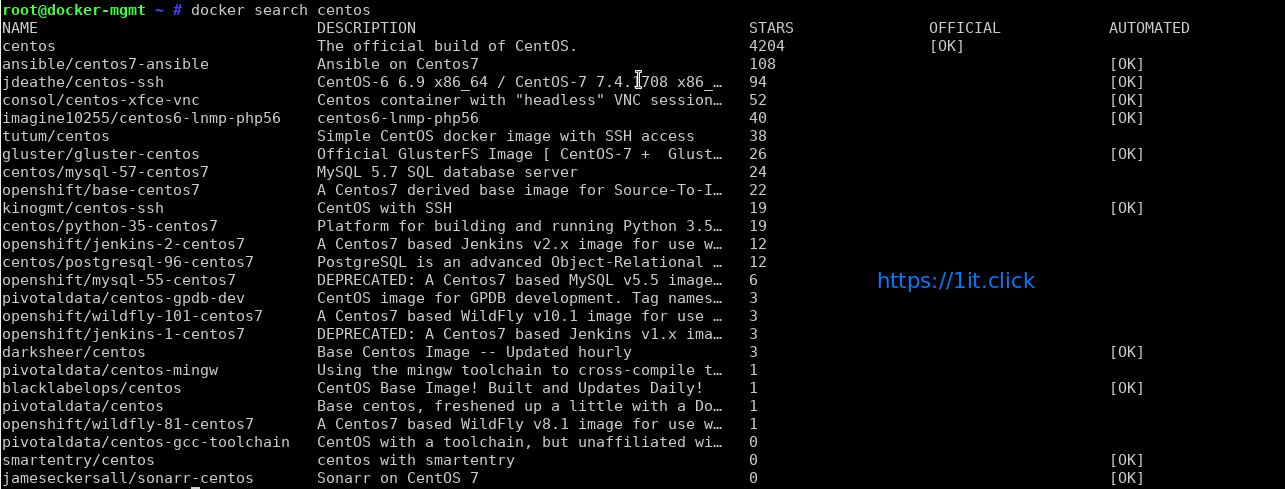
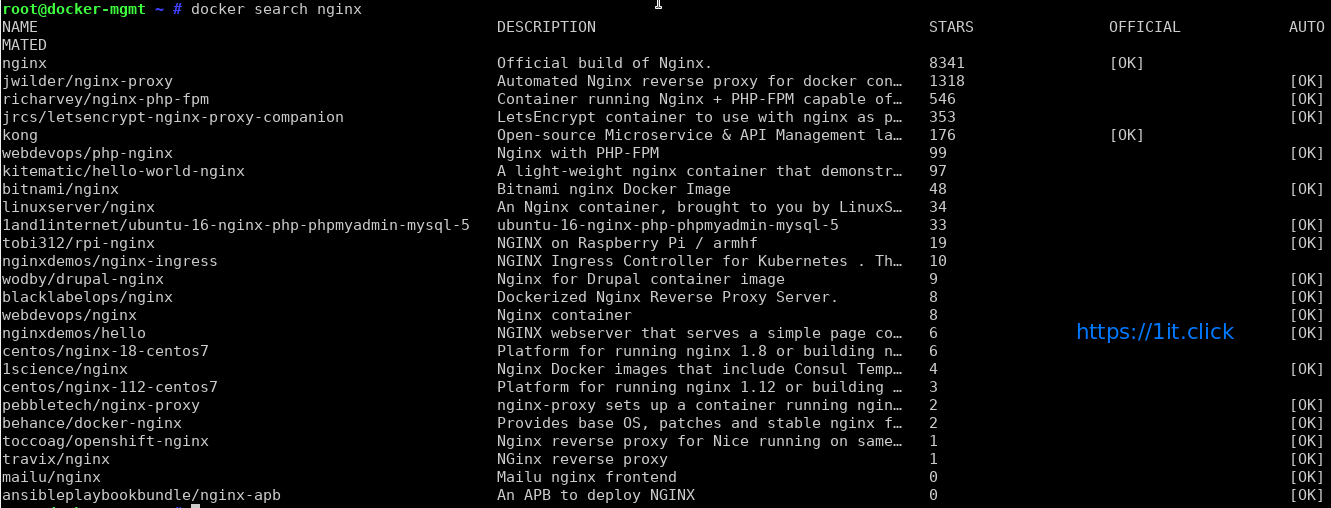
Now you have working Docker setup. It is time to find out images. We can find images for all sort of open source projects and Linux distributions. To search the Docker Hub/cloud for centos or nginx image run:

# docker search centos


# docker search nginx


Download Docker Images

To pull an image named centos or nginx from a registry, run:

# docker pull centos:centos7

# docker pull nginx


To Display the list of locally available images

# docker images


TAG − This is used to logically tag images.
Image ID − This is used to uniquely identify the image.
Created − The number of days since the image was created.
Virtual Size − The size of the image. 


Remove Docker Image

When you have lots of running which are obsolete or you no longer need any Docker image then you can remove that image using the following command.

# docker rmi [IMAGEname]


To test your new image

The concept is little catchy, whenever a command is sent for execution in the Docker image, a container in obtained. When this command execution is finished, the container gets stopped (a non-running or exited container state). It Means at every command execution into the same image a new container is created again and again and exited.

# docker run centos:centos7 /bin/ping 1it.click -c 5


List Docker Containers

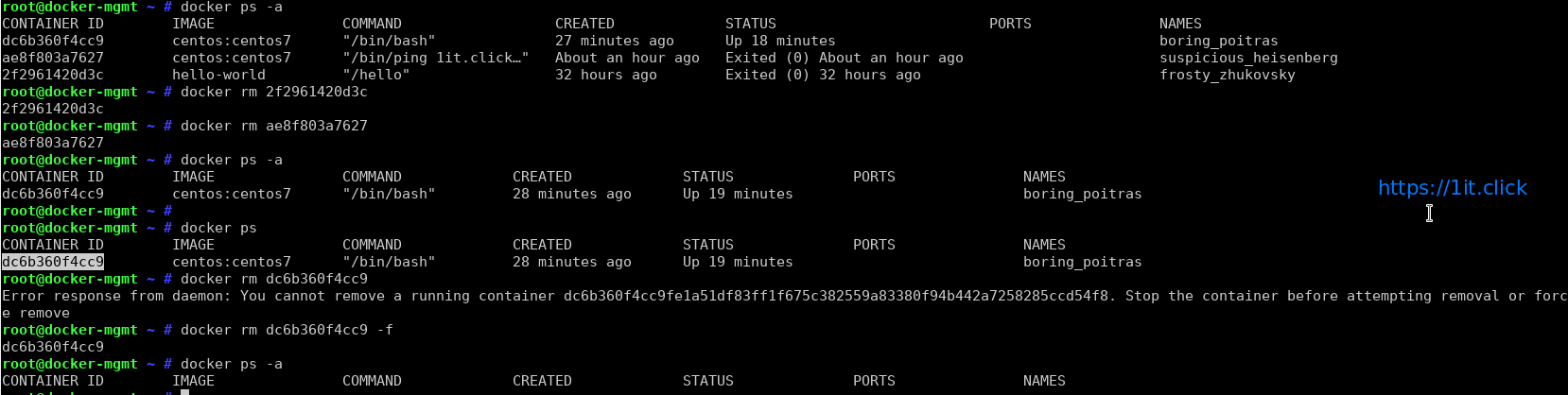
Whenever a command execution is performed on a Docker Image a container is created and gets stopped after execution but it remains in exited or non-running state. The following command will display a list of the running and stopped (non-running) containers:

# docker ps -l

In a production environment there are many running containers and to list them we have command. This command is used to get the currently running containers:

# docker ps

This Can also be used with -a argument and this command will list all of the containers on the system:

# docker ps -a


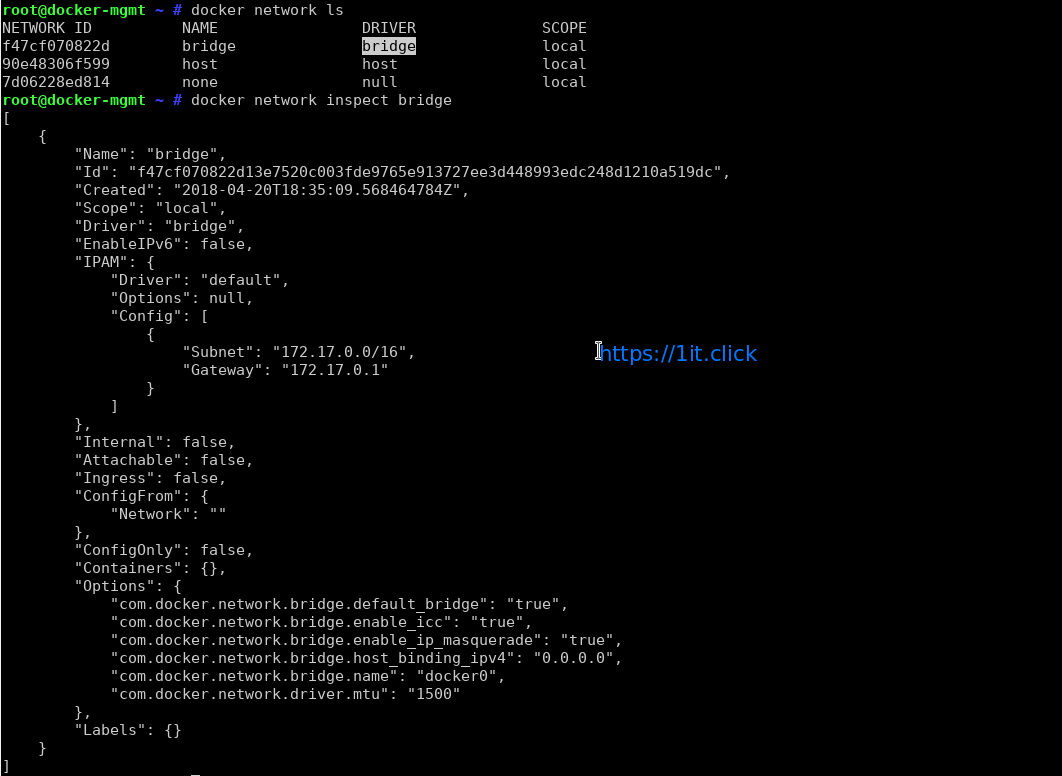
Checking Docker Networking

# docker network ls

# docker network inspact [network name]


Checking Resource Consumption by Running Container

# docker stats


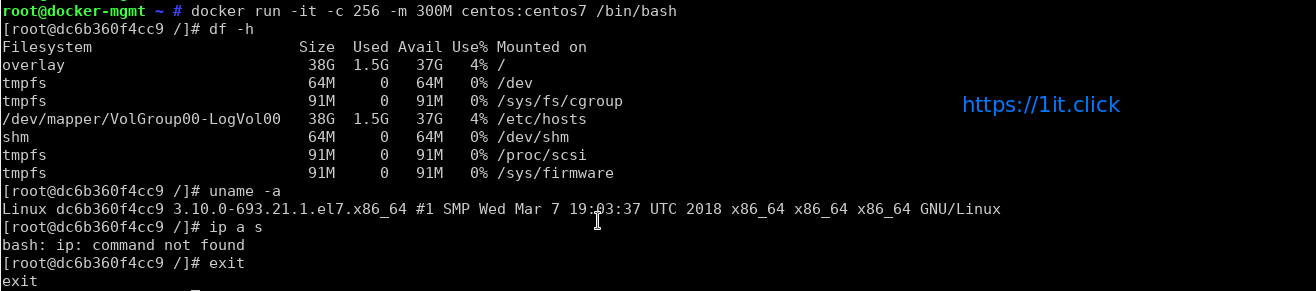
Check Resource limits for a docker container

# docker run -it -c 256 -m 300M centos:centos7 /bin/bash


Stop/Start/Restart operation

# docker start [container ID]                ## to start a docker container

# docker stop [container ID]                 ## to stop a docker container

# docker restart [container ID]              ## to restart a docker container


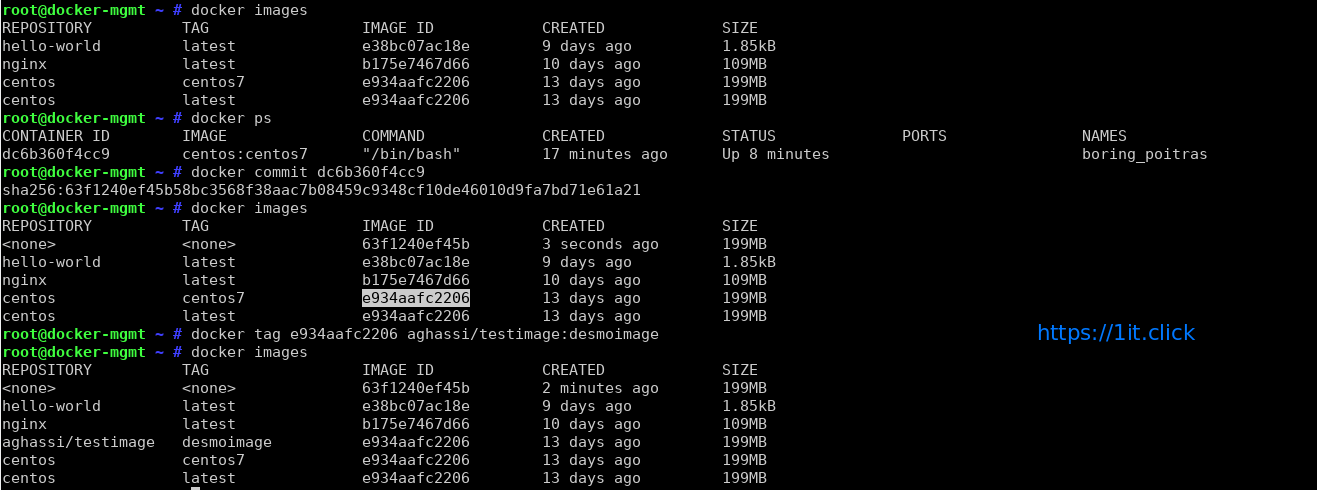
Committing the Docker Container Updates (This command turns your container to an image) And Adding a Repository/Tag value to a image

# docker commit [container ID]

# docker tag [image ID] <repo : tags>

Removing/Deleting a container

# docker rm [container ID]


Checking the docker container Logs

# docker logs [container ID]


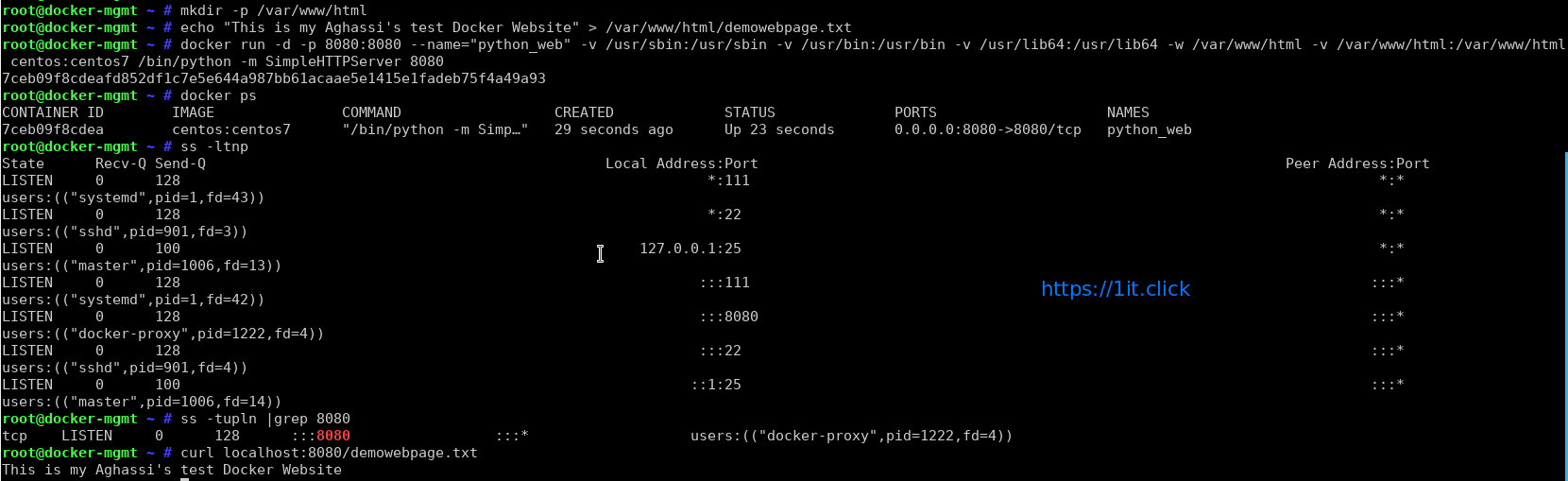
Lets create our container and hots a demo website quickly using Python Simple HTTP Server module quickly will listen on port 8080:

# mkdir -p /var/www/html

# echo "This is my Aghassi's test Docker Website" > /var/www/html/demowebpage.txt

# docker run -d -p 8080:8080 --name="python_web" -v /usr/sbin:/usr/sbin -v /usr/bin:/usr/bin -v /usr/lib64:/usr/lib64 -w /var/www/html -v /var/www/html:/var/www/html centos:centos7 /bin/python -m SimpleHTTPServer 8080

-d, –detach                             Run container in background and print container ID

-p, –publish list                     Publish a container’s port(s) to the host (default [])

-v, –volume list                     Bind mount a volume (default [])

-w, –workdir string              Working directory inside the container

Check the network ports allocation:

# ss -tupln |grep 8080

Lets test the website:

# curl localhost:8080/demowebpage.txt


How to run Docker nginx image

Now you pulled nginx image, it is time to run it:

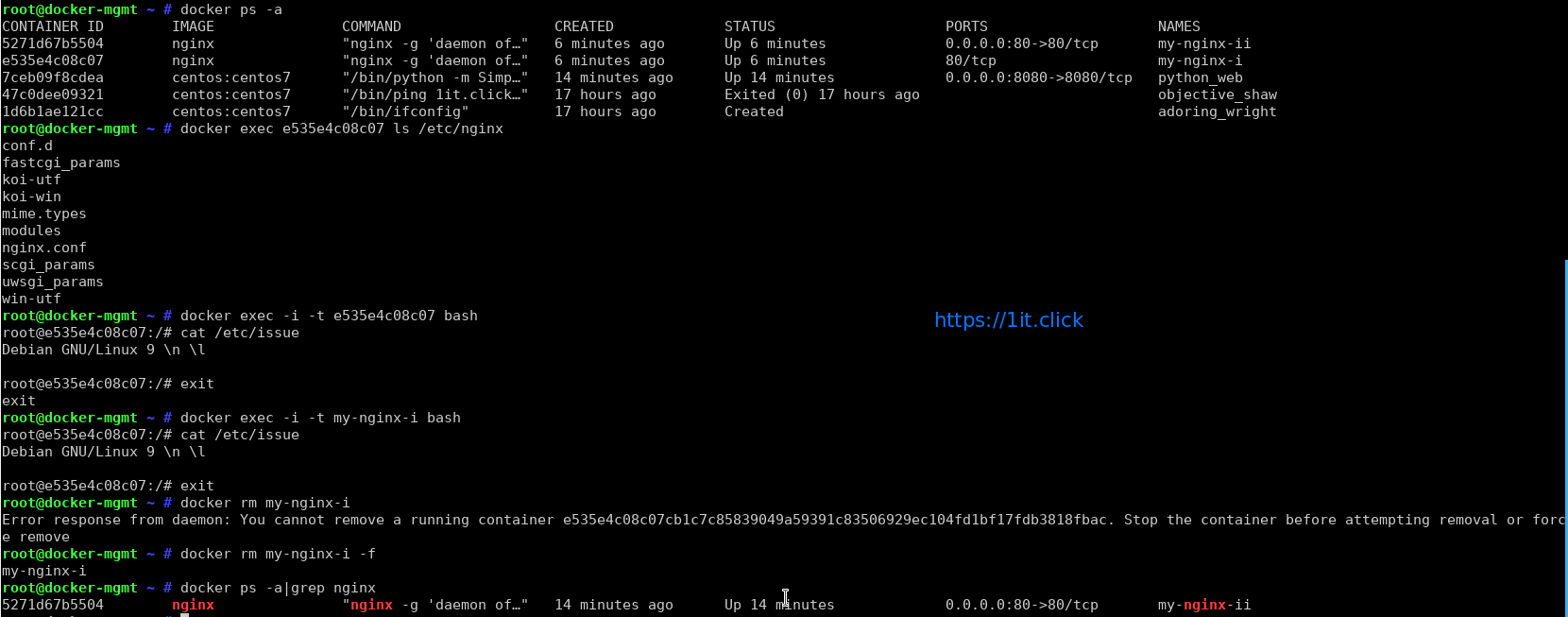
# docker run --name my-nginx-i --detach nginx

Say you want to host simple static file hosted in /var/www/html/ using nginx container:

# docker run --name my-nginx-ii -p 80:80 -v /var/www/html/:/usr/share/nginx/html:ro -d nginx

Where,

–name my-nginx-i : Assign a name to the container
–detach : Run container in background and print container ID
-v /var/www/html/:/usr/share/nginx/html:ro : Bind mount a volume
-p 80:80 : Publish a container’s port(s) to the host i.e redirect all traffic coming to port 80 to container traffic

Go ahead and create a file named index.html in /var/www/html/:

# echo 'Welcome. I am Nginx server locked inside Docker' > /var/www/html/index.html

Test it:

curl http://your-host-ip-address/
curl 192.168.1.7

Sample outputs:

Welcome. I am Nginx server locked inside Docker

How to run a command in a running container

Run ls /etc/nginx command for my-nginx-i container

# docker exec e535e4c08c07 ls /etc/nginx

OR

# docker exec my-nginx-i ls /etc/nginx

Want to gain bash shell for a running container and make changes to nginx image?

# docker exec -i -t e535e4c08c07 bash

OR

# docker exec -i -t my-nginx-i bash


How To Use netstat


Introduction

netstat (network statistics) is a command line tool for monitoring network connections both incoming and outgoing as well as viewing routing tables, interface statistics etc. netstat is available on all Unix-like Operating Systems and also available on Windows OS as well. It is very useful in terms of network troubleshooting and performance measurement. netstat is one of the most basic network service debugging tools, telling you what ports are open and whether any programs are listening on ports.


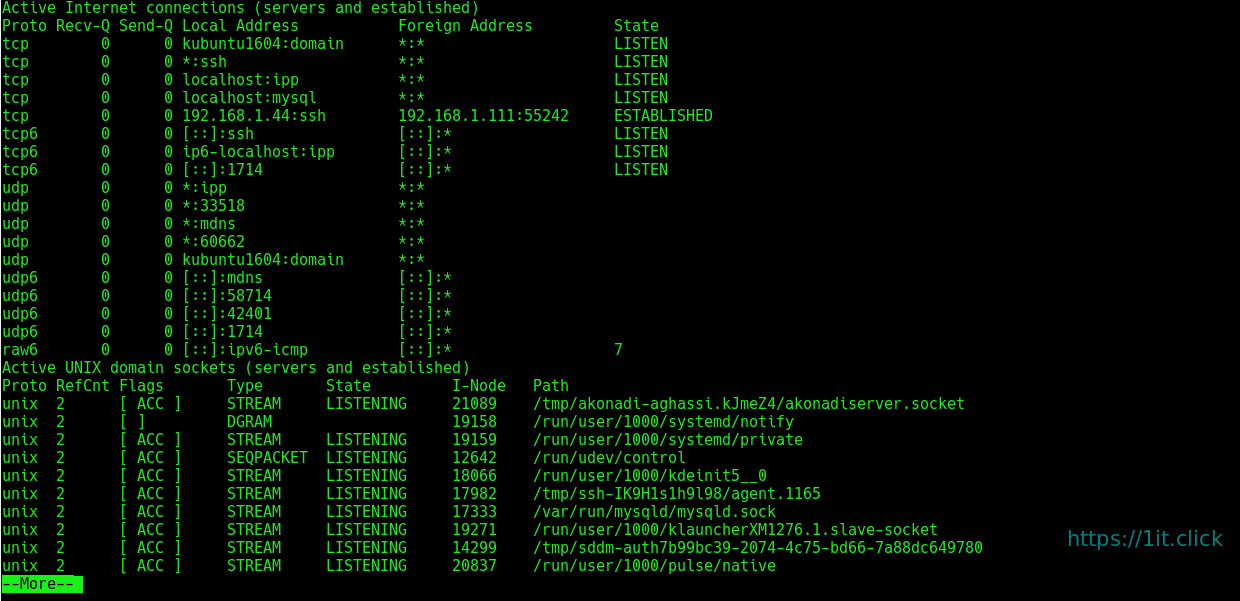
Listing all the LISTENING Ports of TCP and UDP connections

$ netstat -a | more


Listing TCP Ports connections

Listing only TCP (Transmission Control Protocol) port connections:

$ netstat -at


Listing UDP Ports connections

Listing only UDPUser Datagram Protocol ) port connections:

$ netstat -au


Listing All LISTENING Connections

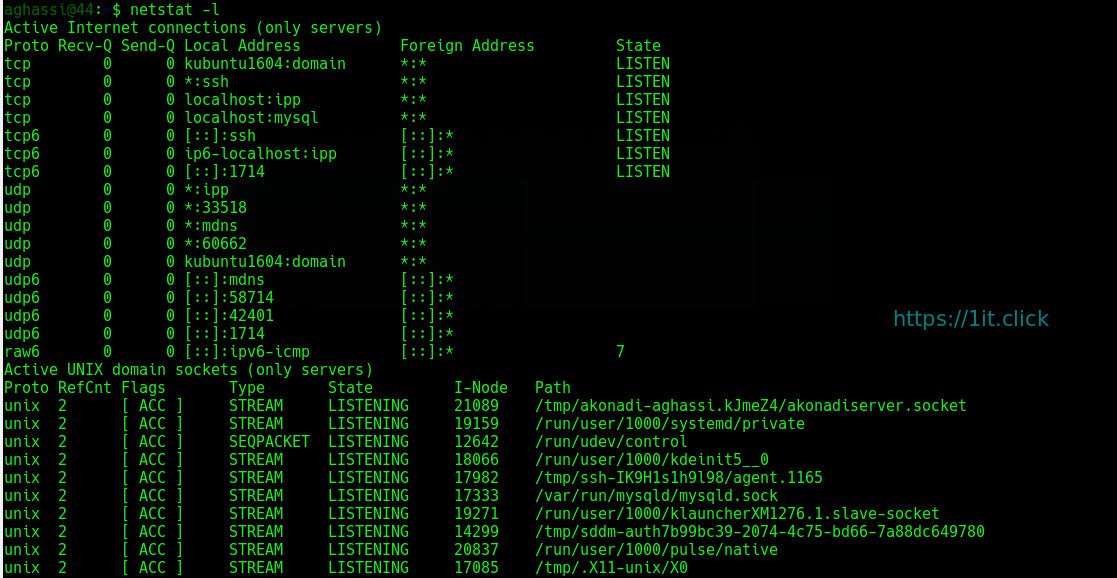
Listing all active listening ports connections:

$ netstat -l

Listing All TCP Listening Ports

Listing all active listening TCP ports:

$ netstat -lt


Listing All UDP Listening Ports

Listing all active listening UDP ports:

$ netstat -lu


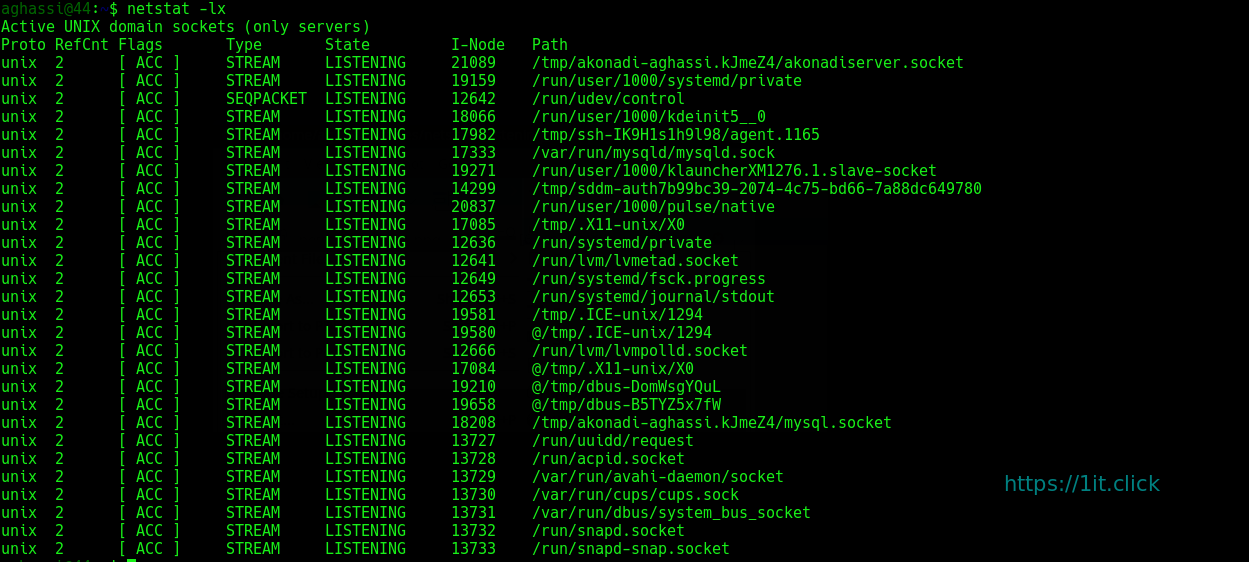
Listing all UNIX Listening Ports

Listing all active UNIX listening ports:

$ netstat -lx


Showing Statistics by Protocol

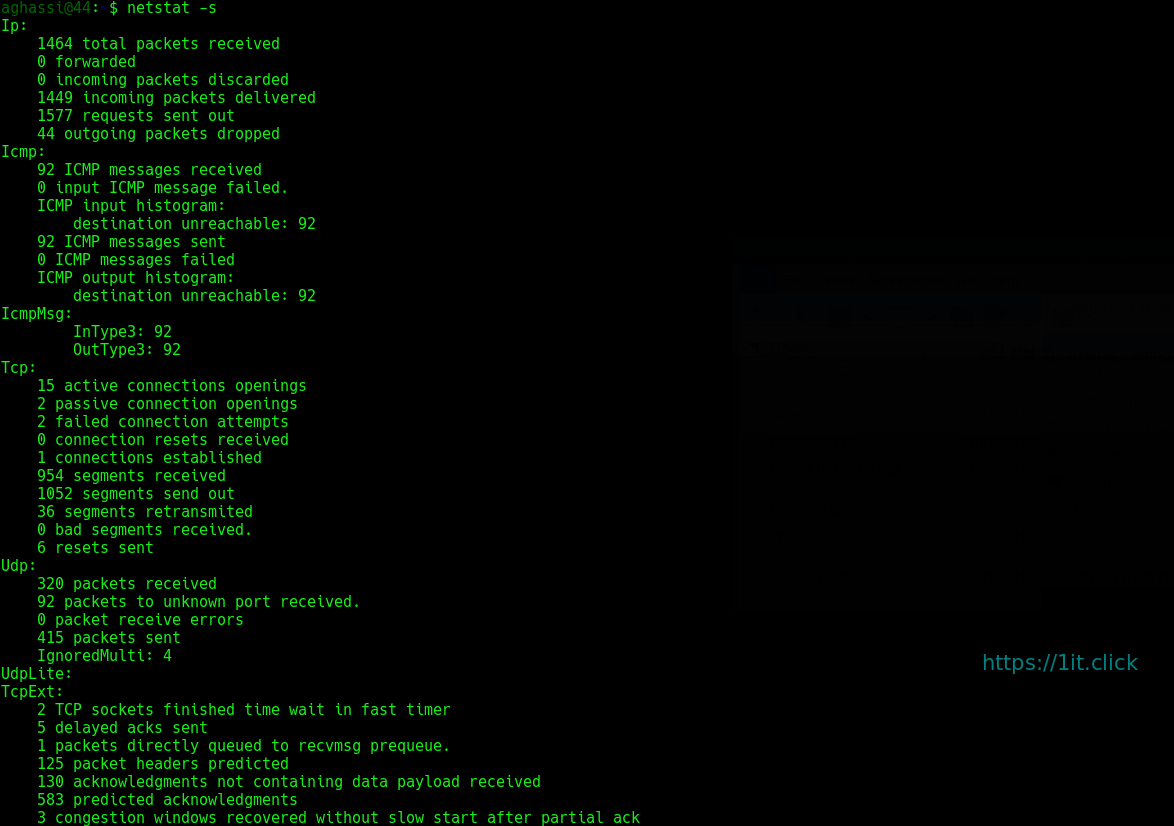
Displays statistics by protocol. By default, statistics are shown for the TCP, UDP, ICMP, and IP protocols. The -s parameter can be used to specify a set of protocols:

$ netstat -s


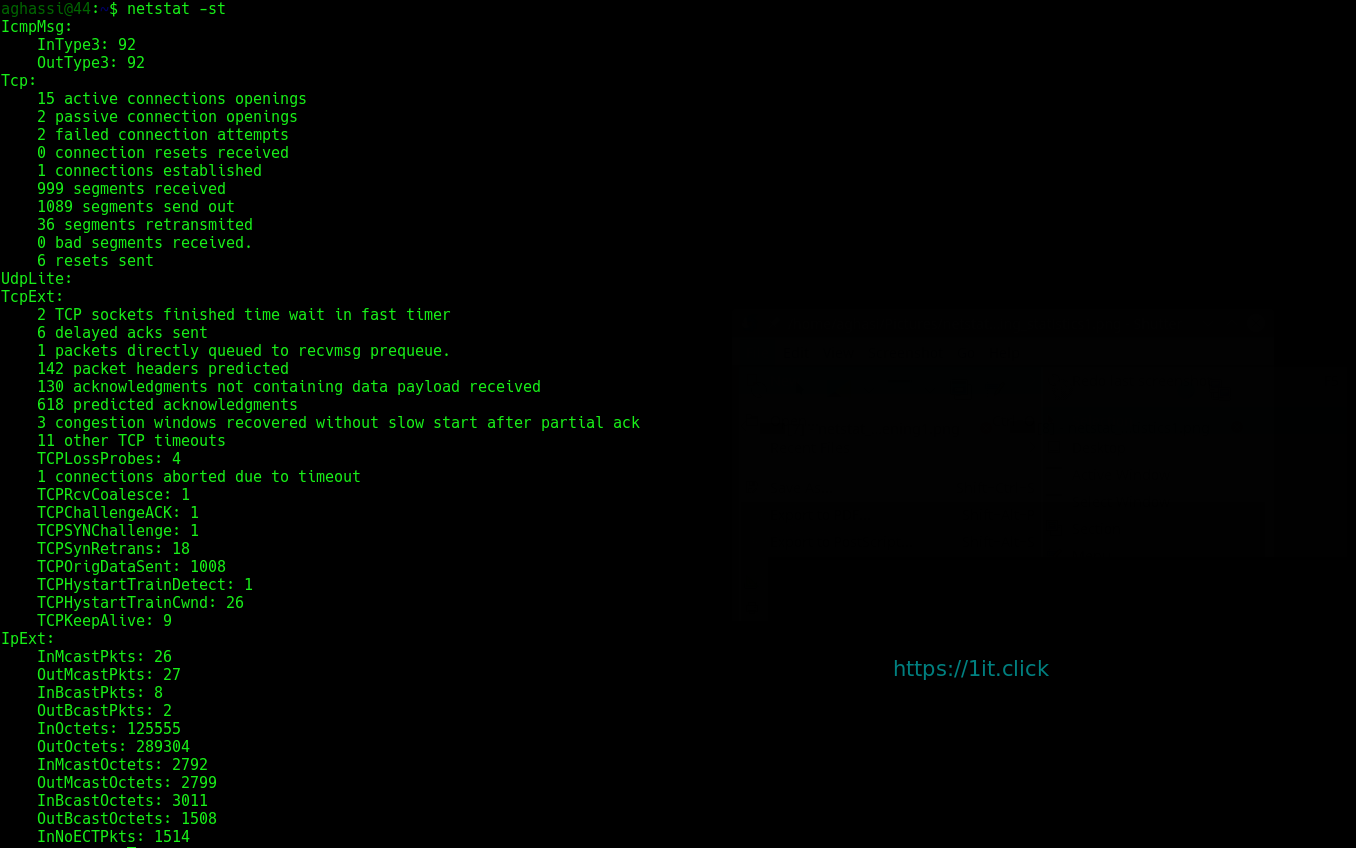
Showing Statistics by TCP Protocol

Showing statistics of only TCP protocol:

$ netstat -st


Showing Statistics by UDP Protocol

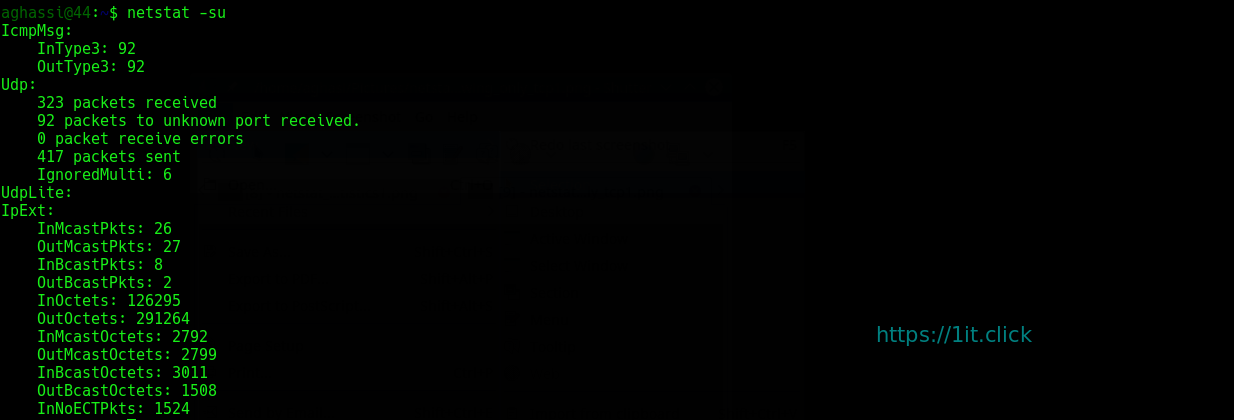
Showing statistics of only UDP protocol:

$ netstat -su


Displaying Service name with PID

Displaying service name with their “PID/Program Name”:

$ netstat -tp


Displaying Promiscuous Mode

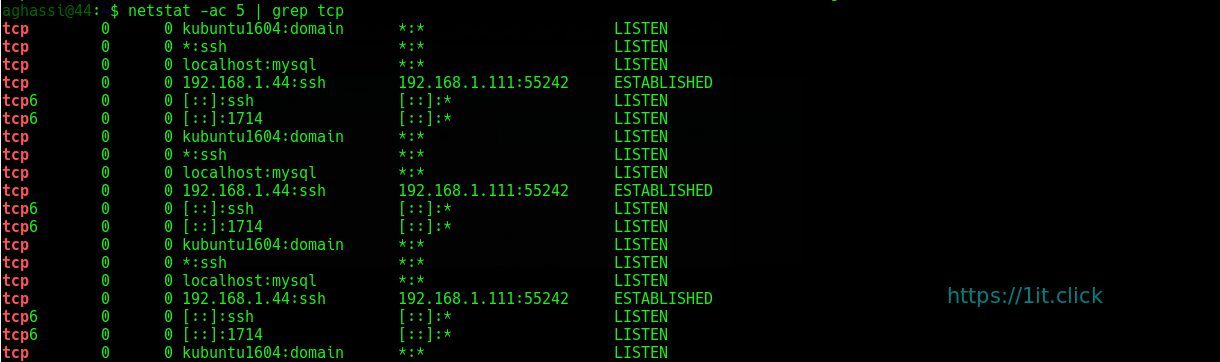
Displaying Promiscuous mode with -ac switch, netstat print the selected information or refresh screen every five second. Default screen refresh in every second.

$ netstat -ac 5 | grep tcp


Displaying Kernel IP routing

Display Kernel IP routing table with netstat and route command:

$ netstat -r


Showing Network Interface Transactions

Showing network interface packet transactions including both transferring and receiving packets with MTU size:

$ netstat -i


Showing Kernel Interface Table

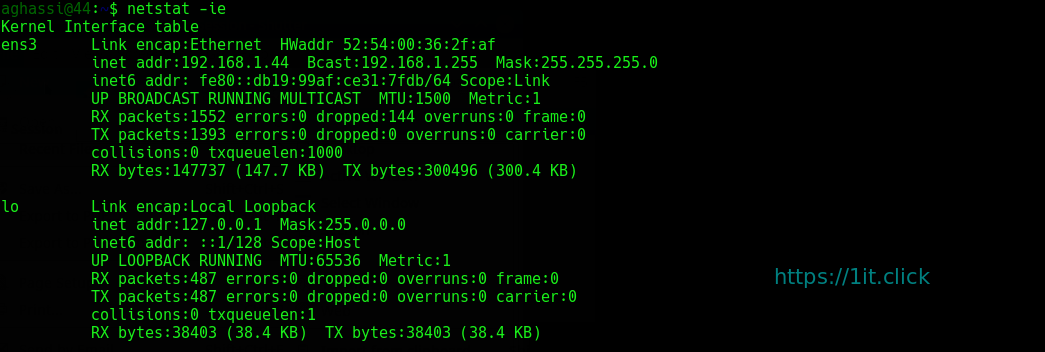
Showing Kernel interface table, similar to ifconfig command:

$ netstat -ie


Displaying IPv4 and IPv6 Information

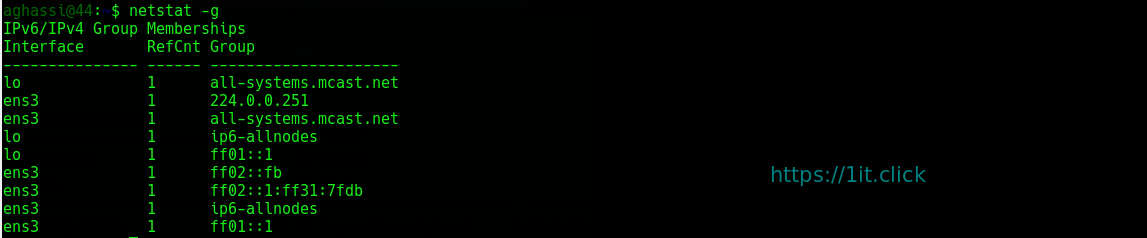
Displays multicast group membership information for both IPv4 and IPv6:

$ netstat -g


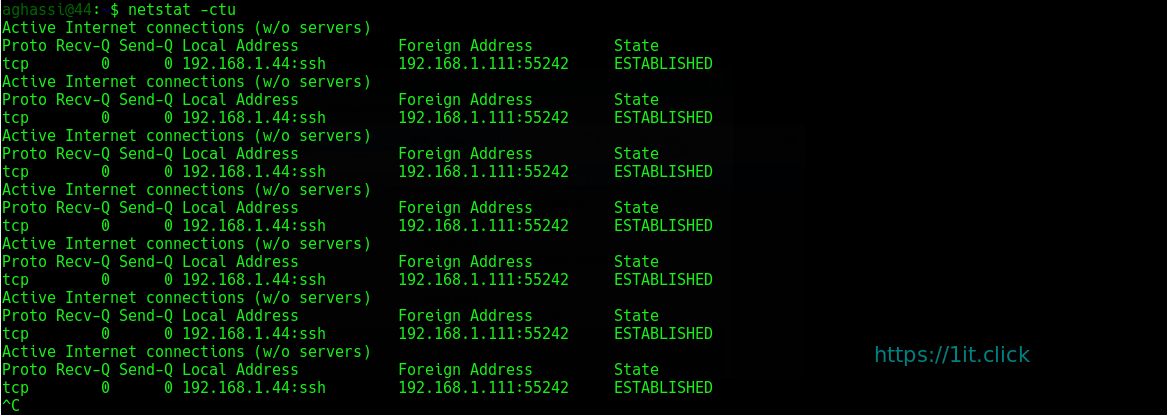
Print netstat Information Continuously

To get netstat information every few second, then use the following command, it will print netstat information continuously, say every few seconds

$ netstat -c


Finding Non Supportive Address

Finding un-configured address families with some useful information:

$ netstat --verbose


Finding Listening Programs

Find out how many listening programs running on a port:

$ sudo netstat -ap | grep ssh


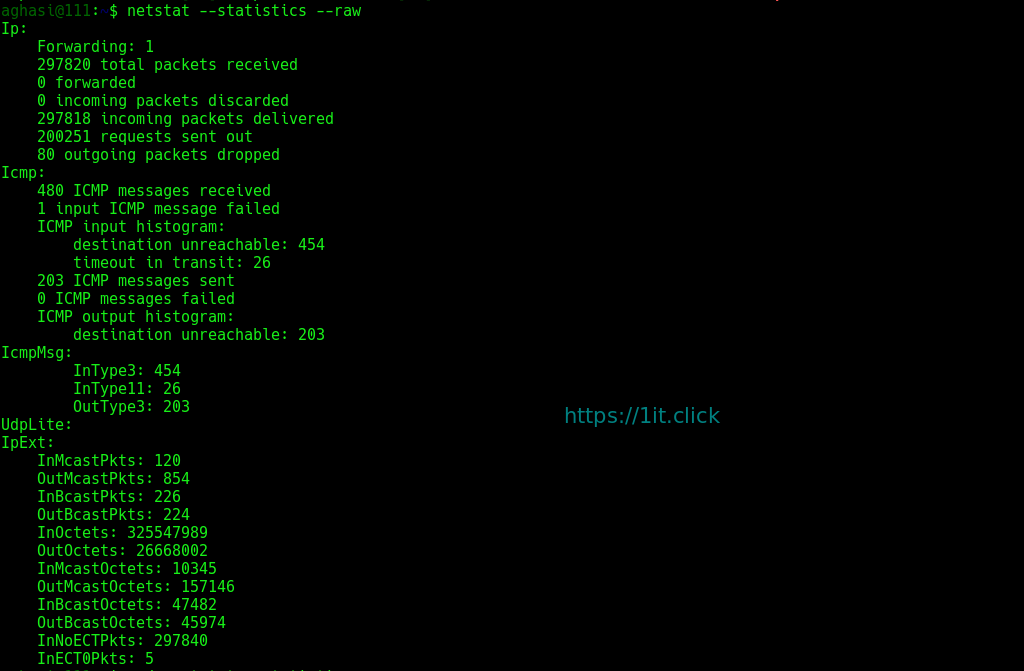
Displaying RAW Network Statistics

$ netstat --statistics --raw