Introduction
The step by step command example below show the process of using SMART disk monitoring tool that provide us with the information of overall hard disk health status. The SMART it self stand for Self Monitoring Analysis and Reporting Tool and on Linux, the smartctl command is use to display and manipulate SMART. The step by step example below show how to use smartctl command to enable SMART and disable SMART on the hard disk drives and the example below also show the use the smartctl command to get hard disk drive health status.
Installation
On Ubuntu use apt:
$ sudo apt install smartmontools
On CentOS, use yum:
$ sudo yum install smartmontools
Enabling SMART Monitoring Tools on Hard Disk Devices (turn on SMART)
To enable SMART on hard disk drive, the example below show that the SMART is enable (turn to ON status) on the /dev/sdc :
$ sudo smartctl -s on /dev/sdc

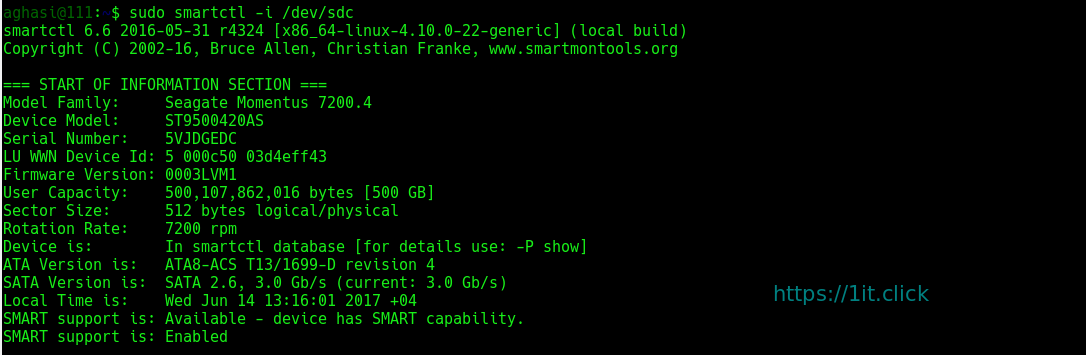
Verify the SMART status turn to Enable (on) for the disk device:
$ sudo smartctl -i /dev/sdc
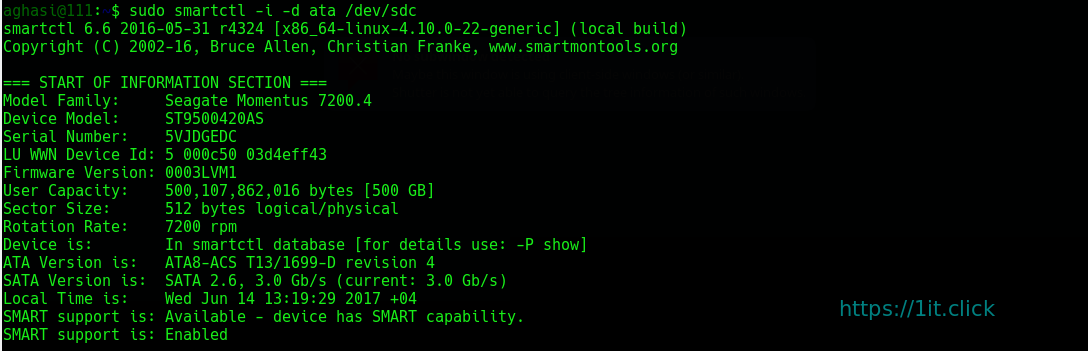
Test if your disk has SMART support:
$ sudo smartctl -i -d ata /dev/sdc
 Note: The command example below show another example of
 smartctl command that can be use to enable SMART monitoring tool on the disk device:
$ sudo smartctl --smart=on --offlineauto=on --saveauto=on /dev/sdc

Disable SMART Monitoring Tools on Hard Disk Devices (turn off SMART)
To disable the SMART monitoring tool for the disk device:
$ sudo smartctl -s off /dev/sdc

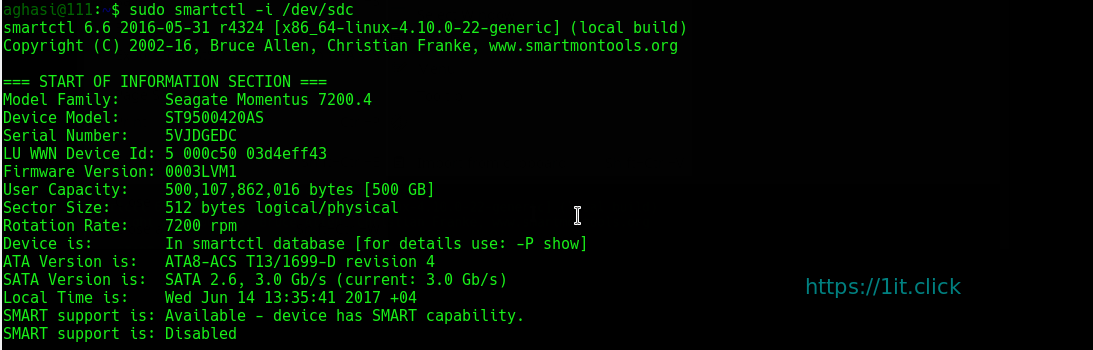
To verify the changes made:
$ sudo smartctl -i /dev/sdc
Get Hard Disk Device SMART Health Status
The smart command example below show the information on the hard disk device health status for /dev/sdc device. {if you get FAILED, you should start backing up your data and browsing adds for a new hard drive. }
$ sudo smartctl -H /dev/sdc

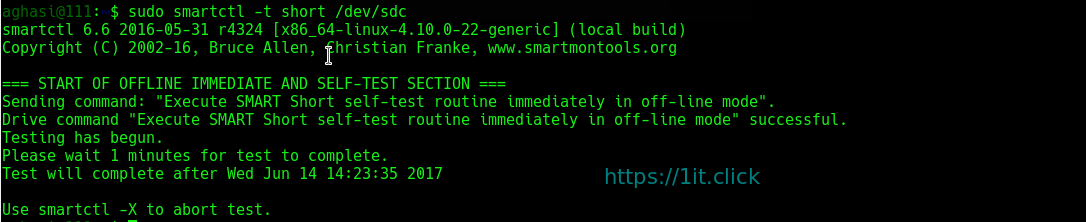
To run short test on your hard disk
$ sudo smartctl -t short /dev/sdc
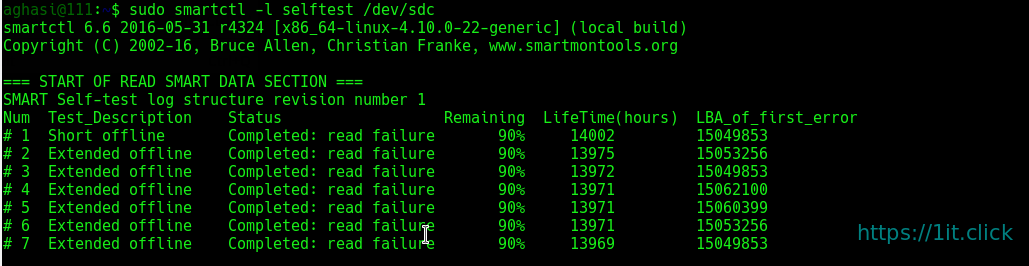
To see the selftest logs of smartctl
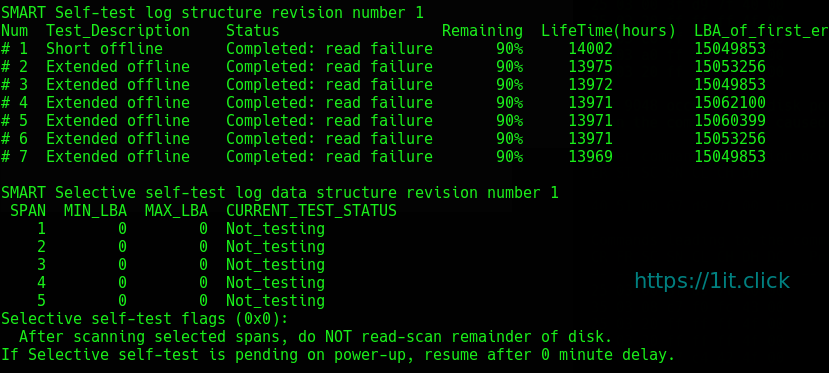
$ sudo smartctl -l selftest /dev/sdc
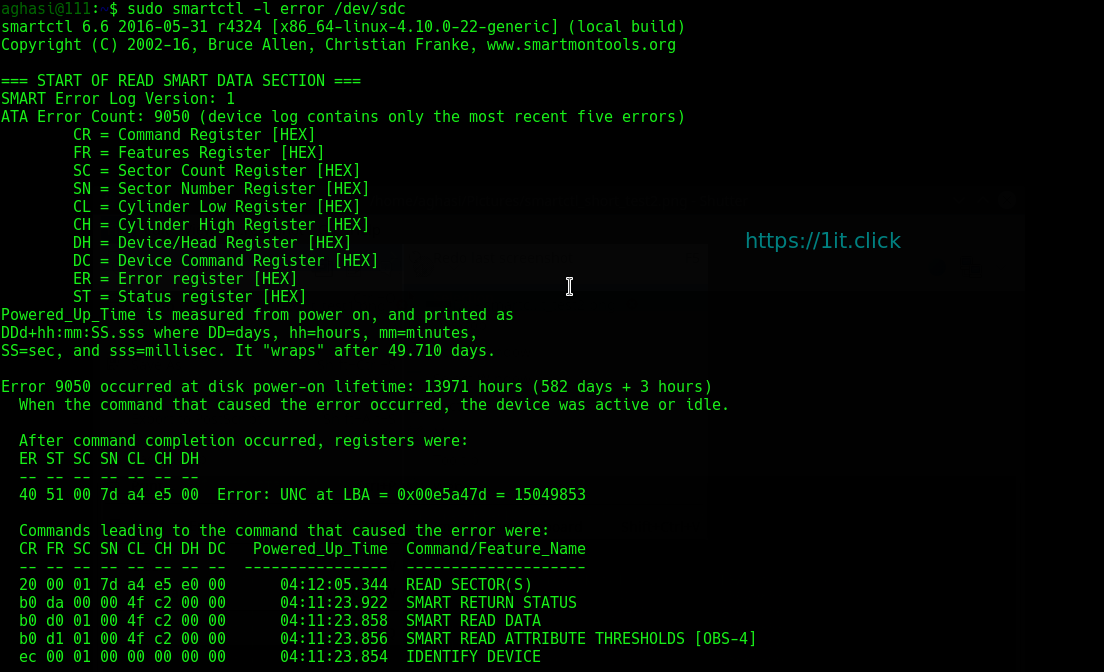
To check past problems of your drive
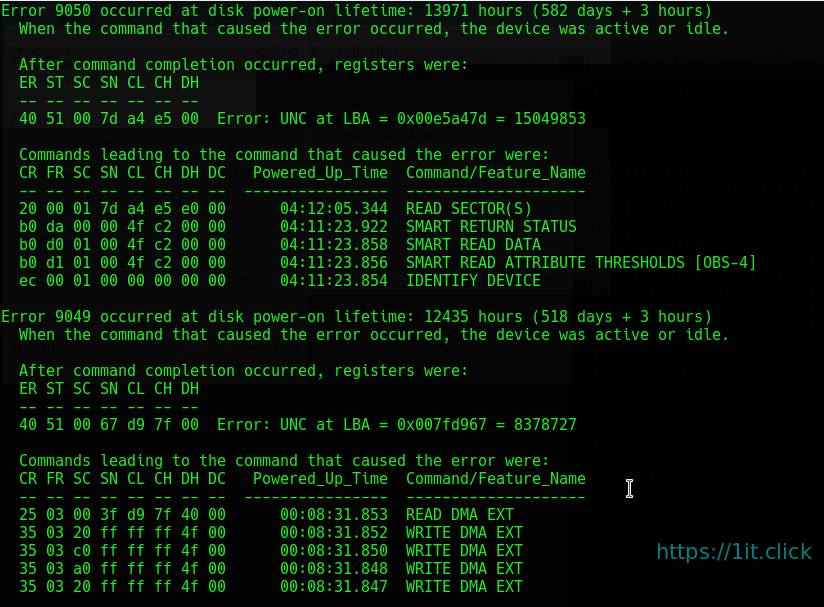
$ sudo smartctl -l error /dev/sdc

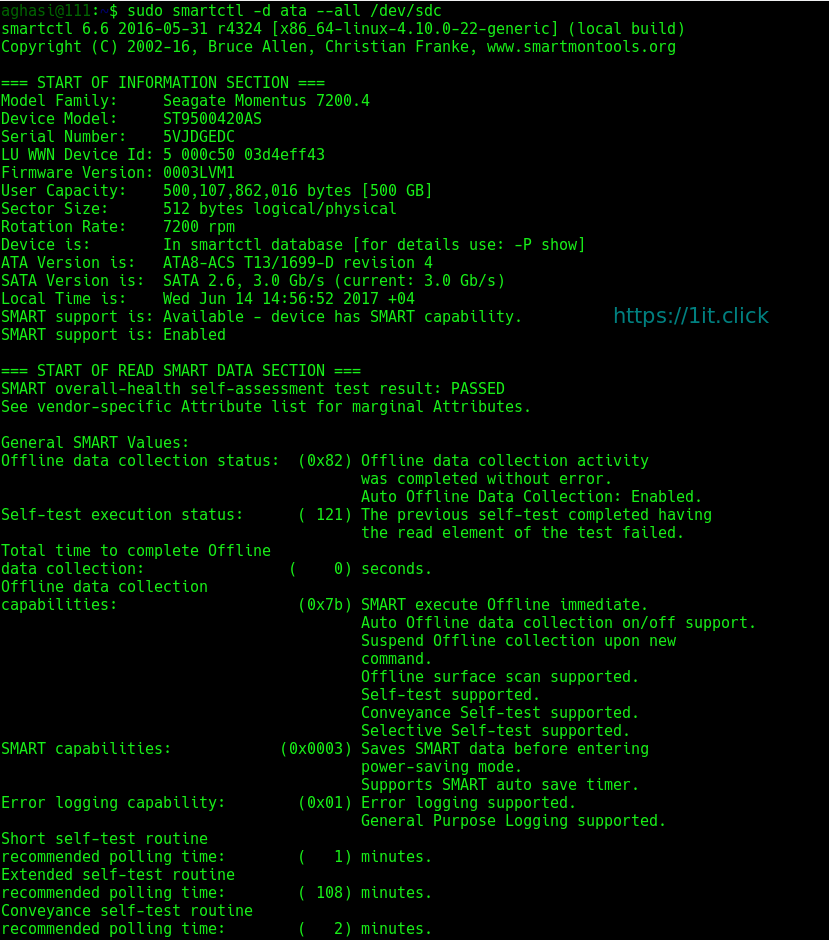
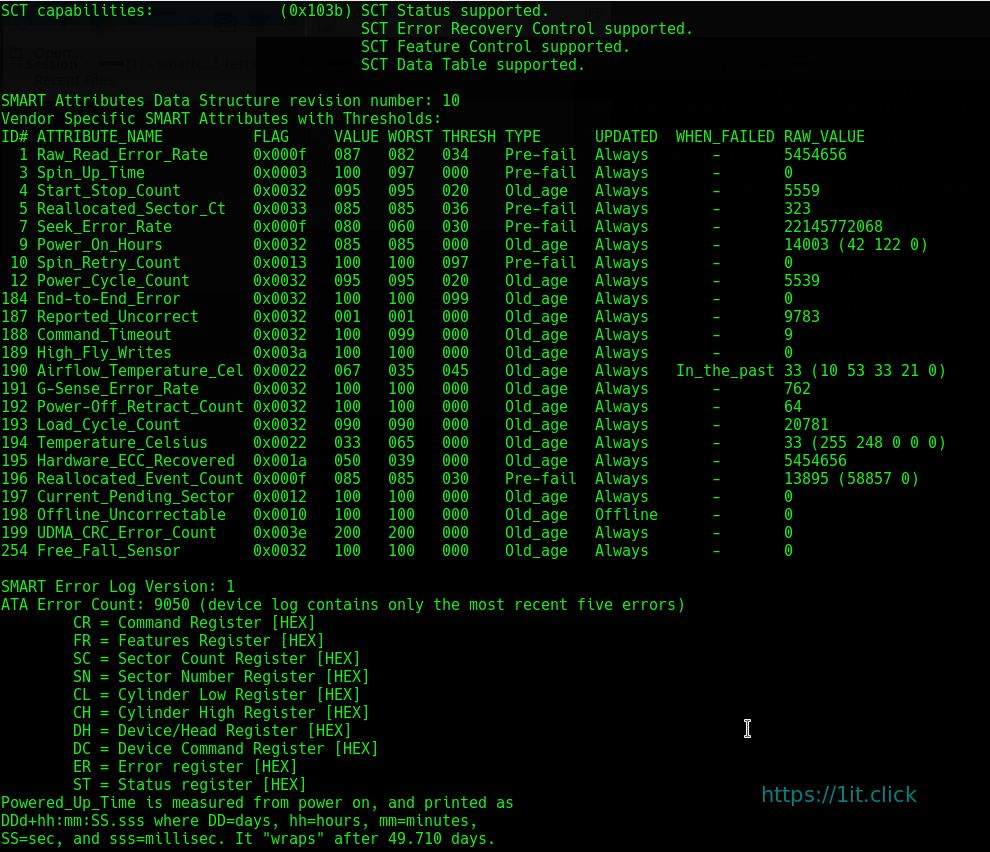
$ sudo smartctl -d ata --all /dev/sdc
$ sudo smartctl -a /dev/sdc | grep -i reallocated

The 323 > 0 means that everything is NOT OK, then you should think about the replacement.
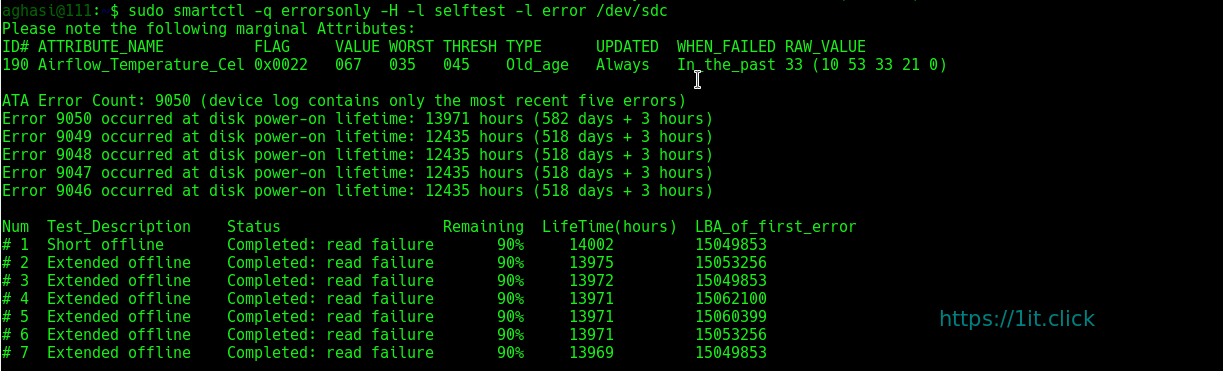
$ sudo smartctl -q errorsonly -H -l selftest -l error /dev/sdc