How To Unlock Adobe PDF Without Password?

How To Unlock Adobe PDF Without Password?

Do you know you can unlock Adobe PDF without password? Yes, you heard right! You can easily open or edit a PDF document with read-only restrictions. In this tutorial, we’ll show you the top 2 efficient ways to unlock secured PDF with ease.

Generally, a lot of users maintain their personal or confidential data in password-protected PDF documents. Basically, these PDF files are protected either by a user-level password or owner level permission password. Let’s take a closer look to understand them.

  • User-level password: One can protect their document with User Passwords to block users from opening the document. Such users are usually those belonging to a legal background like lawyers, forensic experts, investigators, etc.
  • Owner level permission password: It allows users to open the documents but restrict them to edit, copy, extract, and print. Mostly the documents published on the web are protected with owner level rights.

Let’s dig deeper to know how we can unlock Adobe PDF without password. We have mentioned both the manual and automated solutions to perform the task.

Method 1: Remove PDF Permissions Password with Acrobat Pro

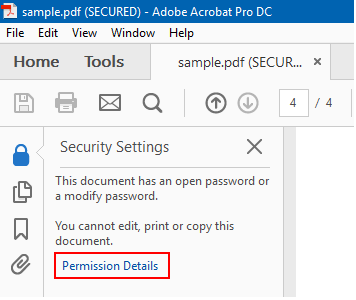
The manual way to unlock PDF password is to use the Adobe Acrobat Pro tool. If you know the original permissions password, you can unlock and remove all types of security restrictions on your PDF document in the below-mentioned steps.Open your secured PDF document with Acrobat ProClick the lock icon at the left side of the window and click Permission Details.

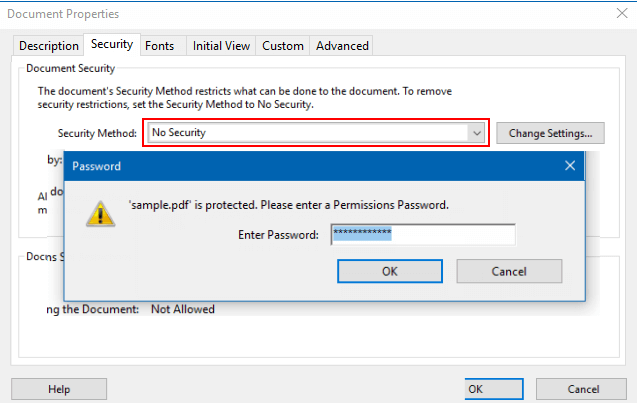
Next, go to the Security tab.To remove all those restrictions, you have to choose “No Security” from the “Security Method” drop-down list.A window will appear saying that your PDF document is protected. Enter your PDF permissions password and hit OK.

Click OK to unlock Adobe PDF files.Save your changes, the permissions password will be removed from the original PDF file.

The above methods only work if you know the PDF permissions password. If you’ve completely forgotten the password, then you have to use a third-party software to remove the security restrictions.

Method 2: Unlock Adobe PDF Without Password by Using Automated tool

PDF File Unlocker is a professional utility that lets you unlock secured PDF without password. Along with this, the tool removes the permissions and unlock the PDF for printing, copying, editing, and page extraction.

Moreover, the software is compatible with all versions of Windows (32 & 64 bit) OS.

Major Functionality Of the Tool

1. Remove Owner Level Password from PDF Files: The utility can easily remove the owner level password security and unlock PDF restrictions.

2. Remove Known User Level Password from PDF Documents: If there is any user level password applied on the PDF document then users can unlock it by providing the respective password when prompted.

Let’s see how the tool works.

How to Unprotect Adobe PDF Without Password?

After downloading the software on your Windows OS, follow the simple instructions as mentioned below:

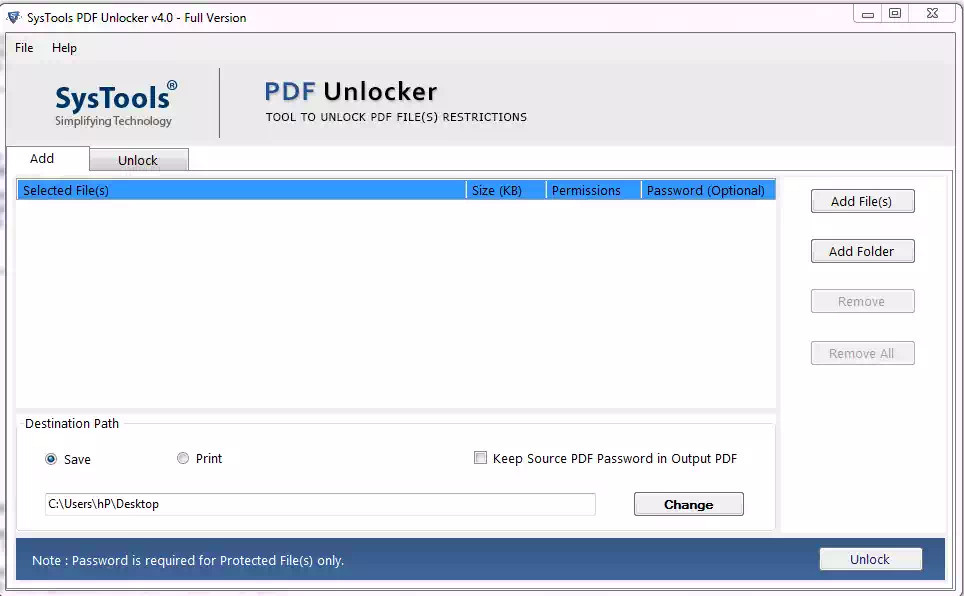
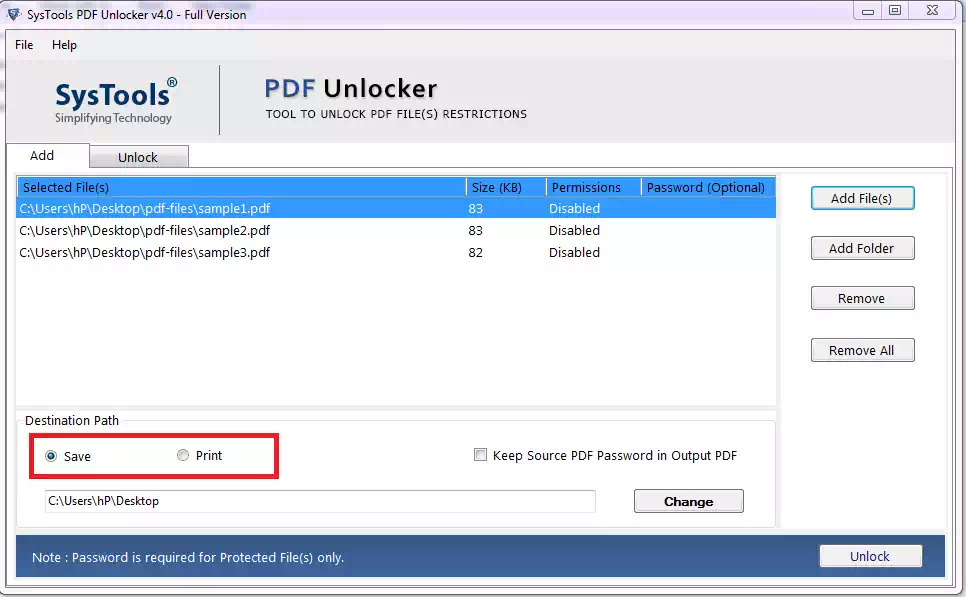
  1. Install & Run Software. Click on “Save” option available in the initial screen.

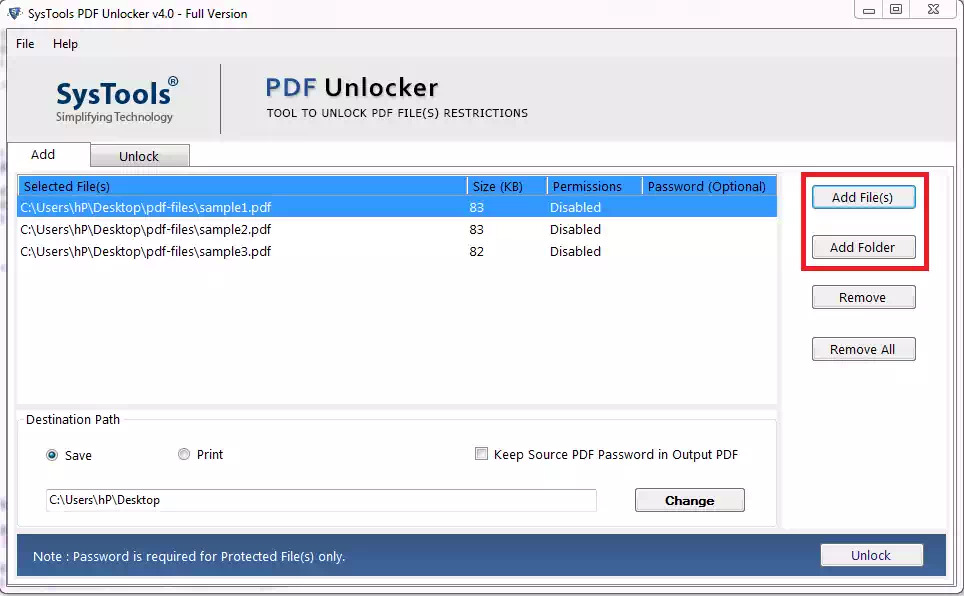
2. Click on “Add File(s)” / “Add Folder” option to insert PDF documents.

3. Next, click on the “Save” the option.

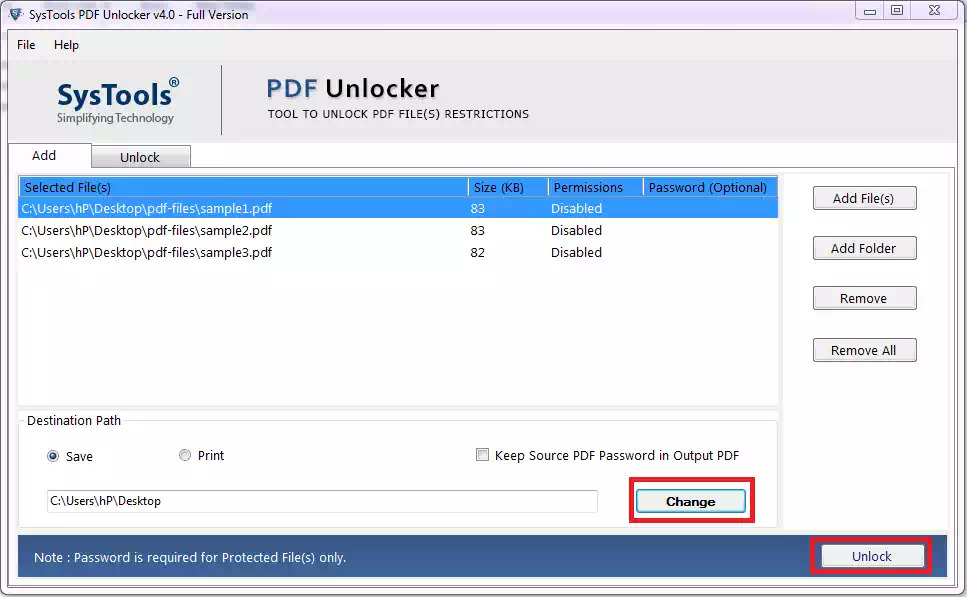
4. Click on “Change” button to set a destination for storing Output PDF. Next, click on the “Unlock” button

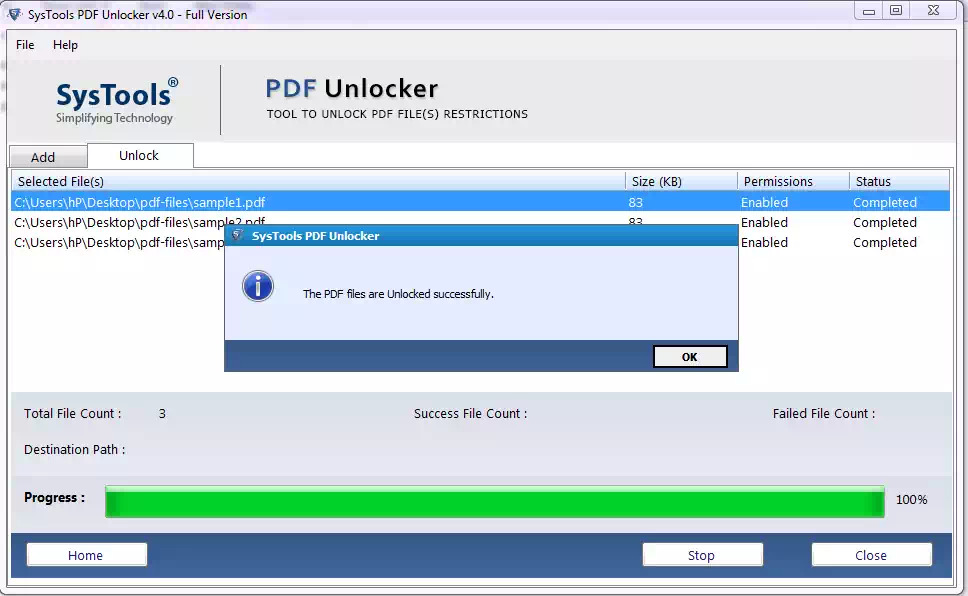
5. Finally, the tool removes security & unlock locked PDF without password.

After successfully unlocking and removing your PDF permissions password, you can now edit, print, copy the content or extract images from the secured PDF file without any restriction.

Benefits Of Using A Professional Software to Unlock Secured PDF

  • Unlock PDF File in Batch for business or enterprise license
  • Allow users to preview permissions of PDF documents
  • Unlock Password Protected PDF File
  • Maintains File Integrity and another formatting intact.
  • Remove Document Assembly & Form Restrictions
  • Remove PDF Signing and Comment Restriction
  • Utility supports Adobe Acrobat PDF with 128 / 256-bit encryption.

Conclusion

In this blog, we have mentioned both the manual and automated solutions to unlock Adobe PDF without password. Although manual solution exists it quite expensive. Therefore, considering this we have provided the cost-efficient tool that removes restrictions and unlock secured pdf without a password.

How to Crack windows and Unix passwords

How to Crack windows and Unix passwords

According to Gartner’s research conducted in 2018, weak and stolen credentials contribute to 80% of the cyber breaches in the world. This means that every 4 out of 5 attacks take place owing to weak passwords.

The windows passwords are located in the C:\windows\system32\config\SAM whereas the UNIX passwords are stored in /etc/shadow file. Even though gaining access to these files is fairly difficult for someone who is a beginner, it is fairly simple for a seasoned hacker.

In this article, I would explain how to crack windows and UNIX passwords using Hashcat. Hashcat is a password cracking utility which uses a dictionary to guess a password, hashes each of the dictionary word sequentially, and then compares the resulting hash to the one it’s trying to crack. If the hashes match, we know the password. If not,it keeps guessing 🙂

Disclaimer: This article is for educational purpose only!

STEP 1: The first step is todownload and install hashcat (https://hashcat.net/hashcat/). If using Kali Linux, the tool comes as pre-loaded.

Note: The OS used in this POC is Kali Linux however this can be performed on any Operating system.

STEP 2: Install the OpenCL framework which is the platform required for HashCat to run.

Note: OpenCL (Open Computing Language) is a framework for writing programs that execute across heterogeneous platforms. OpenCL specifies programming languages for programming these devices and application programming interfaces (APIs) to control the platform and execute programs on the compute devices. OpenCL also provides a standard interface for parallel computing using task- and data-based parallelism.

Intel platform can be downloaded from https://software.intel.com/en-us/articles/opencl-drivers

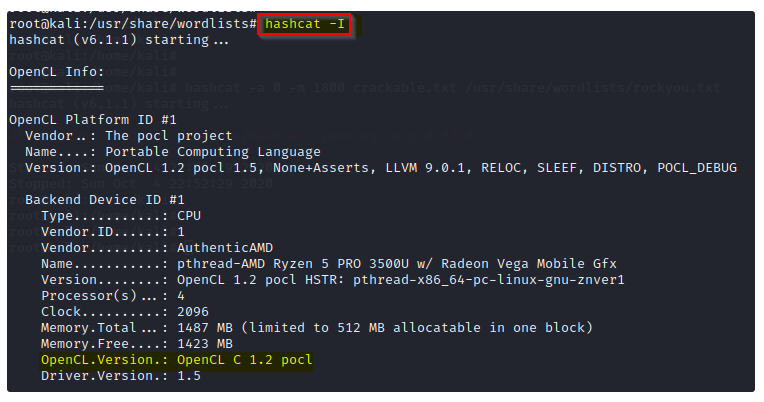
STEP 3: Ensure the OpenCL framework is installed correctly.

STEP 4: Unzip the password dictionary in location /usr/share/wordlists/

Note: This step assumes that you already have a password dictionary available. If not, you can download one from https://weakpass.com/lists

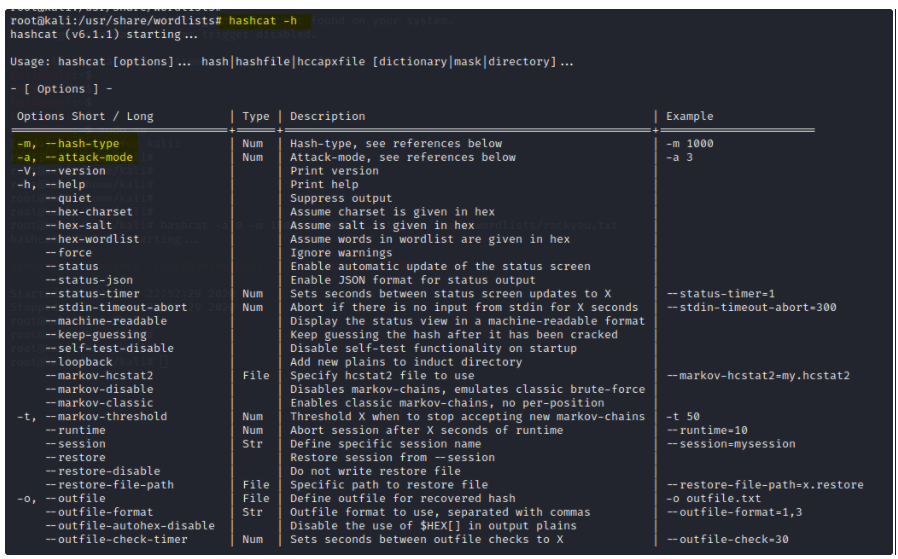
STEP 5: Run the hashcat -h command to check all available options. The most interesting modules are -m (hash type) and -a (attack mode)

Note: Windows stores password in NTLM hash format whereas UNIX stores the passwords in SHA-256 format. So the hash module has to be chosen accordingly.

STEP 6 : Store all the hashes which need to be cracked in a text file.

Note: This step assumes that you already have access to hashes. If you don’t have any hash, you can copy the hash for user from /etc/shadow file.

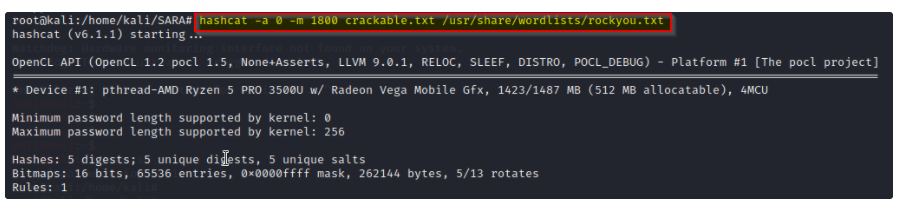
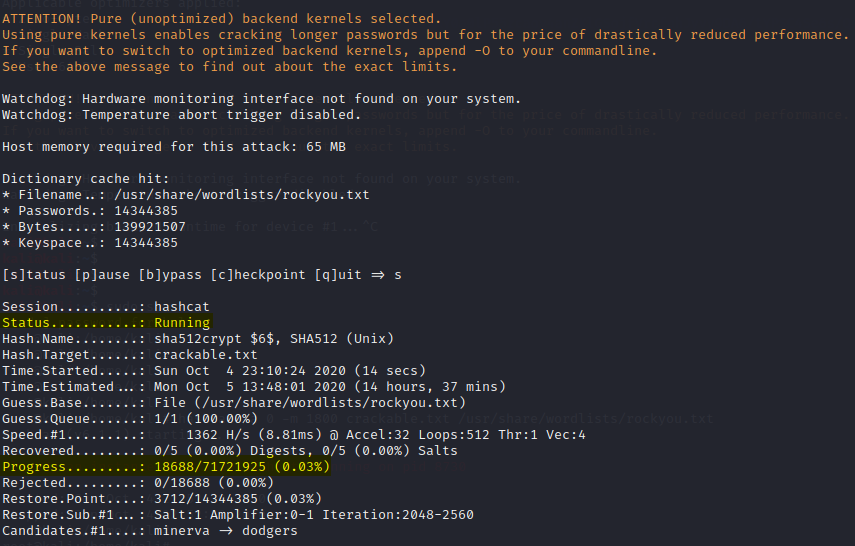
STEP 7: Run the Hashcat command to crack the passwords. It might take a few minutes to several hours based on the hash type to crack the password.

NoteHashcat has the following syntax: hashcat -a (attack mode) -m (hash type) <File with hashes to be cracked> <Password dictionary>

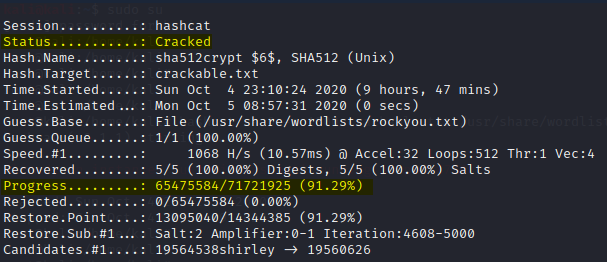
STEP 8: See the passwords cracked.

The most important lesson learnt from this exercise was that when a simple password with 8 characters with no password complexity was configured, the password was cracked within 5 minutes. However when a complex password (including an uppercase, lower case, special characters etc) with a 14 character password length was configured, it took almost 2 days to crack the password. This emphasizes the importance of using a strong password which even though wouldn’t make the attack impossible but still make it more difficult for hackers to break in your passwords 🙂

Cloudflare Firewall Rules for Securing WordPress

This guide is aimed at security-minded webmasters who run a WordPress site or blog on a Cloudflare-enabled domain. On the free plan, Cloudflare grants five firewall rules that are empty by default.

By adding WordPress-specific rules I describe on this page, you can secure your site and block attacks before they even reach your web host’s server.

Disclaimer: I’m not affiliated with Cloudflare in any way, but I’ve been a satisfied user of their services for several years.

0. Whitelist Your IP Address

Before you implement any firewall rules, you should first whitelist your own IP. This way you won’t be affected should you decide to block your WordPress admin area from outsiders (which I will explain in a minute).

This can be done by accessing your Cloudflare dashboard and clicking Firewall, then Tools, entering your IP*, and choosing Whitelist in the drop-down menu.

Whitelist your exact IP address. Optimal choice if your ISP grants you a static IP. Note that if your IP changes, you will need to reenter it lest you get locked out of your WordPress admin area.
Whitelist your ISP’s entire IP range. Good choice if you have a dynamic IP.
Whitelist your country. This won’t protect you from attacks coming from inside your own country, but it can be a convenient option if you travel frequently and use Wi-Fi to connect to your WordPress site.
An IP address or a country whitelisted in this manner will be exempt from all firewall rules, so you won’t need to add exceptions for each individual rule.

I. Fuck PK + TR + AZ + Tor

(ip.geoip.country eq "PK") or (ip.geoip.country eq "TR") or (ip.geoip.country eq "AZ") or (ip.geoip.country eq "T1")

II. Xmlrpc

After wp-login.php, xmlrpc.php is the second most common attack target. XML-RPC has legitimate uses, such as blogging from a smartphone or posting content to multiple WordPress sites at once. If you don’t do that, then it can be safely blocked. Follow the same procedure as previously and create the rule:

  • Field: URI Path
  • Operator: contains
  • Value: /xmlrpc.php

[Action: Block]

You should see the following in the Expression Preview section:

(http.request.uri.path contains "/xmlrpc.php")

III. Login Protection

If you peek at your server logs, you’ll probably find numerous IPs from all over the world trying to access your wp-login.php file. This is by far the most common attack on WordPress installations. These are usually automated scans which do not pose a big threat, but you can still block them off for your peace of mind.

This of course assumes that you (the admin) are the only user on your site. If you have multiple users or use a membership plugin, you’ll probably want to skip this rule.

In your Cloudflare dashboard, click Firewall once again, then press the blue Create a Firewall rule button. Name it whatever you like and enter the following:

  • Field: URI Path
  • Operator: contains
  • Value: /wp-login.php

[Action: Block]

If you did it right, you should see the following in the Expression Preview section:

(http.request.uri.path contains "/wp-login.php" or (http.request.uri.path contains "/login/") and ip.geoip.country ne "AM")

Save the rule, and it should be enabled automatically. Cloudflare will now block every attempt to connect to wp-login.php except from the IP you whitelisted.

These brute force attempts will vanish from your server logs, but you’ll be able to track them on Cloudflare Firewall Events section should you wish to verify that the protection is working.

*You have several choices here in the order of decreasing security:

IV. Content Protection

(http.request.uri.query contains "author_name=") or
(http.request.uri.query contains "author=" and not http.request.uri.path contains "/wp-admin/export.php") or
(http.request.full_uri contains "wp-config.") or
(http.request.uri.path contains "/wp-json/") or
(http.request.uri.path contains "/wp-content/" and http.request.uri.path contains ".php") or
(http.request.uri.path contains "phpmyadmin") or
(http.request.uri.path contains "/phpunit") or
(http.request.full_uri contains "<?php") or
(http.cookie contains "<?php") or
(http.request.full_uri contains "../") or (http.request.full_uri contains "..%2F") or
(http.request.full_uri contains "passwd") or
(http.request.uri contains "/dfs/") or
(http.request.uri contains "/autodiscover") or
(http.request.uri contains "/wpad.") or
(http.request.uri contains "/wallet.dat") or
(http.request.full_uri contains "webconfig.txt") or
(http.request.full_uri contains "vuln.") or
(http.request.uri.query contains "base64") or
(http.request.uri.query contains "<script") or (http.request.uri.query contains "%3Cscript") or
(http.cookie contains "<script") or (http.referer contains "<script") or
(upper(http.request.uri.query) contains " UNION ALL ") or (upper(http.request.uri.query)contains " SELECT ") or
(http.request.uri.query contains "$_GLOBALS[") or (http.request.uri.query contains "$_REQUEST[") or (http.request.uri.query contains "$_POST[")

(http.request.uri.path contains "/wp-content/"
and http.request.uri.path contains ".php")
or (http.request.uri.path contains "/wp-config.php")
or (http.request.full_uri eq "<?php")
or (http.cookie contains "<?php")
or (http.request.uri.query contains "<script")
or (http.cookie contains "<script")
or (http.request.uri.query contains "%3Cscript")
or (http.cookie contains "%3Cscript")

V. User Agents

(http.user_agent contains "AhrefsBot/") or (http.user_agent contains "BaiDuSpider") or (http.user_agent contains "baidu.com") or (http.user_agent contains "/bin/bash") or (http.user_agent contains "[email protected]") or (http.user_agent contains "DnyzBot/") or (http.user_agent contains "DotBot/") or (http.user_agent contains "eval(") or (http.user_agent contains "Go-http-client/") or (http.user_agent contains "Nikto") or (http.user_agent contains "Nimbostratus") or (http.user_agent contains "python-requests") or (http.user_agent contains "Scrapy/") or (http.user_agent contains "SeznamBot/") or (http.user_agent contains "Sogou web spider/") or (http.user_agent contains "spbot/") or (http.user_agent contains "Uptimebot/") or (http.user_agent contains "WebDAV-MiniRedir") or (http.user_agent contains "WinHttp.WinHttpRequest") or (http.user_agent contains "ZmEu")

VI. Cf threat score (Badbots & actors protection)

(cf.threat_score gt 20)

Choose an action: Challenge (Captcha)

3. Protect the wp-admin Area

Now let’s make it so you and only you can access your admin area. This rule is slightly more complex because you need to make two exceptions.

First is /wp-admin/admin-ajax.php, which is used by certain plugins to display dynamic content on your website. As such, despite being located inside the /wp-admin/ folder, it needs to be accessible from the outside.

Second is /wp-admin/theme-editor.php, which runs an error check every time you edit your theme through the built-in editor by creating a loopback request to your homepage. If you don’t add this exception, the check will fail with a message “Unable to communicate back with site to check for fatal errors” and your modifications won’t be saved.

Go ahead and create the following rule:

  • Field: URI Path
  • Operator: contains
  • Value: /wp-admin/

[AND]

  • Field: URI Path
  • Operator: does not contain
  • Value: /wp-admin/admin-ajax.php

[AND]

  • Field: URI Path
  • Operator: does not contain
  • Value: /wp-admin/theme-editor.php

[Action: Block]
Or, just click Edit expression and paste in the following:

(http.request.uri.path contains "/wp-admin/" and not http.request.uri.path contains "/wp-admin/admin-ajax.php" and not http.request.uri.path contains "/wp-admin/theme-editor.php")

4. Block No-Referrer Requests to Plugins

Most WordPress sites get hacked through insecure plugins. The best approach, of course, is not to install them in the first place, but you can also create a firewall rule blocking direct access to /wp-content/plugins/.

Legitimate requests which come through your website have something along the lines of “https://site.am/page” as the HTTP referer and should be allowed. You may also want to allow known good bots (such as the Google crawler) just in case they try to index something – such as an image – inside your plugins folder.

Create the following rule:

  • Field: URI Path
  • Operator: contains
  • Value: /wp-content/plugins/

[AND]

  • Field: Referrer
  • Operator: does not contain
  • Value: yoursite.com (replace with your real domain)

[AND]

  • Field: Known Bots
  • Operator: equals
  • Value: Off

[Action: Block]

Or, just paste this expression in directly (remember to replace site.am with the actual address):

(http.request.uri.path contains "/wp-content/plugins/" and not http.referer contains "site.am" and not cf.client.bot)

5. Reduce Spam by Blocking Direct Requests to wp-comments-post.php

I’ll be honest: the effect of this rule will be minimal as spam bots these days are sophisticated enough to spoof the referrer. This will only block bots hammering the wp-comments-post.php file directly. Still, the same tip is described in WordPress Codex (except they use a .htaccess rule rather than Cloudflare), so if it’s good enough for them, it’s good enough for me.

The rule is as follows:

  • Field: URI Path
  • Operator: equals
  • Value: /wp-comments-post.php

[AND]

  • Field: Request Method
  • Operator: equals
  • POST

[AND]

  • Field: Referrer
  • Operator: does not contain
  • Value: site.am (replace with your real domain)

[Action: Block]

And here’s the expression to save you the time:

(http.request.uri.path eq "/wp-comments-post.php" and http.request.method eq "POST" and not http.referer contains "site.am")


Conclusion and recommendations

With these settings, you can make optimal use of Cloudflare free plan. This way you have a rule for 3 actions:

  • JS Challenge
  • Challenge (Captcha)
  • Block

By the way the advantage is that expressions can be combined so that you can use only 3 of the 5 free firewall rules. The actions and expressions can be customized to your liking. This way you can use a more aggressive security or less aggressive.

It came to our attention that a JS Challenge can trigger a Captcha Challenge in some cases. So we will chose this less aggressive JS Challenge for the login protection, it is just uncomfortable for legitimate users and if their session expires they need to do a captcha again if you choosed Challenge instead of JS Challenge.

CF Threat Score

The field cf.threat_score is Cloudflare AI score in numbers.

cf.threat_score number

Represents a Cloudflare threat score from 0–100, where 0 indicates low risk. Values above 10 may represent spammers or bots, and values above 40 identify bad actors on the internet. It is rare to see values above 60. A common recommendation is to challenge requests with a score above 10 and to block those above 50.

In this article we used the average number of 20 in our example, but 15 will do fine also. Please feel free to modify the examples given.

KVM with use of all IPs – The easy way

KVM setup on Ubuntu 10.04 “Lucid Lynx”.

Contents

[Hide]
1 Introduction
2 host
3 Guest (KVM)
4 changes on the host

There are many role models on this wiki, where you can find out how it is possible to use all IP addresses in a network with KVM virtualized machines.

Introduction

A problem with that is that this is not about simple manners: for example for KVM_using_all_IPs_from_subnets you need a private subnet, “br” -interfaces for all virtual machines etc.

Here is a very simple method to use all IP addresses. We have: AA.BB.CC.DD as main IP, with AA.BB.CC.XX as gateway: and we have an additional subnet, DD.EE.FF.160-167.

Host

In /etc/network/interfaces you do:

car br0
iface br0 inet static
address AA.BB.CC.DD
netmask 255.255.255.255
Gateway AA.BB.CC.XX
point point AA.BB.CC.XX
bridge_ports eth0
bridge_stp off
bridge_fd 0
bridge_maxwait 0
up route add -host DD.EE.FF.160 dev br0
up route add -host DD.EE.FF.161 dev br0
up route add -host DD.EE.FF.162 dev br0
# ... And so on, a "route" command for each IP address.

You have to enter all individual IP addresses here: usually you could specify a subnet (route add -net DD.EE.FF.160/28), but then you lost two IP addresses, namely 160 (network) and 167 (broadcast), and that’s not what we want.

Guest (KVM)

The guest machines get a virtual interface set to br0 and a “pointopoint” route to the host machine. You can not send directly to the Hetzner gateway, it must be via the main machine because the Hetzner gateway does not know the network card addresses of the guest machine. Do the following in /etc/network/interfaces:

car eth0
iface eth0 inet static
         address DD.EE.FF.163
         netmask 255.255.255.255
         Gateway AA.BB.CC.DD
         point point AA.BB.CC.DD
         # dns- * options are implemented by the resolvconf package, if installed
         dns-nameservers 213.133.98.98 213.133.99.99
         # dns-search example.com

Finished? Not quite yet. We still need some changes on the host machine.

Changes On The Host

To make sure that the host machine does not send “icmp redirect” messages, we do: 

sysctl -w net.ipv4.conf.eth0.send_redirects=0

Or, better you should put that in /etc/sysctl.d/10-no-icmp-redirects.conf.

# Because of our network setup, the host machine could send ICMP
# "redirect" messages to all guests, telling them to find the hetzner
# gateway directly. That's impossible: Hetzner would throw away the
# traffic from the virtual interfaces because of their non registered
# MAC addresses (i.e. different from the main interface).
net.ipv4.conf.all.send_redirects = 0

Also “ip_forward” must be “1”, so in /etc/sysctl.conf:

net.ipv4.ip_forward = 1

(or: introduce on own “conf” data in /etc/sysctl.d).

IPSec Site-to-Site VPN Cisco ASA – Openswan

1. How IPsec VPN Site-to-Site Tunnels Work?

In order to understand how IPsec VPN site-to-site tunnels work, it is important to fully understand what each term individually means, and what part does each of the mentioned object play in a complete IPsec VPN site-to-site network setup.

1.1. What Is IPsec?

IPsec stands for Internet protocol security or IP Security. IPsec is a protocol suite that encrypts the entire IP traffic before the packets are transferred from the source node to the destination. IPsec is also capable and responsible for authenticating the identities of the two nodes before the actual communication takes place between them. IPsec can be configured to use any of the available algorithms to encrypt and decrypt the network traffic.

IPsec can be configured to work in either of the two available modes:

1. Transport Mode – In Transport Mode, IPsec only encrypts and/or authenticates the actual payload of the packet, and the header information remains intact.

2. Tunnel Mode – In Tunnel Mode, IPsec encrypts and/or authenticates the entire packet. After encryption, the packet is then encapsulated to form a new IP packet that has different header information. IPsec is configured to be used in Tunnel Mode while setting up secure site-to-site VPN tunnels.

1.2. What Is Virtual Private Network or VPN?

Virtual Private Network or VPN is a type of network setup in which the public telecommunication medium and the public network, i.e. the Internet, is used to transmit data from one office at one geographical location to another office at another geographical location. Since the public telecommunication medium and the public network is unreliable when it comes to security of the information, administrators create secure tunnels between the source and destination nodes/sites. The data is transferred via these tunnels.

Since the tunnels that administrators create only allow communication between the source and destination nodes/sites, the users can access the data and resources from the remote locations as simply and easily as if they were accessing the information in their local area network.

1.3. What Is a Site?

In terms of computer networking and virtual private network or VPN, a site is an area or a premises of an office in which two nodes that are connected to each other can communicate over high bandwidth network medium.

Organizations that have multiple branches scattered across the planet generally use VPN-s to connect one branch office to another, or to enable communication between the branch offices and the head office/datacenter (hub and spoke).

1.4. How Site-to-Site VPN Works With IP Sec?

After understanding each of the above discussed terms individually, it would be easier to understand how the network communication takes place using the secure VPN tunnel. Below is the process that takes place during site-to-site communication over an IPsec VPN site-to-site tunnel:

  • The source computer C1 forwards the packet P1 with the destination IP address of the computer C2 to the router R1 (default gateway).
  • The router R1 receives the packet P1 and encrypts the entire packet using the specified algorithm.
  • After encrypting the packet, the router R1 encapsulates the whole packet to form a new packet NP1. This packet has IP address of R1 as source IP and the IP address of the router R2 (the router placed at the destination location) as the destination IP.
  • The router R1 then forwards the packet NP1 to the IP address of R2 using the Internet.
  • The destination router R2 receives the packet.
  • The router R2 decapsulates the NP1 to get the original packet P1.
  • The router R2 decrypts the packet P1 using the appropriate algorithm.
  • The router R2 then forwards the packet P1 to the destination computer C2, where the packet was actually supposed to reach.

In place of Router R1, it can be any VPN enabled device (Firewall, Router, Server etc).

2. VPN Parameters

Let’s assume the following VPN Parameters:


Host Side – Cisco ASA
Peer IP: 2.2.2.2
Encryption Domain: 20.20.20.0/29, 30.30.30.30/32

Remote Side – Openswan
Peer IP: 1.1.1.1
Encryption Domain: 10.10.10.0/28


Tunnel Properties
Phase 1:
Authentication Method: Pre-Shared Key
Encryption Scheme: IKE v1
Diffie-Hellman Group: Group 2 (1024 bit)
Encryption Algorithm: AES-256
Hashing Algorithm: SHA1
IKE Negotiation Mode: Main Mode
Lifetime (for renegotiation): 28800 sec
Phase 2:
Encapsulation: ESP
Encryption Algorithm: AES-256
Hashing Algorithm: SHA1
Perfect Forwarding Secrecy: PFS-G2
Lifetime (for renegotiation): 28800 sec
First we will configure the VPN at Host Site – Cisco ASA.

3. Cisco ASA Configurations

configure terminal
!Phase 1 Configuration
crypto ikev1 enable OUTSIDE
crypto ikev1 policy 12
authentication pre-share
encryption aes-256
hash sha
group 2
lifetime 28800
exit
!Phase 2 Configuration
crypto ipsec ikev1 transform-set ESP-AES-256-SHA esp-aes-256 esp-sha-hmac

access-list site-to-site-vpn extended permit ip 20.20.20.0 255.255.255.248 10.10.10.0 255.255.255.240
access-list site-to-site-vpn extended permit ip host 30.30.30.30 10.10.10.0 255.255.255.240

tunnel-group 2.2.2.2 type ipsec-l2l
tunnel-group 2.2.2.2 general-attributes
default-group-policy 2.2.2.2
tunnel-group 2.2.2.2 ipsec-attributes
ikev1 pre-shared-key s0m3c0mpl3xPWD
exit
crypto map vpn 1 match address site-to-site-vpn
crypto map vpn 1 set peer 1.1.1.1
crypto map vpn 1 set pfs
crypto map vpn 1 set ikev1 transform-set ESP-AES-256-SHA

4. Openswan

Openswan is an open source, user space IPsec implementation available in Linux. It employs the key establishment protocol IKE (Internet Key Exchange) v1 and v2, implemented as a user-level daemon.

4.1. Installation

Run the

yum install wget bind-utils openswan lsof

command to install Openswan.

4.2. Configuration

4.2.1. Locations

This section lists and explains important directories and files used for configuring Openswan.

  • /etc/ipsec.d – main directory. Stores Openswan related files.
  • /etc/ipsec.conf – master configuration file. Further *.conf configuration files can be created in /etc/ipsec.d for individual configurations.
  • /etc/ipsec.secrets – master secrets file. Further *.secrets files can be created in /etc/ipsec.d for individual configurations.
  • /etc/ipsec.d/cert*.db – Certificate database files. The old default NSS database file is cert8.db. From CentOS 7 onwards, NSS sqlite databases are used in the cert9.db file.
  • /etc/ipsec.d/key*.db – Key database files. The old default NSS database file is key3.db. From CentOS 7 onwards, NSS sqlite databases are used in the key4.db file.
  • /etc/ipsec.d/cacerts – The old Location for Certificate Authority (CA) certificates. It is recommend to import CA certificates into the NSS database files. This location will be obsoleted in the next version of CentOS 7.
  • /etc/ipsec.d/certs – The old location for machine certificates. It is recommend to import machine certificates into the NSS database files. This location will be obsoleted in the next version of CentOS 7.
  • /etc/ipsec.d/policies – Opportunistic Encryption groups policies. These are not in use in CentOS 7.
  • /etc/ipsec.d/nsspassword – NSS password file. This file does not exist by default, and is required if the NSS database in use is created with a password.

4.2.2. Global Configuration Parameters

This section lists some of the configuration options available for the global config setup section in /etc/ipsec.conf.

  • protostack – defines which protocol stack is used. The default option in CentOS 7 isnetkey. Other valid values are klips and mast. These alternative IPsec kernel stacks require a third-party kernel module which is not supported by CentOS 7. Alternative stacks are mostly in use with embedded Linux devices.
  • nat_traversal – defines if NAT-traversal (RFC 3947) for connections are accepted. Default is yes.
  • dumpdir – defines the location for core dump files. Changing this will require changing the SELinux policies to match the new location.
  • nhelpers – defines the number of helper threads used for cryptographic operations.
  • virtual_private – subnets allowed for the client connection. Ranges that may exist behind a NAT router through which a client connects. This should contain the RFC 1918 address space with an exception for any LAN range used by the server.
  • plutorestartoncrash – set to yes by default.
  • plutostderrlog – When enabled, the log file name to use instead of the syslog facility.

4.2.3. Connection Specific Parameters

This section lists some of the configuration options available per connection in a conn section.

  • auto – defines the startup profile for this connection. The default is ignore. Other valid values are start (initiate), add (respond-only) and route (Initiate on-demand).
  • type – defines the type of tunnel policy used. The default is tunnel for Tunnel Mode. Other valid values are transport for Transport Mode (used with L2TP) and passthrough which bypasses IPsec completely.
  • authby – defines the type of authentication used. The default is rsasig for raw RSA keys. . Other valid values are secret for Pre-Shared Key (PSK) and never for pass-through connections.
  • rekey – defines whether the connection should rekey when it reaches its expiry time. The default is yesand is usually used for static VPNs. The value no is mostly used for supporting dynamic VPN clients.

4.3. Commands

This section provides examples of commands used for Openswan. Note that except for checking the status of a service, these commands must be run as root.

Service Commands for Openswan


systemctl start ipsec
systemctl stop ipsec
systemctl status ipsec


Loading and Unloading a Connection


ipsec auto --add connection_name
ipsec auto --delete connection_name


Initiating, On-demand and Terminating a Connection


ipsec auto --up connection_name
ipsec auto --route connection_name
ipsec auto --down connection_name


Checking the IPsec Kernel Subsystem


ip xfrm policy
ip xfrm state
ip -s xfrm monitor


Checking the IPsec User Space Subsystem


ipsec auto --status
ipsec verify


To start the ipsec daemon provided by Openswan, issue the following command as root:
systemctl start ipsec

To ensure that Openswan will start when the system starts, issue the following command as root:
systemctl enable ipsec

Openswan requires the firewall to allow the following packets:


UDP port 500 for the Internet Key Exchange (IKE) protocol
UDP port 4500 for IKE NAT-Traversal
Protocol 50 for Encapsulated Security Payload (ESP) IPsec packets
Protocol 51 for Authenticated Header (AH) IPsec packets (uncommon)

4.4. VPN Configuration using Openswan

Openswan does not use the terms “source” or “destination”. Instead, it uses the terms “left” and “right” to see end points (the hosts). This allows the same configuration to be used on both end points in most cases, although most administrators use “left” for the local host and “right” for the remote host.
To enable Openswan to read the custom configurations files, use an editor running as root to edit the main configuration file, /etc/ipsec.conf, and enable the following line by removing the # comment character so that it looks as follows:
include /etc/ipsec.d/*.conf
First, just to view the basic config setup we need to open ipsec.conf file

vi /etc/ipsec.conf

# /etc/ipsec.conf – Openswan IPsec configuration file
#
config setup
      # Debug-logging controls: “none” for (almost) none, “all” for lots.
      # klipsdebug=none
      # plutodebug="control parsing"
      # For CentOS, leave protostack=netkey
      protostack=netkey
      # If Peer is not behind any NAT
      nat_traversal=no
      virtual_private=%v4:10.0.0.0/8,%v4:192.168.0.0/16,%v4:172.16.0.0/12,

      %v4:25.0.0.0/8,%v6:fd00::/8,%v6:fe80::/10
      oe=off
      # Enable this if you see “failed to find any available worker”
      # nhelpers=0


Using an editor running as root, create a file with a suitable name in the following format:
vim /etc/ipsec.d/my_host-to-host.conf

conn host-to-host-tunnel
     ##### General connection config
     type=tunnel
     authby=secret
     auto=start
     dpddelay=20
     dpdtimeout=40
     dpdaction=restart
     rekey=yes
     keyingtries=%forever
     ##### Network/Routing config: Host Side
     left=1.1.1.1
     leftnexthop=%defaultroute
     leftsubnets=10.10.10.0/28
     ##### Network/Routing config: Remote side
     right=2.2.2.2
     rightnexthop=%defaultroute
     rightsubnets={20.20.20.0/29,30.30.30.30/32}
     ##### Phase-1 Config
     keyexchange=ike
     ike=aes256-sha1;modp1024
     ikelifetime=28800s
     ##### Phase-2 Config
     phase2=esp
     phase2alg=aes256-sha1
     pfs=yes
     compress=no
     keylife=28800s
     ##### End of Tunnel Config


Add the Pre-Shared Key by editing in ipsec.secrets


vi /etc/ipsec.d/my_host-to-host.secrets # myip-remoteip

1.1.1.1 2.2.2.2: PSK "s0m3c0mpl3xPWD"

Ensure ipsec has been started:


systemctl start ipsec

Issue the following command as root to load the IPsec tunnel:


ipsec auto --add host-to-host-tunnel


To bring up the tunnel, issue the following command as root, on both left and right hosts:


ipsec auto --up host-to-host-tunnel

Site-to-Site VPN between AWS VPC and Customer Site using Linux

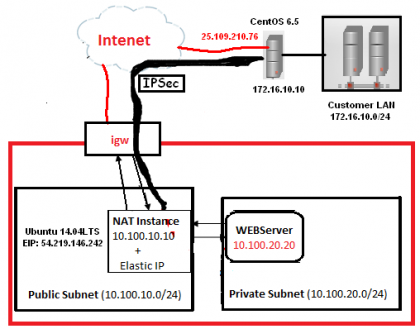
In this tutorial, we will use the previous scenario on AWS side for the creation of site-to-site vpn between AWS VPC and Local site. On Amazon side, we’ll use Ubuntu 14.04 LTS, which will act as gateway for private subnet(s) plus the vpn gateway, while on the Local site, we’ll use the CentOS 6.5, which will perform the same tasks as of Ubuntu on AWS side (gateway for LAN plus vpn gateway).

Note: Please don’t waste your time in hacking, all these public devices and IP(s) are Temporary, I have destroyed them after finished this tutorial.

VPN Configuration on AWS VPC

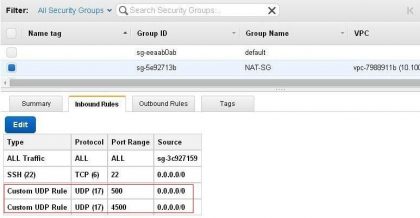
Please add the udp ports 500 & 4500 on NAT instance security group:

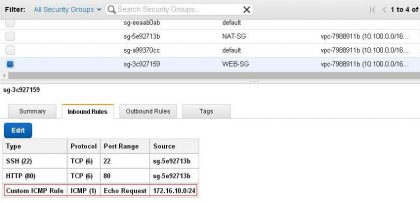
Also allow the ICMP packet on internal subnet security group from the remote LAN for testing purpose:

Now, install the desired package(s) for ipsec:

apt-get install iptables openswan

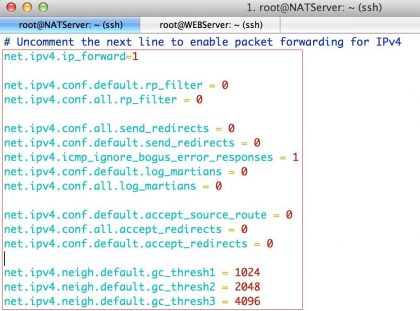
Edit the sysctl.conf file:

vi /etc/sysctl.conf

Add the following parameters inside it:

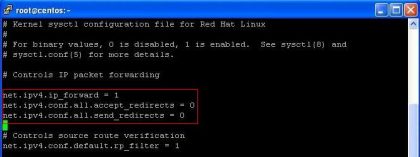
net.ipv4.ip_forward=1

net.ipv4.conf.default.rp_filter = 0
net.ipv4.conf.all.rp_filter = 0

net.ipv4.conf.all.send_redirects = 0
net.ipv4.conf.default.send_redirects = 0
net.ipv4.icmp_ignore_bogus_error_responses = 1
net.ipv4.conf.default.log_martians = 0
net.ipv4.conf.all.log_martians = 0

net.ipv4.conf.default.accept_source_route = 0
net.ipv4.conf.all.accept_redirects = 0
net.ipv4.conf.default.accept_redirects = 0

net.ipv4.neigh.default.gc_thresh1 = 1024
net.ipv4.neigh.default.gc_thresh2 = 2048
net.ipv4.neigh.default.gc_thresh3 = 4096

Modify the rc.local file:

vi /etc/rc.local

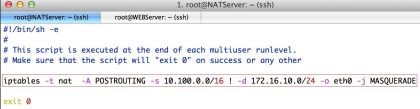
Modify the MASQUERADE rule that we had added in the previous tutorial (Please adjust it according to your scenario):

iptables -t nat -A POSTROUTING -s 10.100.0.0/16 ! -d 172.16.10.0/24 -o eth0 -j MASQUERADE

Note: Please Reboot your machine once, so that changes will take effect.

Edit the ipsec.conf file:

vi /etc/ipsec.conf

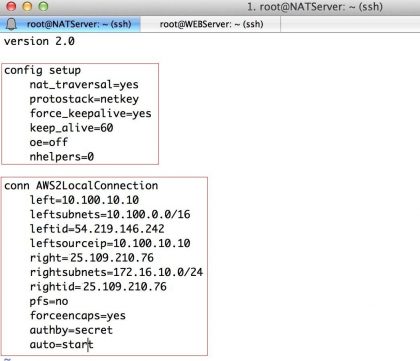
Here is mine working ipsec.conf file, please adjust your’s as per your requirement:

version 2.0

config setup
    nat_traversal=yes
    protostack=netkey
    force_keepalive=yes
    keep_alive=60
    oe=off
    nhelpers=0

conn AWS2LocalConnection
    left=10.100.10.10

    leftsubnets=10.100.0.0/16
    leftid=54.219.146.242
    leftsourceip=10.100.10.10
    right=25.109.210.76
    rightsubnets=172.16.10.0/24
    rightid=25.109.210.76
    pfs=no
    forceencaps=yes
    authby=secret
    auto=start

Edit the shared secret file:

vi /etc/ipsec.secrets

Mine ipsec.secrets file as an example:

VPN Configuration on Local Site

Before beginning the configuration, please verify that the selinux is disabled:

sestatus

Install the openswan on CentOS, along with the desired packages:

yum install wget bind-utils openswan lsof

Configure the openswan to start at boot time:

chkconfig ipsec on

Edit the sysctl.conf file on CentOS:

vi /etc/sysctl.conf

Add/Edit the following parameters:

net.ipv4.ip_forward = 1
net.ipv4.conf.all.accept_redirects = 0
net.ipv4.conf.all.send_redirects = 0

Edit the iptables rule file:

vi /etc/sysconfig/iptables

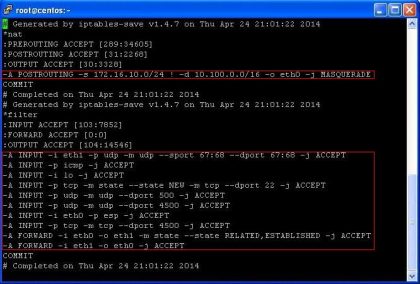
Modify your iptables file according to your scenario, here are the desired iptables rules, please adjust them accordingly:

*nat
:PREROUTING ACCEPT [0:0]
:POSTROUTING ACCEPT [0:0]
:OUTPUT ACCEPT [0:0]
-A POSTROUTING -s 172.16.10.0/24 ! -d 10.100.0.0/16 -o eth0 -j MASQUERADE
COMMIT
###########
*filter
:INPUT ACCEPT [0:0]
:FORWARD ACCEPT [0:0]
:OUTPUT ACCEPT [0:0]
-A INPUT -i eth1 -p udp -m udp --sport 67:68 --dport 67:68 -j ACCEPT
-A INPUT -p icmp -j ACCEPT
-A INPUT -i lo -j ACCEPT
-A INPUT -p tcp -m state --state NEW -m tcp --dport 22 -j ACCEPT
-A INPUT -p udp -m udp --dport 500 -j ACCEPT
-A INPUT -p udp -m udp --dport 4500 -j ACCEPT
-A INPUT -i eth0 -p esp -j ACCEPT
-A INPUT -p tcp -m tcp --dport 4500 -j ACCEPT
-A FORWARD -i eth0 -o eth1 -m state --state RELATED,ESTABLISHED -j ACCEPT
-A FORWARD -i eth1 -o eth0 -j ACCEPT
COMMIT

Note: Please Reboot your machine once, so that changes will take effect.

Edit the ipsec.conf file:

vi /etc/ipsec.conf

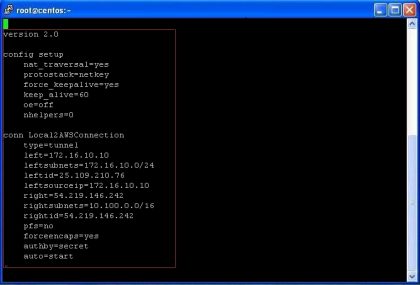
Here is mine working ipsec.conf file on Local site, please adjust your’s as per your requirement:

version 2.0

config setup
    nat_traversal=yes
    protostack=netkey
    force_keepalive=yes
    keep_alive=60
    oe=off
    nhelpers=0

conn Local2AWSConnection
    type=tunnel
    left=172.16.10.10
    leftsubnets=172.16.10.0/24
    leftid=25.109.210.76
    leftsourceip=172.16.10.10
    right=54.219.146.242
    rightsubnets=10.100.0.0/16
    rightid=54.219.146.242
    pfs=no
    forceencaps=yes
    authby=secret
    auto=start

Edit the shared secret file:

vi /etc/ipsec.secrets

Mine ipsec.secrets file as an example on Local Site:

Restart the IPSec Service & verify its status on both Sides:

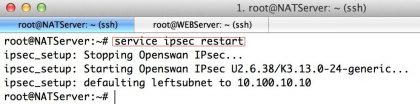
Restart the IPSec service on Ubuntu at AWS VPC:

service ipsec restart

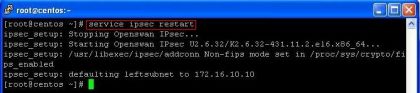
Restart the IPSec service on CentOS at Local Site:

service ipsec restart

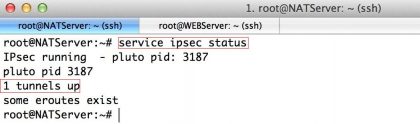
Verify the status of IPSec service on Ubuntu at AWS VPC:

service ipsec status

Verify the status of IPSec service on CentOS at Local Site:

service ipsec status

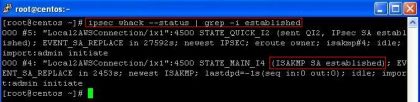
Verify the IPSec Tunnel status on both servers

ipsec whack --status | grep -i established

Note: established means that tunnel is up and traffic will traverse through it
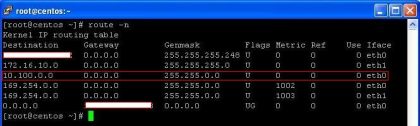
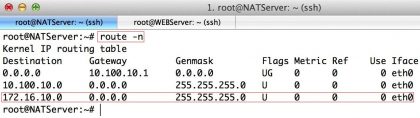
Verify the Route Table on both servers

route -n

Verify that the Traffic is passing through the Tunnel

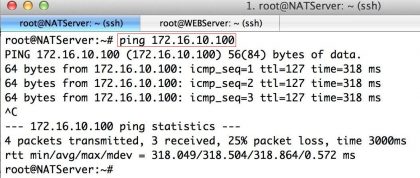
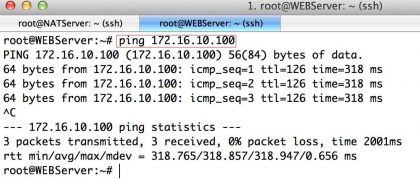
Ping from the AWS vpn gateway to the machine on Local LAN (I have Win XP machine on local LAN with an ip 172.16.10.100).

Ping from AWS VPC private Subnet to Local LAN for verification:

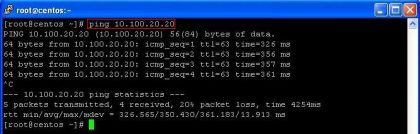
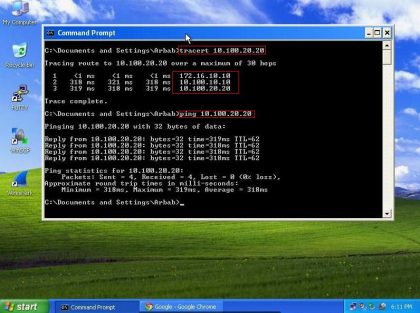
Ping from the Local vpn gateway to the machine on VPC Private subnet (I have Webserver on private subnet with an ip 10.100.20.20).

Ping from Local LAN  to AWS VPC private Subnet for verification:

Testing Without Ping

If you don’t have a box to target that should respond to ping, you can try running a port scan to see if you can at least reach the machine.

nmap -PN <something_on_right_subnet>


Monitoring traffic

While you’re running your ping or nmap, you can view the traffic with tcpdump.

tcpdump -n host <RIGHT_PUBLIC_IP>


If you don’t see ESP packets in tcpdump, then they aren’t being tunneled. Try:

tcpdump -n host <something_on_right_subnet>

If that shows ICMP (or other if using nmap) packets, then you’re sending packets around the tunnel.

VERY Useful Tip:

If the Tunnel didn’t come up after the configuration, just restart the server and also start the ping from your LAN host to other side LAN host.
References

VPN Site-to-Site Openswan And ASA Cisco

I am going to demonstrate the communication between CentOS 7 Linux distribution and ASA (Adaptive Security Appliances) is straight. We will only need to check the cryptography configuration and that it, the connection is established.

1. Installing Openswan

The installation processs is very easy because can be done via yum:

# yum install lsof openswan

After the installation we initiate the service:

# ipsec setup start

2. Configuring Openwan

Openswan has basically two configurations that needs to be changed: ipsec.conf , with the IP configurations, cryptography and ipsec.secrets , with the source and destination IPs and authentication password.

2.1. Configuring ipsec.conf

# vim /etc/ipsec.conf


# /etc/ipsec.conf – Openswan IPsec configuration file

#

# Manual: ipsec.conf.5

#

# Please place your own config files in /etc/ipsec.d/ ending in .conf version 2.0 

# conforms to second version of ipsec.conf specification

# basic configuration

config setup

    # Debug-logging controls: "none" for (almost) none, "all" for lots.

    # klipsdebug=none

    # plutodebug="control parsing"

    # For Red Hat Enterprise Linux and Fedora, leave protostack=netkey

    interfaces=%faultroute

    klipsdebug=none

    plutodebug=none

    #protostack=netkey

    #nat_traversal=yes

    #virtual_private=

    #oe=off

    # Enable this if you see "failed to find any available worker"

    #nhelpers=0

conn cisco # Here is the Name of the VPN connection.

   type= tunnel

   authby= secret

   # Left security Linux, (Linux side)

   left= 201.30.XXX.XXX #REAL IP LINUX SERVER

   leftsubnet= 192.168.199.0/24 #Net address assigned to the other side

   leftnexthop= 201.30.XXX.XXX #Real IP Gateway

   # Right security gateway, (ASA side)

   right= 201.30.XXX.XXX # ASA IP

   rightsubnet= 10.100.0.0/16 # Net address assigned to the other side

   rightnexthop= 201.30.XXX.XXX #Real IP Gateway

   # Type of cryptogrphy used on the VPN Tunnel

   esp= 3des-md5-96

   keyexchange= ike

   pfs= no

   auto= start

#You may put your configuration (.conf) file in the "/etc/ipsec.d/" and uncomment this.

#include /etc/ipsec.d/*.conf

Save and exit

PS: the file ipsec.conf must be very well indentified.

2.2. Configuring ipsec.secrets

# vim /etc/ipsec.secrets


201.30.XXX.XXX(Lado do ASA) 201.30.XXX.XXX(Lado do Linux): PSK "jfn*7@vP3987X#zl0&jsbc63aQe3" (pre-shared key)


Create and Manage Swarm Services


Swarm Service

Service is the definition of the tasks to execute on the worker nodes. It is the central structure of the swarm system and the primary root of user interaction with the swarm. When you create a service, you specify which container image to use and which commands to execute inside running containers.

Running Services in the Docker Swarm

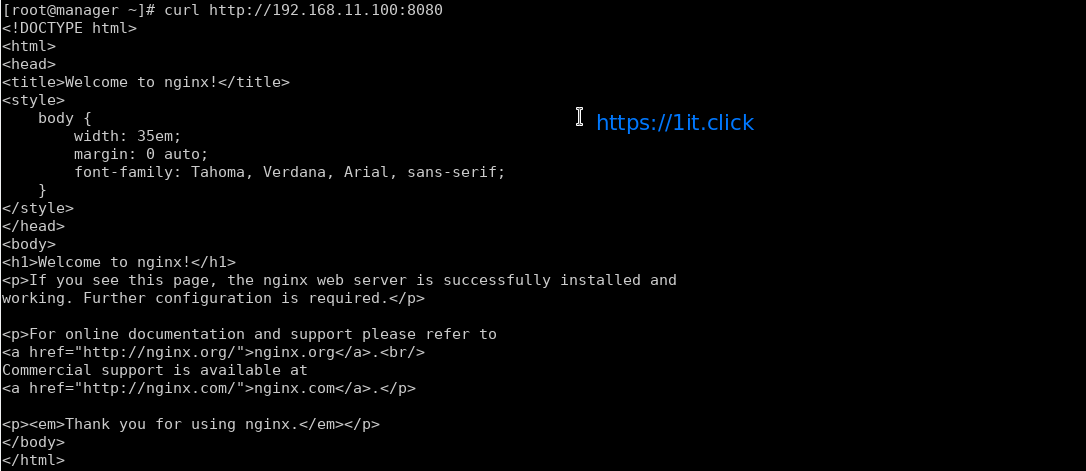
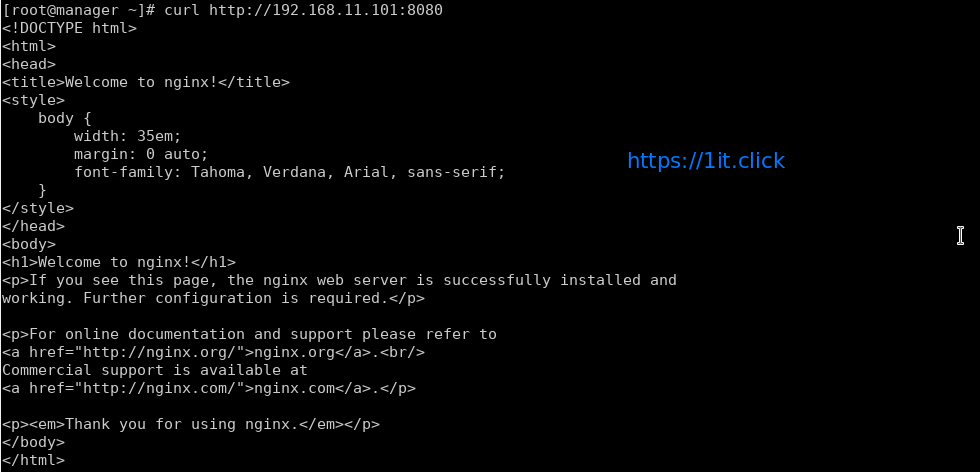
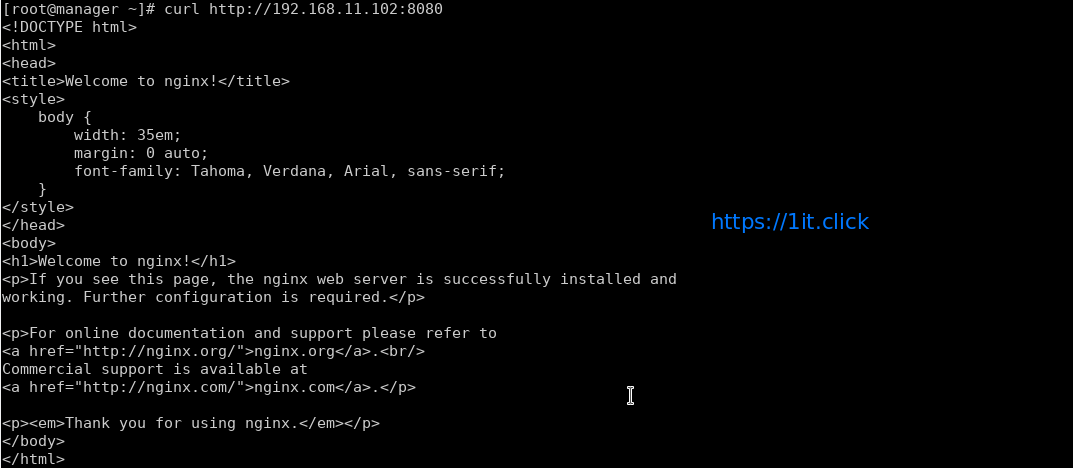
We have swarm cluster up and we are ready to deploy the services. In this demo we will deploy service name “webserver” which will be using “nginx” docker images.

# docker service create -p 8080:80 --name webserver nginx

In the above example, we’re mapping port 80 in the Nginx container to port 8080 on the cluster so that we can access the default nginx page from anywhere.


Swarm Service modes

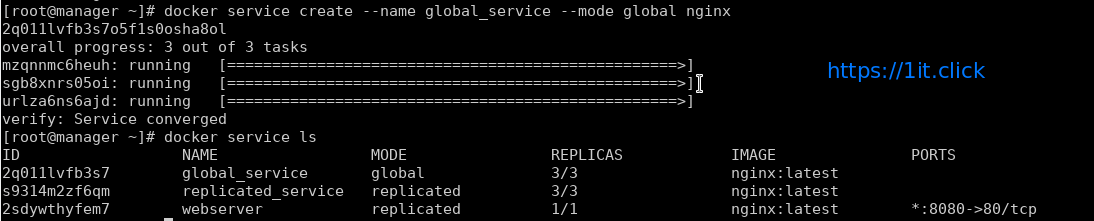
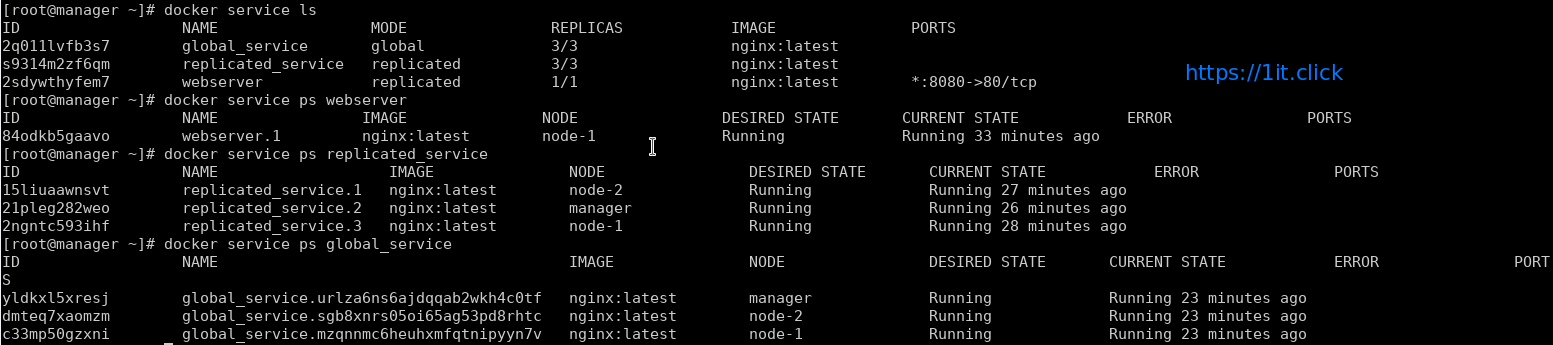
Swarm service support 2 modes – Replicated and Global (Replicated mode is default)

Replicated mode – you can pass number of replica of the service and swarm maintain that count.

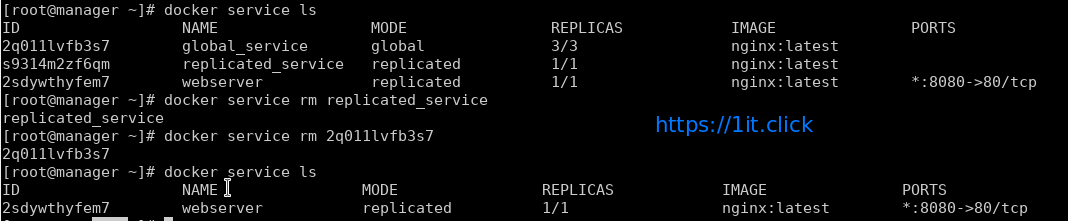
# docker service create --name replicated_service --replicas 3 nginx

Global mode – To start a global service on each available node, pass –mode global to docker service create. Every time a new node becomes available, the scheduler places a task for the global service on the new node.

# docker service create --name global_service --mode global nginx


To view services on a cluster

# docker service ls

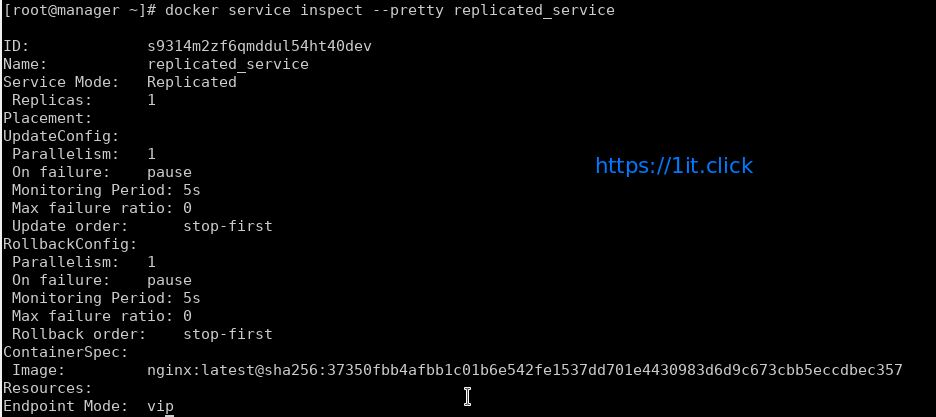
# docker service inspect --pretty <ServiceNAME|ServiceID>


To determine which nodes the services is running on by using docker service ps followed by service name

# docker service ps <ServiceNAME|ServiceID>

Docker by default use mesh networking, a service running on a node can be accessed on any other node of the cluster.


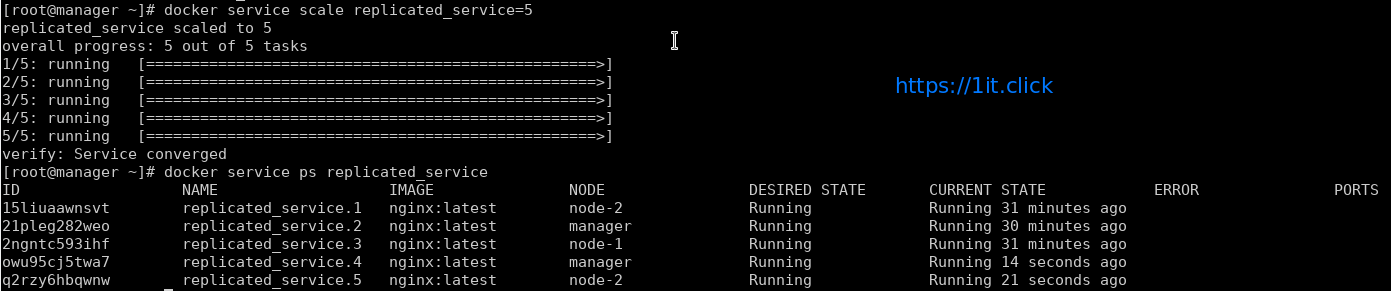
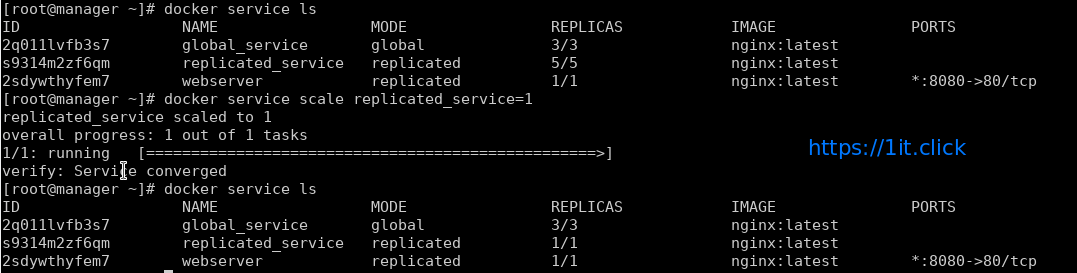
Scale Up/Down the Service

# docker service scale <ServiceNAME>=<#ofReplicas>

Remove a Service

# docker service rm <ServiceNAME|ServiceID>


Create Docker Swarm


Docker Swarm

Swarm is native clustering for the Docker. When the Docker Engine runs is swarm mode, manager nodes implement the Raft Consensus Algorithm to manage the global cluster state. The reason why Docker swarm mode is using a consensus algorithm is to make sure that all the manager nodes that are in charge of managing and scheduling tasks in the cluster, are storing the same consistent state.


LAB Setup

In this LAB we are going to create a Swarm cluster with single manager and 2 worker nodes.

Operating System CentOS 7.4 x86_64
Platform Vagrant Machines
Manager Node manager 192.168.11.100/24
Worker Node 1 node-1 192.168.11.101/24
Worker Node 2 node-2  192.168.11.102/24

Prerequisites

  • Docker Engine 1.12 or later installed. We are going to install “ce” (community engine)

# yum-config-manager --add-repo https://download.docker.com/linux/centos/docker-ce.repo

# yum install docker-ce -y

# systemctl start docker.service

# systemctl enable docker.service

  • Static IP address of the manager machine, preferably for all machines
  • Network connectivity between all nodes and manager
  • Following Open Network ports

TCP port 2377 for cluster management communications

TCP and UDP port 7946 for communication among swarm nodes

UDP port 4789 for overlay network traffic


Create a Swarm

After the installation of the docker engine, next step is to enable the swarm mode, by default it is disabled.


Step-1: Initialize the Swarm

To crate a new swarm run the below command on the manager node.

# docker swarm init --advertise-addr 192.168.11.100

This command switches the current node into swarm mode and creates a new swarm. On the node where swarm init is done, that node is designated as manager node and it starts on listening on the advertised IP address over port 2377.

With swarm init – by default, generates tokens for worker and manager nodes to join the swarm, you can regenerate the tokens again, if missed to node those.


Step-2: Adding worker nodes on the swarm cluster

Login to every swarm node-1 and node-2 and run the following command

# docker swarm join --token <TOKEN> <Manager IP>:2377

Step-3: Check the Status of the Swarm Cluster

Run the following commands to check the status and health of swarm cluster.

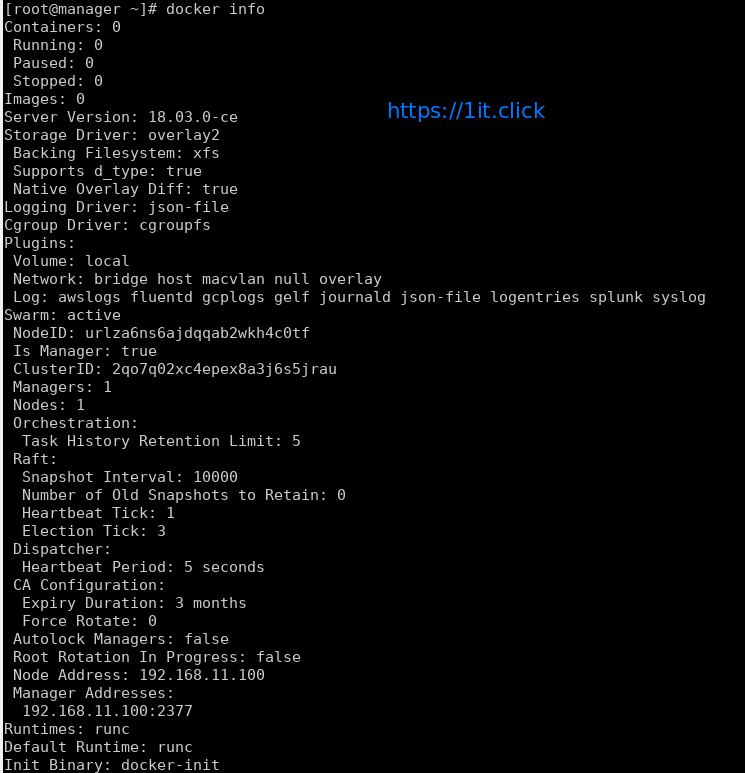
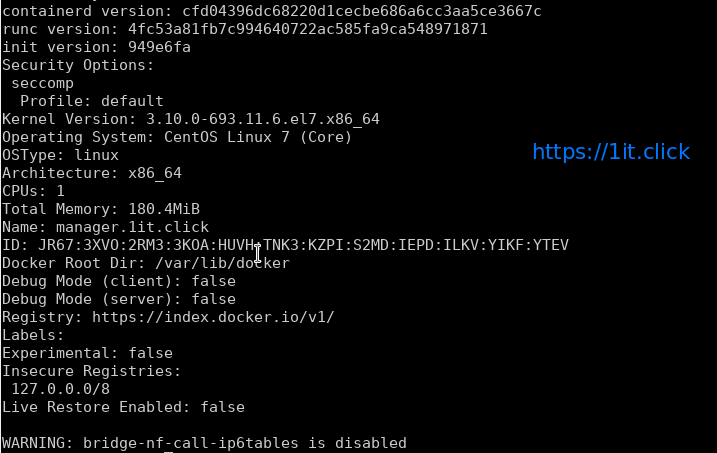
# docker info

# docker node ls

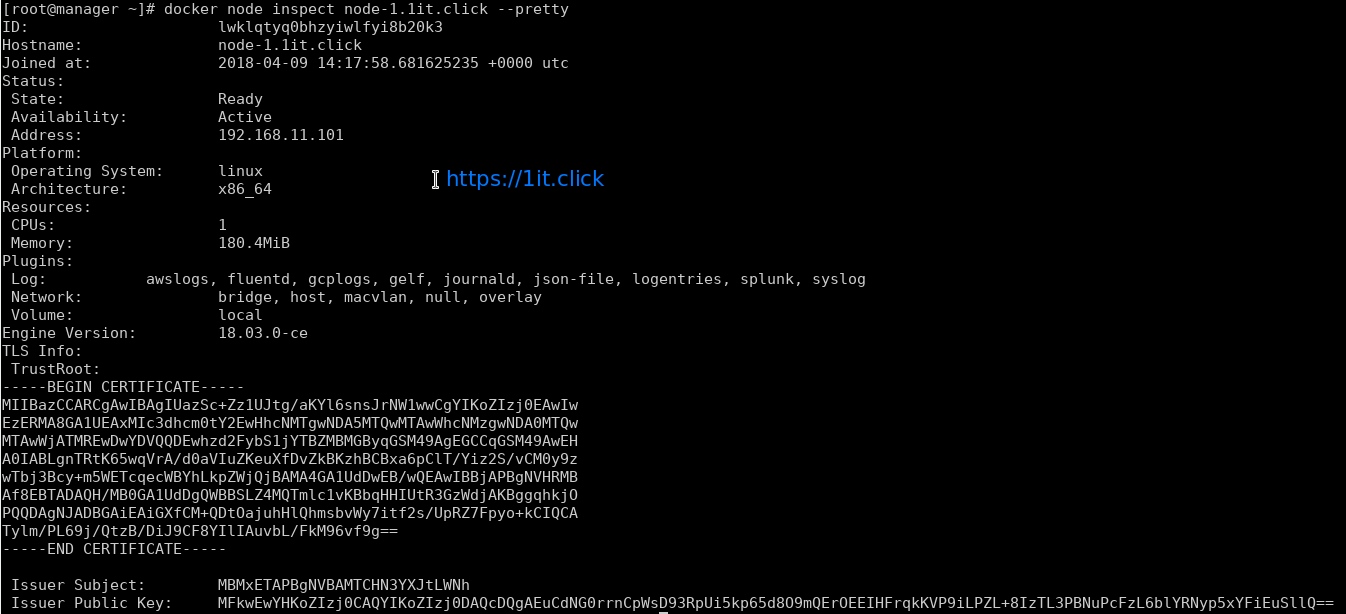
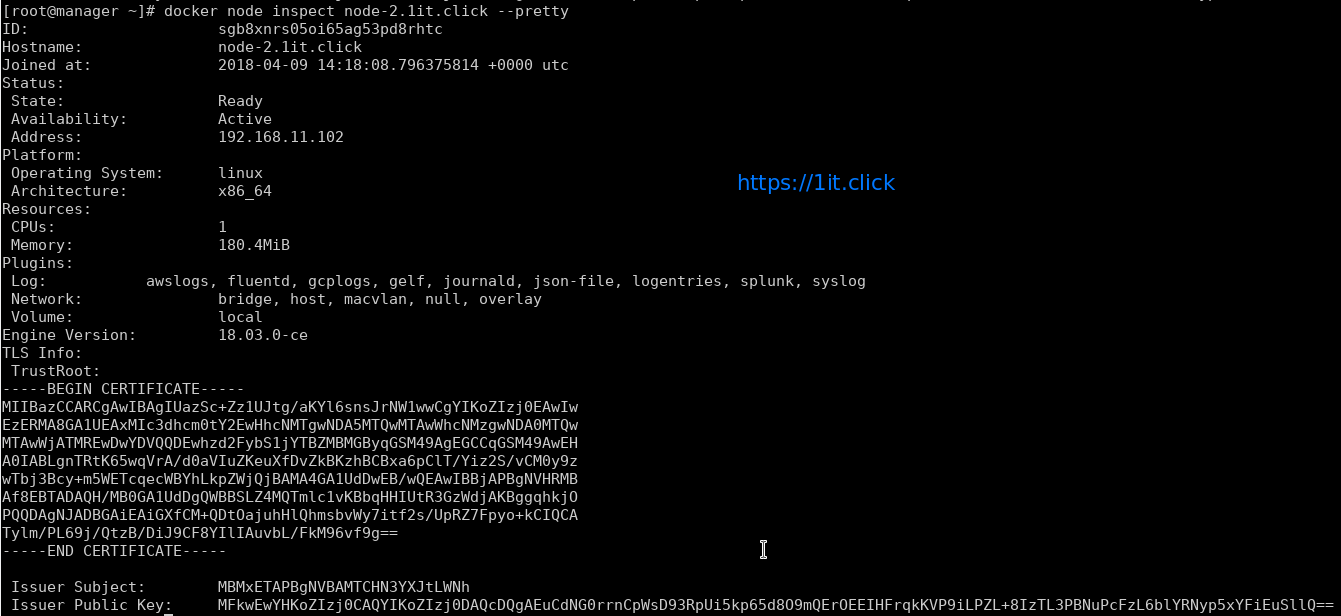
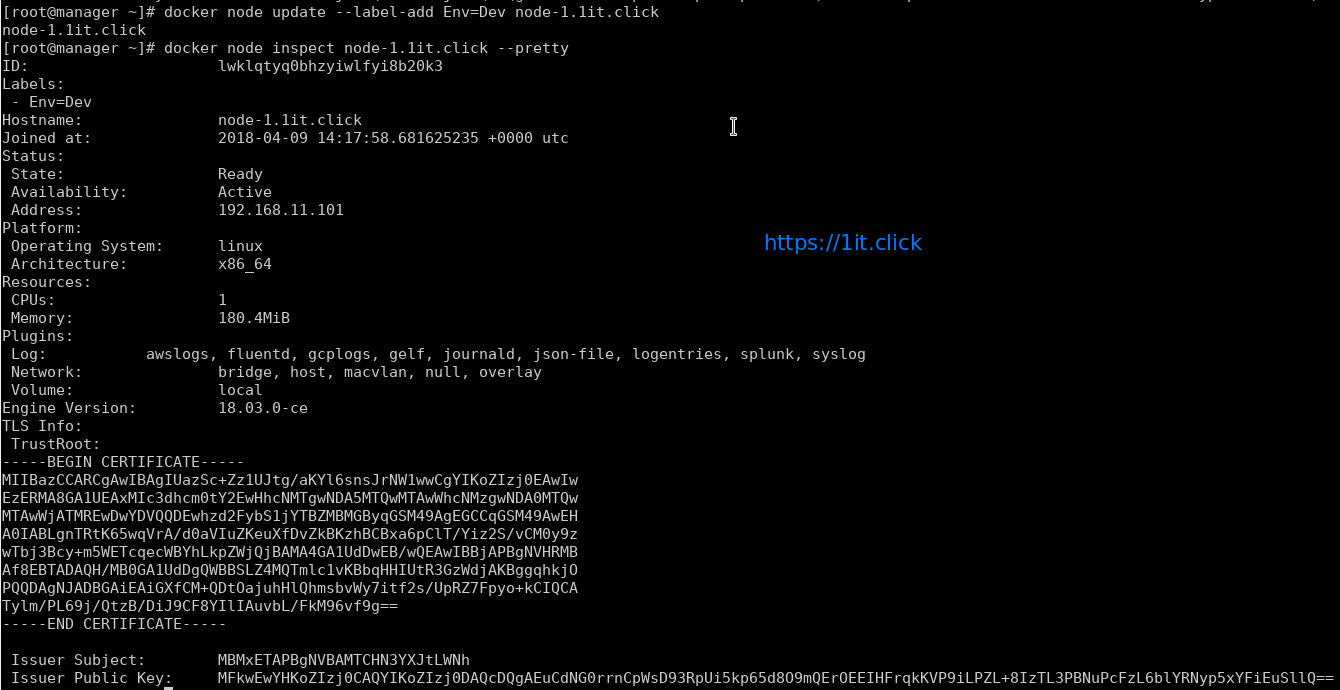
# docker node inspect <node> --pretty

Please Note – By default manager also acts as worker node.


To see the Token

Display the token for manager to join

# docker swarm join-token manager

Display the token for worker to join

# docker swarm join-token worker


Swarm Cluster Management

AVAILABILITY column shows whether or not the scheduler can assign tasks to the node:

active: scheduler can assign tasks to the node.

pause: scheduler doesn’t assign new tasks to the node, but existing tasks remain running.

drain: scheduler doesn’t assign new tasks to the node, existing services will move to other nodes.

MANAGER STATUS column shows node participation in the Raft consensus:

No value: indicates a worker node that does not participate in swarm management.

leader: node is the primary manager that makes all swarm management and decisions.

reachable: node is a manager node participating in the Raft consensus quorum.

unavailable: node is a manager that is not able to communicate with other managers.


Management Commands

Update the states of manager/worker node

# docker node update --availability drain node-1.1it.click

Promote the node as manager

# docker node promote node-1.1it.click

Demote the node from manager role

# docker node demote node-2.1it.click

Add labels to the Node’s metadata

# docker node update --label-add Env=Dev node-2.1it.click

Node leaves the cluster

# docker swarm leave

Removes the node from cluster

# docker node rm node-2.1it.click

Docker Swarm


Docker Swarm

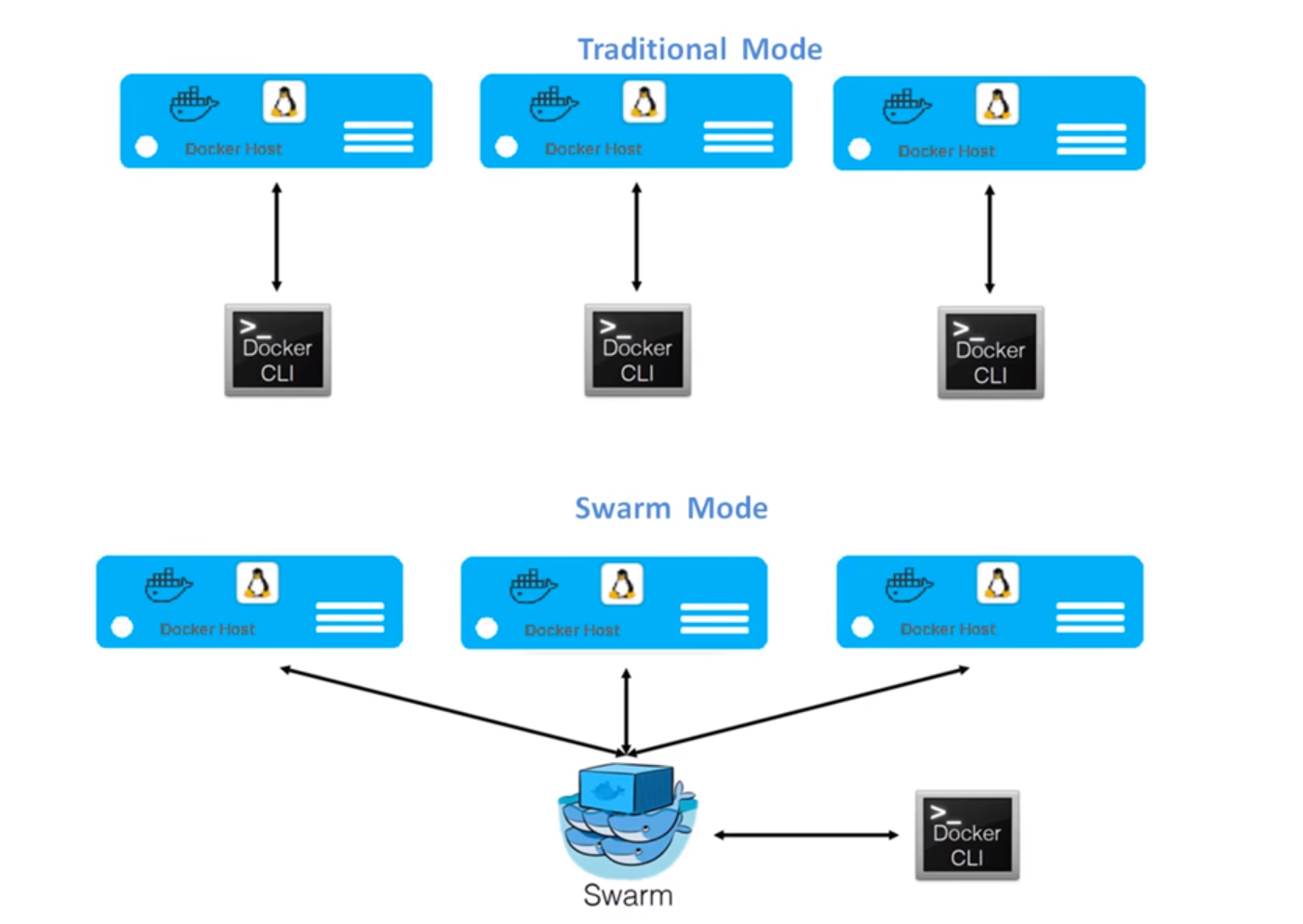
Swarm is native clustering for the Docker. in the context of swarm, a cluster is a poll of Docker hosts that acts as a bit like a single large docker host. You can also run swarm services and standalone containers on the same Docker instances.


Features of Swarm

  • Swarm setup is very quick and easy, no separate infrastructure requirements and Swarm ships as standard Docker image.
  • Swarm implements most of the Docker API endpoints, which means tools build on it can work out of the box.
  • Swarm support Affinity definition/configuration, which means Docker swarm launch a container only a Docker host that does not already have the same container already running on.
  • Swarm supports high availability, we can join multiple manager nodes to the cluster, so that if one manager node fails, another can automatically take its place without impact to the cluster.
  • Swarm support scaling, for each service you can declare the number of tasks you want to run. When you scale up or down, the swarm manager automatically adapts by adding or removing tasks to maintain the desired state.
  • Swarm handles desired state reconciliation very well, manager node constantly monitors the cluster state and reconciles any differences between the actual state and your expressed desired state.
  • Swarm support network overlays. The swarm manager automatically assigns addresses to the containers on the overlay network when it initializes or updates the application.
  • Swarm is secure by default. Each node in the swarm enforces TLS mutual authentication and encryption to secure communications between itself and all other nodes.
  • Rolling updates: At roll out time you can apply service updates to nodes incrementally.


Swarm Mode Key Concepts

Manger Node manages the application deployment of the request. Task Manager Node performs are

  • Dispatches units of work called tasks to worker nodes.
  • Checks are manage desired state of the swarm.
  • Manger nodes elect a single leader to conduct orchestration tasks.
  • Keep track of resource utilization on the worker nodes.

Worker nodes receive and execute tasks dispatched from manager nodes. By default manager nodes also run services as worker nodes, but you can configure them to run manager tasks exclusively and be manager-only nodes. An agent runs on each worker node and reports on the tasks assigned to it. The worker node notifies the manager node of the current state of its assigned tasks so that the manager can maintain the desired states.

Service is the definition of the tasks to execute on the worker nodes. It is the central structure of the swarm system and the primary root of user interaction with the swarm. When you create a service, you specify which container image to use and which commands to execute inside running containers.

Task carries a Docker container and the commands to run inside the container. It is the atomic scheduling unit of swarm. Manager nodes assign tasks to worker nodes according to the number of replicas set in the service scale. Once a tasks is assigned to a node, it cannot move to another node. It can only run on the assigned node or fail.

Load balancing, The swarm manager uses ingress load balancing to expose the services you want to make available externally to the swarm. The swarm manager can automatically assign the service a Published Port in the 30000-32767 range. Otherwise you can choose free port yourself.

DNS component automatically assigns each service in the swarm a DNS entry. The swarm manager uses internal load balancing to distribute requests among services within the cluster based on the DNS name of the service.