Բառային թելադրության նյութեր 1

Ամևնաէական, առօրեական, հովեկ, գործունեություն, մեջք, աներկյուղ, հնէաբան, վայրէջք՛ դողէրոցք, գոմեշ:

ամենաէական = ամենա + է + ական (անէական, անէ)

առօրեական = առ + օր + ե ( յա > ե) + ական (այժմեական, պաշտոնեական)

հովեկ = հով + եկ (նորեկ, երթևեկ)

գործունեություն = գործ + ուն + ե(յա > ե) + ություն

մեջք = մեջ + ք (կորամեջք, անընդմեջ)

աներկյուղ = ան + ևրկ + յուղ (աներկբա, անեբես)

հնէաբան = հև (հին) + է + ա + բան (մանրէ, մանրէաբան)

վայրէջք = վայր + էջ + ք (ելևէջ, էջմիածին, լուսնէջք)

դողէրոցք = դող + էր (էր’ էրվել, այրվել) + ոց + ք

գոմեշ — պարզ բառ (պատնեշ, հրեշ)

Ելևէջ, երփներանգ, տիեզերք, վերելակ, որևէ, որևիցե, մանրէ, էլեկտրաէներգիա, բազկերակ, աներևույթ:

ելևէջ = ել + և + էջ (վայրէջք, առէջ)

երփևերաեգ = երփն + երանգ (բազմերանգ, նրբերանգ)

տիեզերք = տի (տի’ մեծ. տիկին, տիար) + եզեր (եզեր’ եզր բառի գրաբաբյան սեռական հոլովաձևը) + ք (լայնեզր, ծովեզր)

վերելակ = վեր +ե\ + ակ (վերելք, ելարան) որևէ = որ + և + է (երբևէ, ինչևէ)

որեիցե = որ + և + իցե (իցե’ գրաբարյան եմ բայի ապառնի ձևը), (երբևիցե, ինչևիցե)

մանրէ = մանր + է (անէ, հնէաբան, անէական)

էլեկտրաէներգիա = էլեկտր + ա + էներգիա

բազկերակ = բազկ (բազուկ) + երակ (քներակ)

աներևույթ = ան + երե + ույթ (աներևակայելի, մակերևույթ)

ՀԱՅՈՑ ԱՅՐՈՒՁԻՆ

Հայոց այրուձին անցնում էր ավազե անապատներով և շտապում հայրենիք: ճանապարհն աներևակայելի դժվար էր: Սակայն աներևույթ մի ուժ հոգնաբեկ մարդկանց առաջ էր մղում: Նրանք հաղթահարում էին վայրէջքներն ու վերելքները: Որևէ արգելք, անգամ դաժան դողէրոցքը չէին վախեցնում նրանց: Զինվորների ռազմերգի ելևէջներն արձագանքում էին անապատի ամայության մեջ: Այդ խրոխտ երգում այլևս ողբերգական ոչ մի հնչերանգ չկար:

Բացատրել հետևյալ թառերի ուղղագրությունը՝ աներևակայելի, վայրէջք, վերելք, որևէ, դողէրոցք, ռազմերգ, ողբերգական, հնչերանգ

ԲԱՌԱԿԱԶՄԱԿԱՆ ՊԱՏԿԵՐ

աներևակայելի = ան + երե + ա + կայ + ելի (աներևույթ)

վայրէջք = վայր + էջ + ք (էջմիածին, առէջ, ելևէջ)

վերելք = վեր + ել + ք (վերելակ, անելանելի)

որևէ = որ + և + է (ինչևէ, երբևէ, բայց՝ ինչևիցե, երբևիցե, որևիցե)

դողէրոցք = դող + էր (էր’ էրվել, այրվել) + ոց + ք

ռազմերգ = ռազմ + երգ (խմբերգ, համերգ)

ողբերգական = ողբ + երգ + ական (ողբերգակ, ողբասաց)

հնչերանգ = հնչ (հունչ) + երանգ (բազմերանգ, երփներանգ)

ՀՈՎԵԿՆԵՐԸ

Լայներախ ձորի եզրով դեպի եկեղեցի են գնում հովեկները: Դաշտային բազմե­րանգ ծաղիկները ժպտում են նրանց: Առվակները երգում են ուրախ ելևէջումներով: Երկնքում աներկյուղ սավառնում են բազեները: Մարդն այստեղ ասես անէանում է, կտրվում առօրեական հոգսերից: Աներևակայելի գեղեցիկ այս տեսարանը հովեկները երբևէ չեն մոռանա:

Շուտով երևացին ջերմաէլեկտրակայանի աշտարակները: Որոշեցին հանգստա­նալ: Դժվարին վերելքներով ու վայրէջքներով ճանապարհ պիտի անցնեին:

Բացատրել հետևյալ թառերի ուղղագրությունը՝ լայներախ, հովեկ, բազմերանգ, ելևէջում, աներկյուղ, անէանալ, առօրեական, երբևէ, աներևակայելի, ջերմա- էլեկտրակայան, վերելք

ԲԱՌԱԿԱԶՄԱԿԱՆ ՊԱՏԿԵՐ

լայներախ = լայն + երախ

հովեկ = հով + եկ (նորեկ, երթևեկություն)

բազմերանգ = բազմ (բազում) + երանգ (երփներանգ, հազարերանգ)

ելևէջում = ել + և + էջ (իջնել) + ում (ելևէջել, վայրէջք, առէջ)

աներկյուղ = ան + երկ + յուղ (աներկբա, աներես)

անէանալ = ան + է + ան + ալ (անէ, անէական)

առօրեական = առ + օր + & (յա > ե) + ական (օրեցօր, օրըստօրե) երբևէ = երբ + և + է (ինչևէ, որևէ)

աներևակայելի = ան + երև + ա + կայ + ելի (աներևույթ)

ջերմաէլևկտրակայան = ջերմ + ա + էլեկտր + ա + կայ + ան (էլեկտրաէներգիա)

վերելք = վեր + ել + ք (վերելակ, ելարան, անելանելի)

ՓՈՔՐԻԿ ՋՈԻԹԱԿԱՀԱՐԸ

Համերգասրահում լռություն էր: Ջութակի ելևէջները ունկնդիրներին կտրել էին առօրեական հոգսերից: Երբևէ այդքան մարդ չէր հավաքվել, այդպիսի համերգ երաժշտասերները երբևիցե չէին լսել: Հորդում էին մեղեդիները, փրփրադեզ գետի նման վայրէջքում: Բոլորն ասես գտնվում էին երփներանգ մարգագետնում և ծաղիկների առէջների բուրմունքն էին զգում: Փոքրիկ ջութակահարը մարդկանց կտրել էր էական և անէական գործերից: Մարդիկ կարծես հայտնվել էին կախարդական հնչյունների աներևակայելի աշխարհում:

Բացատրել հետևյալ թառերի ուղղագրությունը՝

ելևէջ, առօրեական, երբևէ, երբևիցե, երփներանգ, էական, աներևակայելի։

ԲԱՌԱԿԱԶՄԱԿԱՆ ՊԱՏԿԵՐ

ելևէջ = ել + և + էջ (առէջ, էջմիածին, վայրէջբել)

առօրեական = առ + օ^ + ե (յա > ե) + ական (օրեցօր, օրըստօրե)

երբևէ = երբ + և + է (ինչևէ, որևէ)

եբբևիցե = եբբ + և + իցե (իցե’ գրաբարյան եմ բայի ապառնի ձևը), (որևիցե, ինչևիցե)

երփներանգ = երփն + երանգ (երփնավառ, երփնագույն)

էական = է + ական (անէ, անէական)

աներևակայելի = ան + երև + կայ + ելի (աներևույթ, մակերևույթ)

ՀԱՂԹԱՆԱԿ

Հայ լեռնագնացների մի խումբ լուսաբացին սկսեց ուղերթը: Որևէ մեկը դեռևս չէր գրավել դեպի տիեզերք սլացող լեռան բարձունքը: Ճոպաններով իրար կապված երիտասարդներն աներևակայելի հնարներով սկսեցին մագլցել վեր: Նրանց չէին վախեցնում դժվարին վայրէջքներն ու վերելքները: Աներևույթ մի ուժ կարծես օգնում էր տղաներին: Աներկյուղ անցան վերջին պատնեշն ու կանգնեցին գագաթին: Երբևիցե այդպիսի հպարտություն չէին զգացել: Նվաճված լեռնակատարին ծածանվեց հայոց եռագույնը:

Բացատրել հետևյալ թառերի ուղղագրությունը՝ ուղերթ, որևէ, տիեզերք, աներևակայելի, վայրէջք, վերելք, աներևույթ, աներկյուղ, պատնեշ, երբևիցե:

ԲԱՌԱԿԱԶՄԱԿԱՆ ՊԱՏԿԵՐ

ուղերթ = ուղ (ուղի) + երթ (երթուղի)

որևէ = որ + և + է (ովևէ, ինչևէ)

տիեզերք = տի (տի՝ մեծ. տիկին, տիար) + եզեր (եզեր՝ եզր բառի գրաբարյան սեռական հոլովաձևը) + ք (լայնեզր, ծովեզր)

աներևակայելի = ան + երե + ա + կայ + ելի (աներևույթ)

վայրէջք = վայր + էջ + ք (էջմիածին, առէջ, ելևէջ)

վերելք = վեր + ել + ք (վերելակ, անելանելի)

աներկյուղ =ան +երկ + յուղ (աներկբա, աներես)

պատնեշ — պարզ բառ

երբևիցե = երբ + և + իցե (իցե’ գրաբարյան եմ բայի ապառնի ձևը), (որևիցե, ինչևիցե)

How to Use rclone to Back Up to Google Drive on Linux

There’s still no official Linux client for Google Drive, but you can back up to your Google Drive using the rclone utility right from the command line.

Where’s Google Drive on Linux?

Despite promising Linux support “coming soon” back in 2012, there’s no indication that Google will ever produce a native Linux client for Google Drive. There are several unofficial third-party solutions, such as InSync, overGrive and ODrive, and some file browsers allow integration with your Google Drive, such as Files in GNOME.

The third-party applications are commercial products, requiring either an outright purchase or a subscription. They work well they don’t cost much, and in fact, overGrive does have a free version, offering limited functionality for no cost.

But what if you want to create and run backups from the command line? Or to incorporate that functionality into scripts? That’s all possible thanks to an amazing application called rclone. In fact, with rclone you can back up, download, and synchronize files to over forty different cloud solutions. It’s like rsync for clouds.

Installing rclone

rclone almost certainly won’t be installed on your Linux computer by default. Happily, there’s an installation script that should work on all distributions. The installation process uses curl. On the computers used to research this article, already had curl installed but curl had to be installed on Ubuntu 22.04 LTS.

On Ubuntu, run this command to install it:

sudo apt-get install curl

Once curl has been installed, install rclone with this command:

curl https://rclone.org/install.sh | sudo bash

or

sudo apt install rclone

When the rclone installation has finished, you’ll see a success message.

This has installed the rclone program on your Linux computer. The next step is to run through the setup process and authenticate rclone to access your Google Drive.

Creating an rclone Remote Connection

Connections to remote cloud services are called “remotes” in the rclone world. We need to create one for Google Drive. Start the rclone configuration process with this command:

rclone config

There are a lot of questions in the configuration process. But don’t be disheartened, many of them can be left at their default values and simply accepted by pressing “Enter.”

rclone tells us there are no remotes configured. Press “n” and press “Enter” to create a new remote. It will prompt you for a name. We’re going to call it “google-drive.” Use whatever name you like.

aghassi@111:~$ rclone config
2023/04/29 13:15:18 NOTICE: Config file "/home/aghassi/.config/rclone/rclone.conf" not found - using defaults
No remotes found - make a new one
n) New remote
s) Set configuration password
q) Quit config
n/s/q> google-drive

A long menu allows you to choose the type of storage you’re creating a remote connection to.

n/s/q> n
name> google-drive
Type of storage to configure.
Enter a string value. Press Enter for the default ("").
Choose a number from below, or type in your own value
1 / 1Fichier
\ "fichier"
2 / Alias for an existing remote
\ "alias"
3 / Amazon Drive
\ "amazon cloud drive"
4 / Amazon S3 Compliant Storage Provider (AWS, Alibaba, Ceph, Digital Ocean, Dreamhost, IBM COS, Minio, Tencent COS, etc)
\ "s3"
5 / Backblaze B2
\ "b2"
6 / Box
\ "box"
7 / Cache a remote
\ "cache"
8 / Citrix Sharefile
\ "sharefile"
9 / Dropbox
\ "dropbox"
10 / Encrypt/Decrypt a remote
\ "crypt"
11 / FTP Connection
\ "ftp"
12 / Google Cloud Storage (this is not Google Drive)
\ "google cloud storage"
13 / Google Drive
\ "drive"
14 / Google Photos
\ "google photos"
15 / Hubic
\ "hubic"
16 / In memory object storage system.
\ "memory"
17 / Jottacloud
\ "jottacloud"
18 / Koofr
\ "koofr"
19 / Local Disk
\ "local"
20 / Mail.ru Cloud
\ "mailru"
21 / Microsoft Azure Blob Storage
\ "azureblob"
22 / Microsoft OneDrive
\ "onedrive"
23 / OpenDrive
\ "opendrive"
24 / OpenStack Swift (Rackspace Cloud Files, Memset Memstore, OVH)
\ "swift"
25 / Pcloud
\ "pcloud"
26 / Put.io
\ "putio"
27 / SSH/SFTP Connection
\ "sftp"
28 / Sugarsync
\ "sugarsync"
29 / Transparently chunk/split large files
\ "chunker"
30 / Union merges the contents of several upstream fs
\ "union"
31 / Webdav
\ "webdav"
32 / Yandex Disk
\ "yandex"
33 / http Connection
\ "http"
34 / premiumize.me
\ "premiumizeme"
35 / seafile
\ "seafile"
Storage> 13

You’re prompted for a Google Application Client ID. Press “Enter” to accept the default.

Storage> 13
** See help for drive backend at: https://rclone.org/drive/ **

Google Application Client Id
Setting your own is recommended.
See https://rclone.org/drive/#making-your-own-client-id for how to create your own.
If you leave this blank, it will use an internal key which is low performance.
Enter a string value. Press Enter for the default ("").
client_id>  
OAuth Client Secret
Leave blank normally.
Enter a string value. Press Enter for the default ("").
client_secret>

You’re then prompted for a Google Application Client Secret.

Storage> 13
** See help for drive backend at: https://rclone.org/drive/ **

Google Application Client Id
Setting your own is recommended.
See https://rclone.org/drive/#making-your-own-client-id for how to create your own.
If you leave this blank, it will use an internal key which is low performance.
Enter a string value. Press Enter for the default ("").
client_id>  
OAuth Client Secret
Leave blank normally.
Enter a string value. Press Enter for the default ("").
client_secret>

Again, just press “Enter.” You’re asked to provide the scope that rclone will have when it is operating on your Google Drive. Press “1” and then press “Enter.”

client_secret>
Scope that rclone should use when requesting access from drive.
Enter a string value. Press Enter for the default ("").
Choose a number from below, or type in your own value
1 / Full access all files, excluding Application Data Folder.
\ "drive"
2 / Read-only access to file metadata and file contents.
\ "drive.readonly"
/ Access to files created by rclone only.
3 | These are visible in the drive website.
| File authorization is revoked when the user deauthorizes the app.
\ "drive.file"
/ Allows read and write access to the Application Data folder.
4 | This is not visible in the drive website.
\ "drive.appfolder"
/ Allows read-only access to file metadata but
5 | does not allow any access to read or download file content.
\ "drive.metadata.readonly"
scope> 1

For the “ID of the root folder”, just press “Enter.”

scope> 1
ID of the root folder
Leave blank normally.

Fill in to access "Computers" folders (see docs), or for rclone to use
a non root folder as its starting point.

Enter a string value. Press Enter for the default ("").
root_folder_id>
Service Account Credentials JSON file path
Leave blank normally.
Needed only if you want use SA instead of interactive login.
Enter a string value. Press Enter for the default ("").
service_account_file>

At the “Service Account Credentials” prompt, press “Enter.”

At the “Edit advanced config”  prompt, just press “Enter.” At the “Use auto config” menu, press “y” and then press “Enter.”

service_account_file>
Edit advanced config? (y/n)
y) Yes
n) No (default)
y/n> n
Remote config
Use auto config?
* Say Y if not sure
* Say N if you are working on a remote or headless machine
y) Yes (default)
n) No
y/n> y

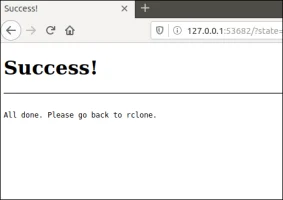
This causes rclone to communicate to your Google Drive, and to launch your browser to allow you to give permission for rclone to interact with your Google Drive.

y/n> y
If your browser doesn't open automatically go to the following link: http://127.0.0.1:53682/auth?state=WVr2FUlo3mY03N5hy1WUUw
Log in and authorize rclone for access
Waiting for code...

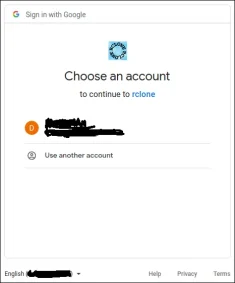
In your browser window, click on the Google account you wish to use.
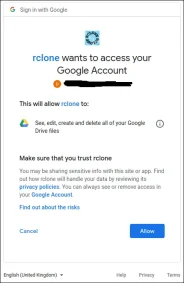
Click the “Allow” button to allow rclone to have access to your Google Drive.
At the “Configure this as a team drive” prompt, type “n” and then press “Enter.”

Waiting for code...
Got code
Configure this as a team drive?
y) Yes
n) No (default)
y/n> n

At the “Yes, Edit, Delete” menu type “y” and then press “Enter.”

y/n> n
--------------------
[google-drive]
scope = drive
token = {"access_token":"ya29.******","token_type":"Bearer","refresh_token":"1//******","expiry":"2023-04-29T14:19:24.229641227+04:00"}
--------------------
y) Yes this is OK (default)
e) Edit this remote
d) Delete this remote
y/e/d> y

At the final menu, type “q” and press “Enter.”

y/e/d> y
Current remotes:

Name Type
==== ====
google-drive drive

e) Edit existing remote
n) New remote
d) Delete remote
r) Rename remote
c) Copy remote
s) Set configuration password
q) Quit config
e/n/d/r/c/s/q> q

The rclone Back Up Script

The rclone application is very feature-rich. That’s great, but it does mean there are a lot of options. The command we’re going to look at below copies files from your local computer to your Google Drive. This is a one-way copy to the cloud; it isn’t a two-way synchronization between your Google Drive and your local computer—although rclone can do that. We’re using this as a basic form of off-site backup.

Type (or copy and paste) this into a text editor and save it to your computer. We called it gbk.sh. You can call it whatever makes sense to you.

#!/bin/bash
/usr/bin/rclone copy --update --verbose --transfers 30 --checkers 8 --contimeout 60s --timeout 300s --retries 3 --low-level-retries 10 --stats 1s "/home/aghassi/Documents" "google-drive:UbuntuDocs"

Here’s what the parameters mean:

  • copy: Copy the files from the local computer to the remote storage, skipping over files that are already present on the remote storage.
  • –update: Skip any files that are on the remote storage that have a modified time that is newer than the file on the local computer.
  • –verbose: Gives information about every file that is transferred.
  • –transfers 30: This sets the number of files to copy in parallel.
  • –checkers 8: How many “checkers” to run in parallel. Checkers monitor the transfers that are in progress.,
  • –contimeout 60s: The connection timeout. It sets the time that rclone will try to make a connection to the remote storage.
  • –timeout 300s: If a transfer becomes idle for this amount of time, it is considered broken and is disconnected.
  • –retries 3: If there are this many errors, the entire copy action will be restarted.
  • –low-level-retries 10: A low-level retry tries to repeat one failing operation, such as a single HTTP request. This value sets the limit for the number of retries.
  • –stats 1srclone can provide statistics on the transferred files. This sets the frequency of update of the statistics to one second.
  • “/home/aghassi/Documents”: The local directory to we’re going to copy to the remote storage.
  • “google-drive:UbuntuDocs”: The destination directory in the remote storage. Note the use of “google-drive”, which is the name we gave to this remote connection during the the rclone config sequence. Also note the colon “:” that is used as a separator between the remote storage name and the directory name. Subdirectories are separated by the usual “/” forward slash. If the destination directory does not exist, it will be created.

Some of these values are the defaults, but we’ve included them here so that we can discuss them. That way, if you need to change a value, you know which parameter to adjust.

Make the script executable with this command:

chmod +x gbk.sh

Running the Back Up Script

Our back up script is going to copy our Documents folder to our Google Drive. In our Documents folder, we’ve got a collection of UbuntuDocs.

We can launch the back up script with this command:
./gbk.sh
We asked for statistics updates every one second (--stats 1s), and we also asked for verbose output (--verbose). It’ll come as no surprise then that we get a lot of screen output. It’s usually a good option to turn on verbose output for new functionality so that you can spot problems. You can turn down the amount of output once you’re happy things are running smoothly.

We get a final summary telling us 60 files were transferred with no errors. The transfer took roughly 24 seconds.

Let’s check on our Google Drive and see what happened in our cloud storage “UbuntuDocs” directory has been created, so that looks promising. If we double-click it to take a look inside, we can see that the files have all been transferred to our Google Drive.

Using rclone to View Files On Google Drive

We can use rclone to peek into the folder on Google Drive, right from the terminal window:

rclone ls google-drive:/UbuntuDocs

rclone more option for google-drive.

How to resize LVM over LUKS over LVM

How to resize LVM over LUKS over LVM

Introduction

Disclaimer

If you follow the material in this how-to you can break your system. Back up your data, take it slowly, maybe do a practice run first on a system you don’t care about, and don’t come crying to me if you lose everything.

However, I’ll happily update the material here if you can demonstrate that it’s outdated or mistaken. So there’s that.

Background

Logical Volume Management (LVM) abstracts the notion of hard disk partitioning. It allows you to treat multiple partitions as though they were a single volume, and it allows you to treat a single partition as though it were multiple volumes. Linux Unified Key Setup (LUKS) can be used to encrypt either standard partitions or LVM logical volumes.

It’s common to combine LVM and LUKS in various ways. If you create the logical volumes first and then put LUKS on them, it’s called LUKS over LVM. Conversely, if you put a logical volume inside a partition that’s already encrypted with LUKS, it’s called LUKS over LVM.

These are just the two simplest examples; LVM over LUKS over LVM is a popular choice and will be the focus of this tutorial. The only thing stopping you from making your system arbitrarily baroque with any number of layers of LUKS and LVM in any desired order is your own good taste.

Scenario

You’ve set up a LUKS partition sandwiched between two LVM layers. The bottom layer helps you treat several partitions scattered across multiple hard-drives as though they were all contiguous with each other. The upper LVM, on the other hand, contains the logical layout of your Linux system, with internally distinct regions for /home, the system root directory, /var, etc.

However, not all the partitions on the underlying hard drives were added into the original LVM, and now you decide that you want your Linux system to include the space from these partitions after all. How can you extend the LVM-LUKS-LVM complex to include those other partitions?

Essentially, you need to take the same sort of steps as if you want to extend the the upper floor of a house: first you need to clear the ground and add supporting structures at ground level, then work your way up.

This how-to will walk you through the following steps:

  • Prepare the partitions you want brought into the LVM/LUKS/LVM schema.
  • Extend the lower logical volume over the partitions.
  • Extend the LUKS partition over the now expanded lower logical volume.
  • Extend the upper logical volumes over the expanded LUKS partition.
  • Resize the filesystems on the upper logical volumes.

If you’re doing this for your main system, you’ll need some variety of LiveCD, since you can’t resize LUKS on a system that’s already booted. The LiveCD should offer a well-equipped command line;  tend to be quite good if you’re not sure.

To make the scenario as specific as possible, let’s assume you have two hard-drives, which appear in /dev as sda and sdb. The /dev/sda drive has three partitions, sda1sda2, and sda3. The other drive has two partitions, sdb1 and sdb2.

Graphically:

Physical partitions

The first partition on /dev/sda/dev/sda1, is a small unencrypted partition formatted as ext2. It is the boot partition for the LVM-LUKS-LVM complex, which sits across /dev/sda2 and /dev/sdb1. The lower LVM consists of a volume group called vg, which in turn contains a logical volume called crypt. The latter contains the LUKS partition.

Keep in mind that crypt contains the LUKS partition, but that doesn’t mean it is a LUKS partition. All logical volumes must have names — we could call any of them “crypt” if we felt like it but this wouldn’t turn them into encrypted devices! Likewise we could call the logical volume containing the LUKS partition “banana” and this wouldn’t affect its suitability for cryptographic functions. The reason we call the logical volume “crypt” is to remind ourselves of its contents.

When we use the cryptsetup command to unlock the LUKS partition, it needs to be registered with a name of its own. To distinguish it from the crypt logical volume, let’s say that we register it as cryptroot.

The cryptroot device is now treated almost the same as a physical volume. (In one of the later sections we’ll see how it is treated a little differently.) It is within this physical volume that our upper LVM lives. As with other physical volumes containing a LVM, cryptroot has a volume group inside, which in turn holds various logical volumes. We called the lower volume group “vg”; now assume the upper volume group was given the name of “cryptvg”.

Getting complicated? Let’s go over it step by step:

  • We have two physical devices each with multiple partitions.
  • We have a lower volume group called “vg” which aggregates several partitions from the physical drives.
  • vg contains one logical volume with the name of “crypt”.
  • crypt contains a LUKS partition.
  • When we unlock this LUKS partition, we register it with the name cryptroot.
  • cryptroot is treated like a physical volume.
  • cryptroot has been set up to contain a volume group with the name “cryptvg”.

Now, this volume group cryptvg in turn contains the logical volumes for our actual system. Assume the logical volumes in cryptvg are roothome, and swap.

The first two of these have ext4 filesystems on them. At boot time, your initrd mounts the root logical volume onto / and your home logical volume onto /home.

To summarise, the LVM/LUKS schema looks something like this:

LVM layout

Finally, /dev/sda3 and /dev/sdb2 are partitions without any important data on them. Maybe they have a pre-existing filesystem, maybe they don’t. Whatever’s on them will soon be destroyed.

The goal is that when we’re finished, the new partition layout will look like this:

Physical paritions part 2

Step 1: Prepare the new partitions.

This step is identical to steps you would have taken when first preparing the LVM/LUKS complex. You need to destroy all data on /dev/sda3 and /dev/sdb2.

First ensure they are not mounted anywhere, and make really sure you’ve backed up any data on them. Once we’re done not even a forensics team will be able to recover information from them. When you’re satisfied with the idea of completely wiping them, run the following code:

for d in /dev/sda3 /dev/sdb2; do
    for f in /dev/zero /dev/urandom; do
        echo Writing to $d from $f.
        sudo dd if=$f of=$d bs=1M
    done
done

This can take a while. It might be best to leave it running overnight.

Some people would argue that doing two passes per partition is overkill. For example, the cryptsetup FAQ only suggests one write from /dev/zero.

That’s kind of silly though because anyone investigating the hard drive will see how much encrypted information you’ve got just be looking at which parts of your drive still contain zeros.

To conceal this information you need to ensure that at least your final erasure is from /dev/urandom. Furthermore, hard drives kind of remember their past states, so writing over them more than once is recommended to really scramble their memory. In other words, the above commands are the minimum you should consider necessary. On the other hand, government regulations for wiping their own hard drives only require three passes, so if you’re being much more paranoid than that then you’re probably overdoing it.

While waiting for the secure erasure to complete, take the opportunity to back up your LUKS header. This should (hopefully) allow you to recover your data in the event that something goes wrong in the subsequent steps. You’ll want to encrypt this with gpg and store it somewhere safe.

Assuming you have an encryption key with id 0x12345678 and have access to an offsite ssh server:

sudo cryptsetup luksHeaderBackup vg-crypt --header-backup-file cryptheader
sudo chown $(whoami) cryptheader
gpg --encrypt --recipient 0x12345678 cryptheader cryptheader.gpg
scp cryptheader.gpg ssh_server:
shred -fuzn20 cryptheader cryptheader.gpg

Step 2: Extend the lower LVM

One of the nice things about LVMs is they can be resized on the fly.

for d in /dev/sda3 /dev/sdb2; do
    sudo pvcreate $d
    sudo vgextend vg $d
    sudo lvextend /dev/mapper/vg-crypt $d -l +100%FREE
done

Optimisation note: of course, it would be trivial to merge this for-loop with the one in Step 1.

It has been pointed out (Bellman, 2014) that it is clearer to do the above like so:

for d in /dev/sda3 /dev/sdb2; do
    sudo pvcreate $d
    sudo vgextend vg $d
done
sudo lvextend /dev/mapper/vg-crypt -l +100%FREE

Step 3: Extend the LUKS partition

Although easy to describe, this step is the most complicated to carry out. It’s also the step where you have the greatest chance of destroying your LUKS setup.

Boot into your LiveCD. Get yourself a command line. The live environment doesn’t know about the volume groups on your hard drives yet. Tell it about the lower LVM for starters:

vgchange -a y

Now open the LUKS partition:

cryptsetup luksOpen /dev/mapper/vg-crypt cryptroot

and resize it:

cryptsetup --verbose resize cryptroot

Note that this only expands the LUKS encryption to again cover the crypt logical volume. When I asserted above that cryptroot is treated almost like a physical volume, this is what I meant. We haven’t yet had any effect on the upper LVM.

Step 4: Extend the upper LVM

Back to the easy stuff: resizing LVMs. First tell the system about the volume groups that LUKS had hidden away in vg-crypt.

vgchange -a y

The following steps will then:

  • Resize the physical volume corresponding to the LUKS partition;
  • Extend the cryptvg volume group to fill the new space on the cryptroot physical volume;
  • Resize home to fill the cryptvg volume group.
pvresize /dev/mapper/cryptroot
vgextend cryptvg /dev/mapper/cryptroot
lvresize /dev/mapper/cryptvg-home -l +100%FREE

Note: I thought the above worked for me in the past, but vgextend now seems to yield an error (Bellman, 2014). If you have trouble, try replacing the above with:

pvresize /dev/mapper/cryptroot
lvresize /dev/mapper/cryptvg-home -l +100%FREE

Step 5: Resize the filesystem

Just because you expanded the cryptvg-home logical volume, doesn’t mean you expanded the filesystem sitting on that volume. To do so, proceed as follows:

e2fsck -f /dev/cryptvg/home
resize2fs /dev/cryptvg/home
e2fsck -f /dev/cryptvg/home

You should now be able to reboot the system, and find that your /home directory now has more room, by an amount previously taken up by /dev/sda3 and /dev/sdb2.

Clear Memory Cache on Linux

By default the Linux OS has a very efficient memory management process that should be freeing any
cached memory on the machine that it is being run on. However when it comes to Cached memory the
Linux OS may at times decide that the Cached memory is being used and is needed which can lead to
memory related issues and ultimately rob your server of any potentially free memory. To combat this you
can force the Linux OS to free up and stored Cached memory.
Kernels 2.6.16 and newer provide a mechanism to have the kernel drop the page cache and/or inode and
dentry caches on command, which can help free up a lot of memory. Now you can throw away that script
that allocated a ton of memory just to get rid of the cache…
To use /proc/sys/vm/drop_caches, just echo a number to it.
To free pagecache:
# sync; echo 1 > /proc/sys/vm/drop_caches
To free dentries and inodes:
# sync; echo 2 > /proc/sys/vm/drop_caches
To free pagecache, dentries and inodes:
#sync; echo 3 > /proc/sys/vm/drop_caches
or
# echo 3 | tee /proc/sys/vm/drop_caches
This is a non-destructive operation and will only free things that are completely unused. Dirty objects will
continue to be in use until written out to disk and are not freeable. If you run sync first to flush them out
to disk, these drop operations will tend to free more memory.
1. At the shell prompt type crontab -e <enter> as this will allow you to edit cron jobs for the root
user.
2. Scroll to the bottom of the cron file using the arrows key and enter the following line:
0 * * * * /root/clearcache.sh
3. Create a file in ‘/root’ called ‘clearcache.sh’ with the following content:
#!/bin/sh
sync; echo 3 > /proc/sys/vm/drop_caches

4. Once you have saved this file, the job is complete!
Many times you may find the system is running out of memory. When checked you can see lots of
memory is assigned to buffers and caches.Allocating lots of memory to buffers and caches is not
necessary. If you are running mysql and oracle like softwares, they have their own buffers and caches. So
mostly you can free or drop this buffers and caches.This post explains how to drop caches in Linux. Also
the entry for sysctl.conf so that it will remember the action.
Or you can specify this in /etc/sysctl.conf
# echo "vm.drop_caches = 3" >> /etc/sysctl.conf
Now reload sysctl.conf
# sysctl -p

How To Change MAC Address in Kali

In this article, you may learn, a way to amendment the mac address on UNIX system.

There are several reasons to vary the important or physical mac address of a Network Card in a very laptopit’s going to be you don’t need to indicate the particular mac address to the general public network. Also, it’s going to be the rationale that your supervisor has been blocked the mac address within the router.

So, for the protection concern, it’s an honest apply to vary the particular mac address with the virtual one. This method is additionally referred to as Spoofing mac address.

In this article, a way to amendment the raincoat Address On UNIX systemi’m attending to state2alternative ways to vary it. thus let’s begin with the primary one.

Method I: Changing the MAC Address Using The Macchanger

Firstly, we are going to use the Macchanger package to change the real MAC address. Also, it is the easiest way to change the MAC address of any computer. So let’s start using this method.

Step 1: Find The MAC Address And Network Interface Of Your Computer

In the first step, you are going to find the MAC address of your computer and the Network Interface. So there is an easy command for that, you can find it below. Copy The Command

ip link show

As a result, you can see in the below picture. The network interface name is eth0 and MAC address is 00:0c:29:34:5b:10.

Step 2: Installing the Macchanger Package

In the second step, you are going to install this package. This package comes default in many Linux distros but if your operating system does not have it then you can install it. And also, you can just try to install it. If it will be there then you will get the message. So you can find useful the below command to install it on different Linux Distros.

If you want to install on Kali Linux, Ubuntu, Linux Mint, or on Debian or Debian-based Distro then you can use the below command.Copy The Command

sudo apt install macchanger

To install on RedHat, CentOS, Fedora, then you can use the below command.Copy The Command

sudo dnf install macchanger

Also, you can use the below command to install on Manjaro or Arch Linux.Copy The Command

sudo pacman -S macchanger

Note: You will get a prompt asking for a run automatically every time or not. So you can accept as per your choice.

Step 3: How To Change MAC Address Using Macchanger

If you want to change the MAC address then you must know your Network Interface Name. As we have checked in Step 1.

You can also try to get the detail about it using the help command macchanger --help or detail manual using the command man macchanger.

If you want to assign a random MAC address then you can use the -r switch. The command will look as below.Copy The Command

sudo macchanger -r eth0

For example, here, eth0 is the Network Interface Name of my computer. So replace it with your computer Network Interface name.

Also, you can verify it using the below command, it will show you the spoofed MAC address.Copy The Command

ip a show

If you want to use a custom MAC address, For example xx:xx:xx:xx:xx:xx then you can use the below command.Copy The Command

sudo macchanger --mac=xx:xx:xx:xx:xx:xx

Also, you can replace xx:xx:xx:xx:xx:xx as per your custom MAC address.

Step 4: Reverting After Changing The MAC Address To Its Original MAC Address

But if you want to revert the MAC address to its original MAC address then you can use the below command.Copy The Command

sudo macchanger -p eth0

For example, change the eth0with your network interface name.

Method II: Changing the MAC address using the iproute2

Secondly, it is another method to change the MAC address in Linux.

Step 1: Turn Off The Network Card

You have to turn off the network card. So you can use the below command useful for that.Copy The Command

sudo ip link set dev eth0 down

Note: replace the eth0 with your network interface name.

Step 2: Setting New MAC Address

So now you have to set up the new MAC address using the following command.Copy The Command

sudo ip link set dev eth0 address xx:xx:xx:xx:xx:xx

Note: Replace here eth0 with your network interface name and xx:xx:xx:xx:xx:xx with your chosen MAC address.Copy The Command

sudo ip link set dev eth0 up

Step 3: Verifying The New MAC Address

Now, you can verify the new MAC address using the below command.Copy The Command

ip link show eth0

Physical Hacking Attacks That Can Be Very Usefull For Hackers

Physical Hacking Attacks That Can Be Very Usefull For Hackers

Most of the motherbords have a battery. If you remove it 30min the settings of the BIOS will be restarted (password included).

Jumper CMOS

Most of the motherboards have a jumper that can restart the settings. This jumper connects a central pin with another, if you connect thoses pins the motherbord will be reseted.

Live Tools

If you could run for example a Kali Linux from a Live CD/USB you could use tools like killCmos or CmosPWD (this last one is included in Kali) you could try to recover the password of the BIOS.

Online BIOS password recovery

Put the password of the BIOS 3 times wrong, then the BIOS will show an error message and it will be blocked. Visit the page https://bios-pw.org and introduce the error code shown by the BIOS and you could be lucky and get a valid password (the same search could show you different passwords and more than 1 could be valid).

UEFI

To check the settings of the UEFI and perform some kind of attack you should try chipsec. Using this tool you could easily disable the Secure Boot:

python chipsec_main.py -module exploits.secure.boot.pk

RAM

Cold boot

The RAM memory is persistent from 1 to 2 minutes from the time the computer is powered off. If you apply cold (liquid nitrogen, for example) on the memory card you can extend this time up to 10 minutes.

Then, you can do a memory dump (using tools like dd.exe, mdd.exe, Memoryze, win32dd.exe or DumpIt) to analyze the memory.

You should analyze the memory using volatility.

INCEPTION

Inception is a physical memory manipulation and hacking tool exploiting PCI-based DMA. The tool can attack over FireWireThunderboltExpressCard, PC Card and any other PCI/PCIe HW interfaces. Connect your computer to the victim computer over one of those interfaces and INCEPTION will try to patch the physical memory to give you access.

If INCEPTION succeeds, any password introduced will be vaid.

It doesn’t work with Windows10.

Live CD/USB

Sticky Keys and more

  • SETHC: sethc.exe is invoked when SHIFT is pressed 5 times
  • UTILMAN: Utilman.exe is invoked by pressing WINDOWS+U
  • OSK: osk.exe is invoked by pressing WINDOWS+U, then launching the on-screen keyboard
  • DISP: DisplaySwitch.exe is invoked by pressing WINDOWS+P

These binaries are located inside C:\Windows\System32. You can change any of them for a copy of the binary cmd.exe (also in the same folder) and any time that you invoke any of those binaries a command prompt as SYSTEM will appear.

Modifying SAM

You can use the tool chntpw to modify the SAM file of a mounted Windows filesystem. Then, you could change the password of the Administrator user, for example. This tool is available in KALI.

chntpw -hchntpw -l <path_to_SAM>

Inside a Linux system you could modify the /etc/shadow or /etc/passwd file.

Kon-Boot

Kon-Boot is one of the best tools around which can log you into Windows without knowing the password. It works by hooking into the system BIOS and temporarily changing the contents of the Windows kernel while booting (new versions work also with UEFI). It then allows you to enter anything as the password during login. The next time you start the computer without Kon-Boot, the original password will be back, the temporary changes will be discarded and the system will behave as if nothing has happened. Read More

It is a live CD/USB that can patch the memory so you won’t need to know the password to login. Kon-Boot also performs the StickyKeys trick so you could press Shift 5 times to get an Administrator cmd.

Running Windows

Initial shortcuts

Booting shortcuts

  • supr – BIOS
  • f8 – Recovery mode
  • supr – BIOS ini
  • f8 – Recovery mode
  • Shitf (after the windows banner) – Go to login page instead of autologon (avoid autologon)

BAD USBs

Rubber Ducky tutorials

Teensyduino

There are also tons of tutorials about how to create your own bad USB.

Volume Shadow Copy

With administrators privileges and powershell you could make a copy of the SAM file.

Bypassing Bitlocker

Bitlocker uses 2 passwords. The one used by the user, and the recovery password (48 digits).

If you are lucky and inside the current session of Windows exists the file C:\Windows\MEMORY.DMP (It is a memory dump) you could try to search inside of it the recovery password. You can get this file and a copy of the filesytem and then use Elcomsoft Forensic Disk Dercyptor to get the content (this will only work if the password is inside the memory dump). You coud also force the memory dump using NotMyFault of Sysinternals, but this will reboot the system and has to be executed as Administrator.

You could also try a bruteforce attack using Passware Kit Forensic.

Social Engineering

Finally, you could make the user add a new recovery password making him executed as administrator:

schtasks /create /SC ONLOGON /tr "c:/windows/system32/manage-bde.exe -protectors -add c: -rp 000000-000000-000000-000000-000000-000000-000000-000000" /tn tarea /RU SYSTEM /f

This will add a new recovery key (composed of 48 zeros) in the next login.

To check the valid recovery keys you can execute:

manage-bde -protectors -get c: